How to Reconcile Accounts and Match Financial Transactions in Invent ERP
Learn how to reconcile bank transactions, customer payments, and accounting entries accurately.
Step-by-Step Process
Step 1: Access the Accounting Module
From the Homepage, click on All Apps
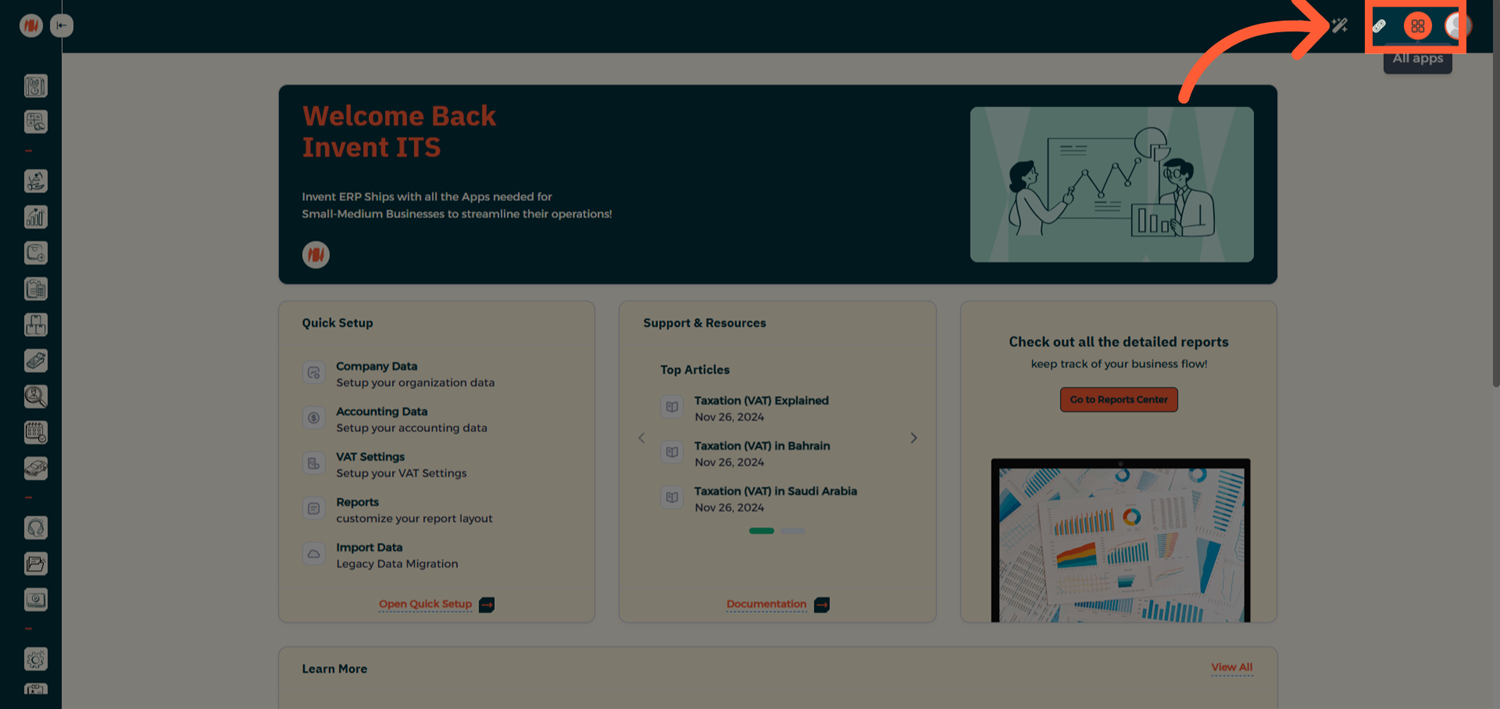
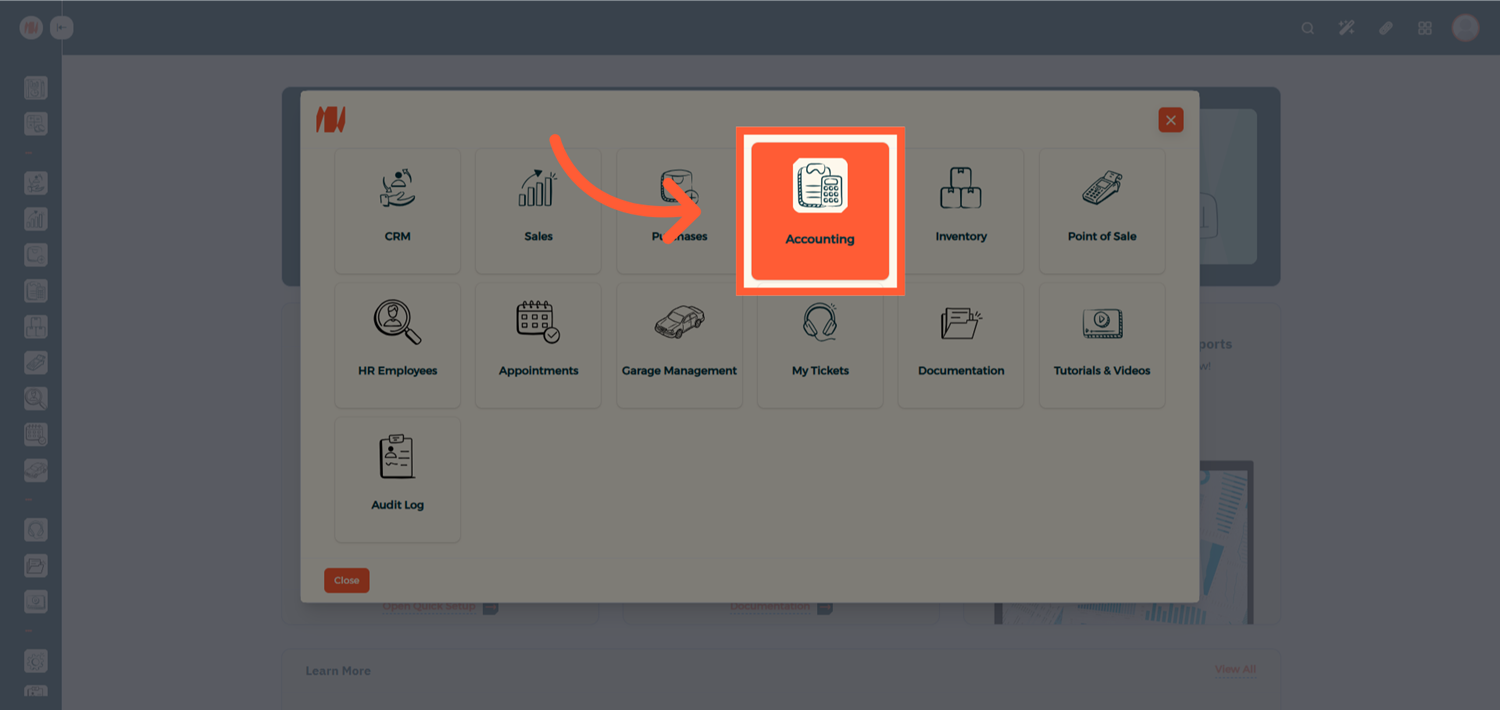
Then navigate to the Accounting module.
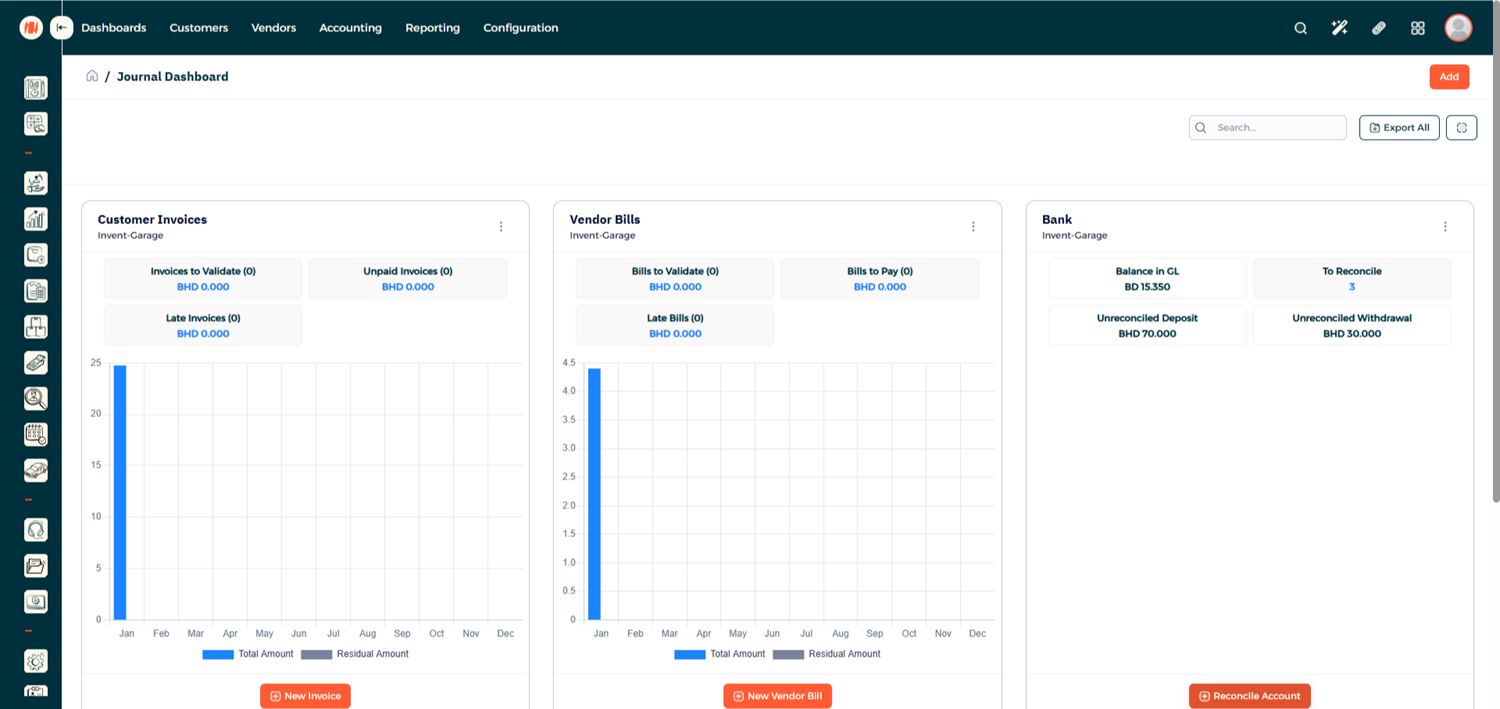
Step 2: Open the Journal Dashboard
Once inside Accounting, you'll see the Journal Dashboard where you can view your bank accounts and journal details.
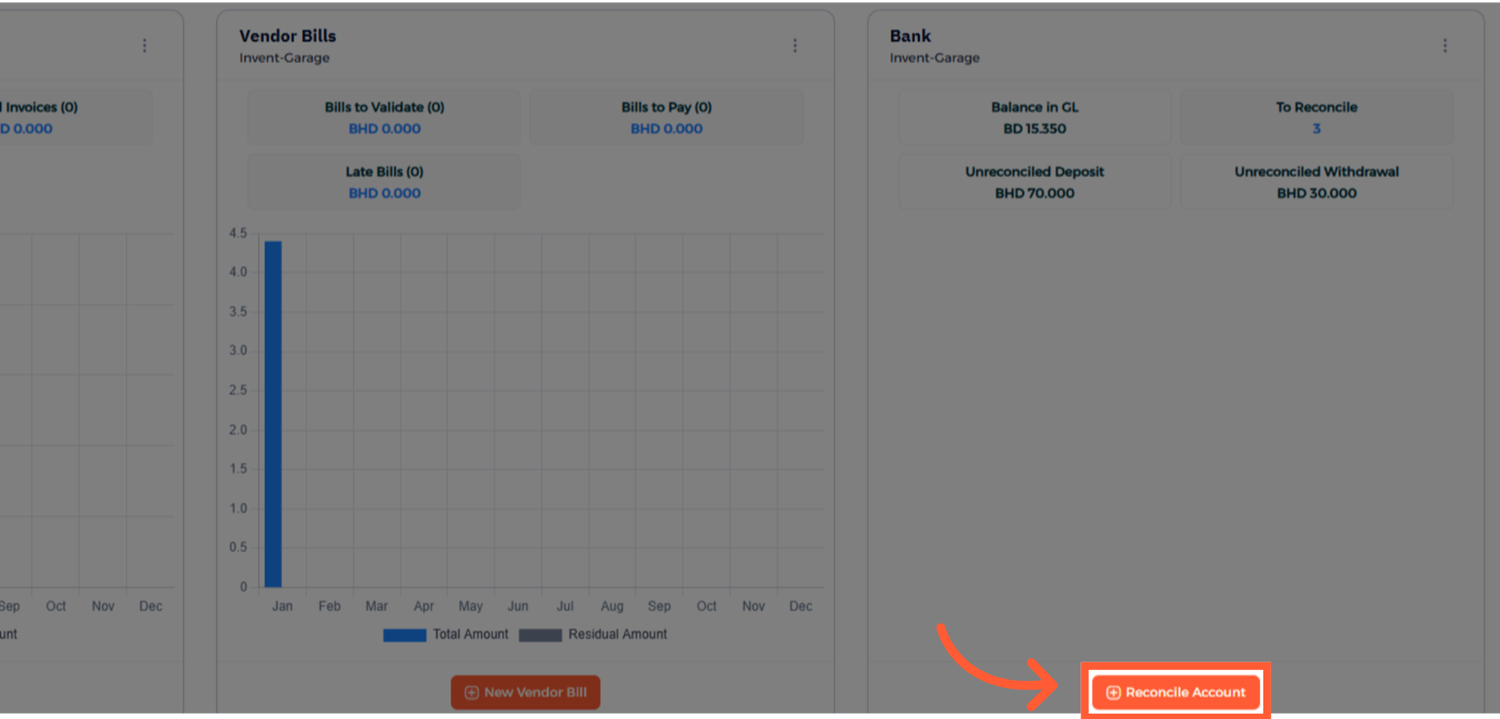
Step 3: Start a New Reconciliation
Select the bank account you want to reconcile and proceed.
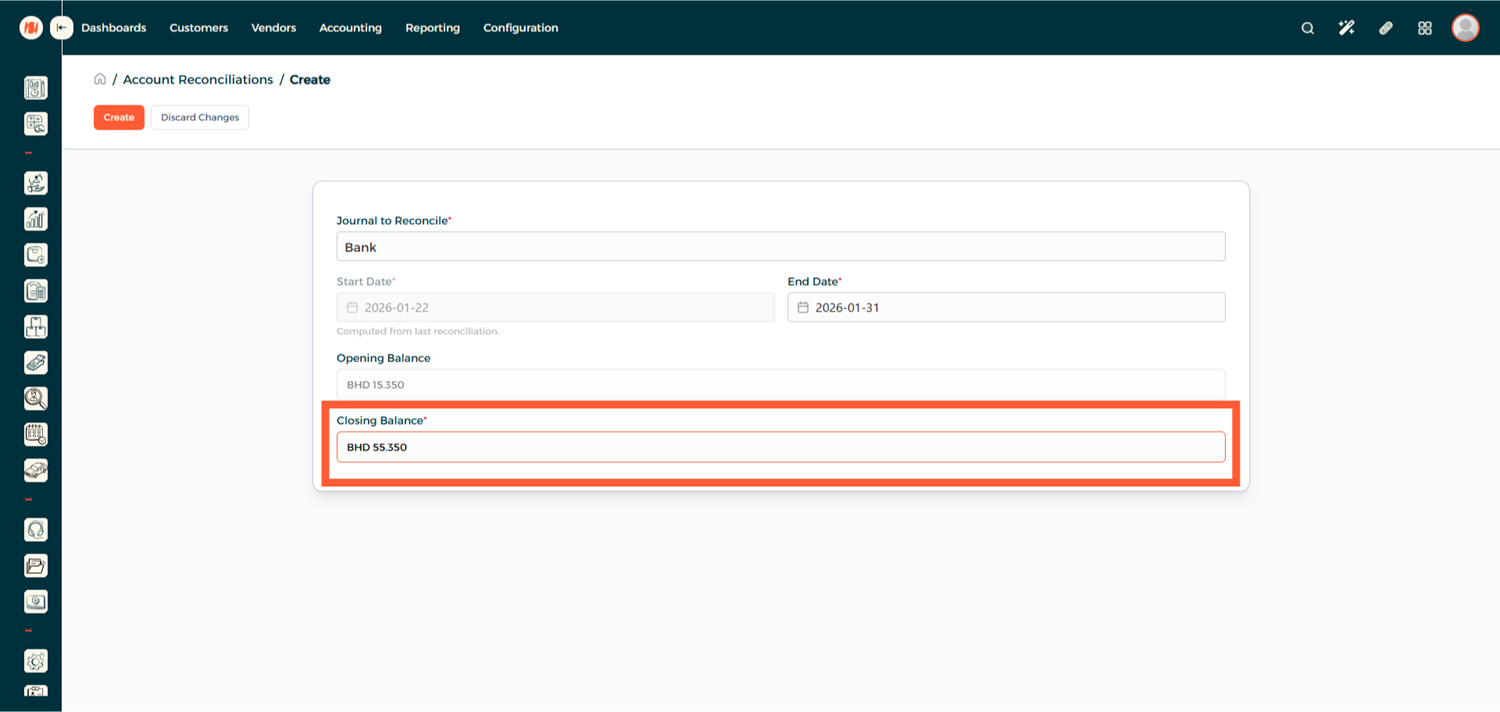
Step 4: Enter the Closing Balance
Enter the Closing Balance based on your bank statement for the selected reconciliation period, and click Create.
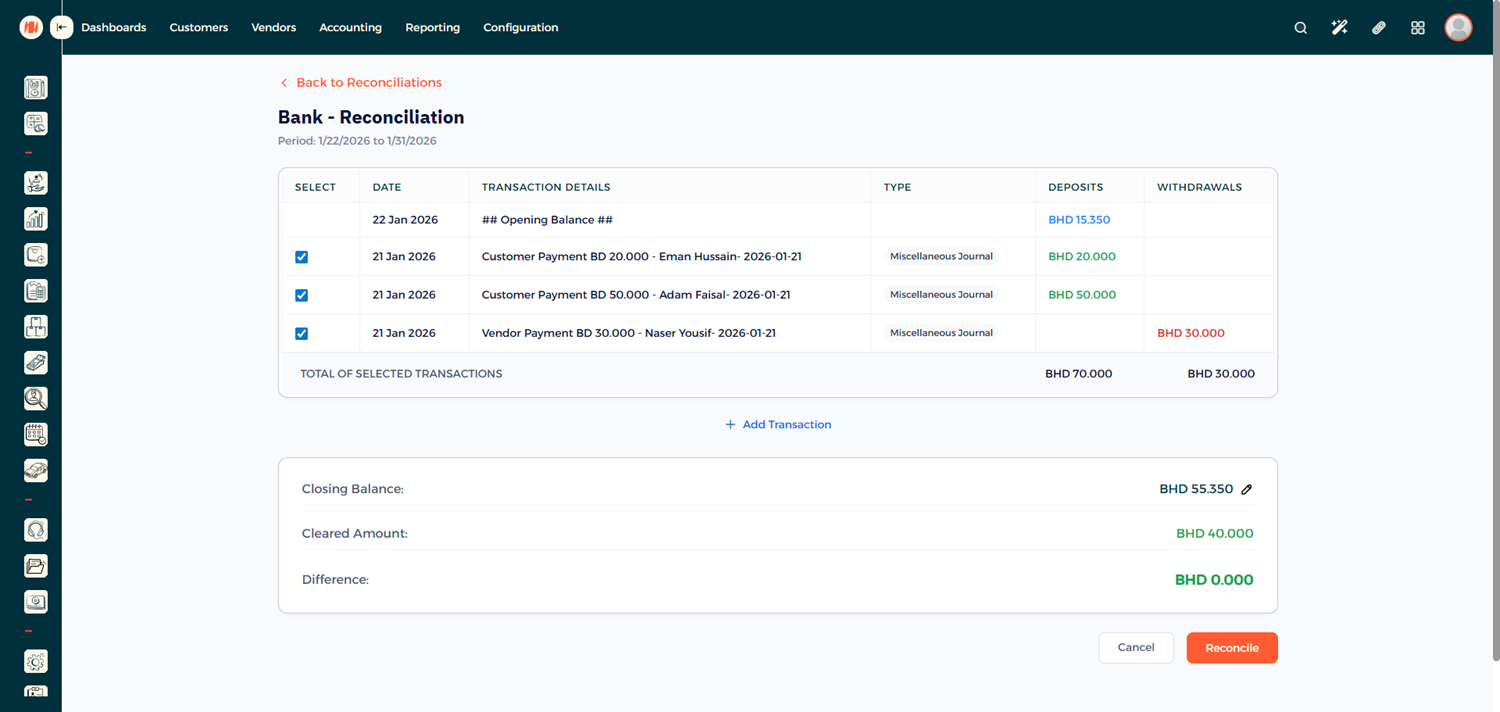
Step 5: Review Transactions
You'll now see a list of transactions linked to the selected account. Tick the checkbox for each transaction that matches your bank statements.
Step 6: Handle Differences (If Any)
If there is a difference between the system balance and your bank statement:
- Add a Manual Transaction.
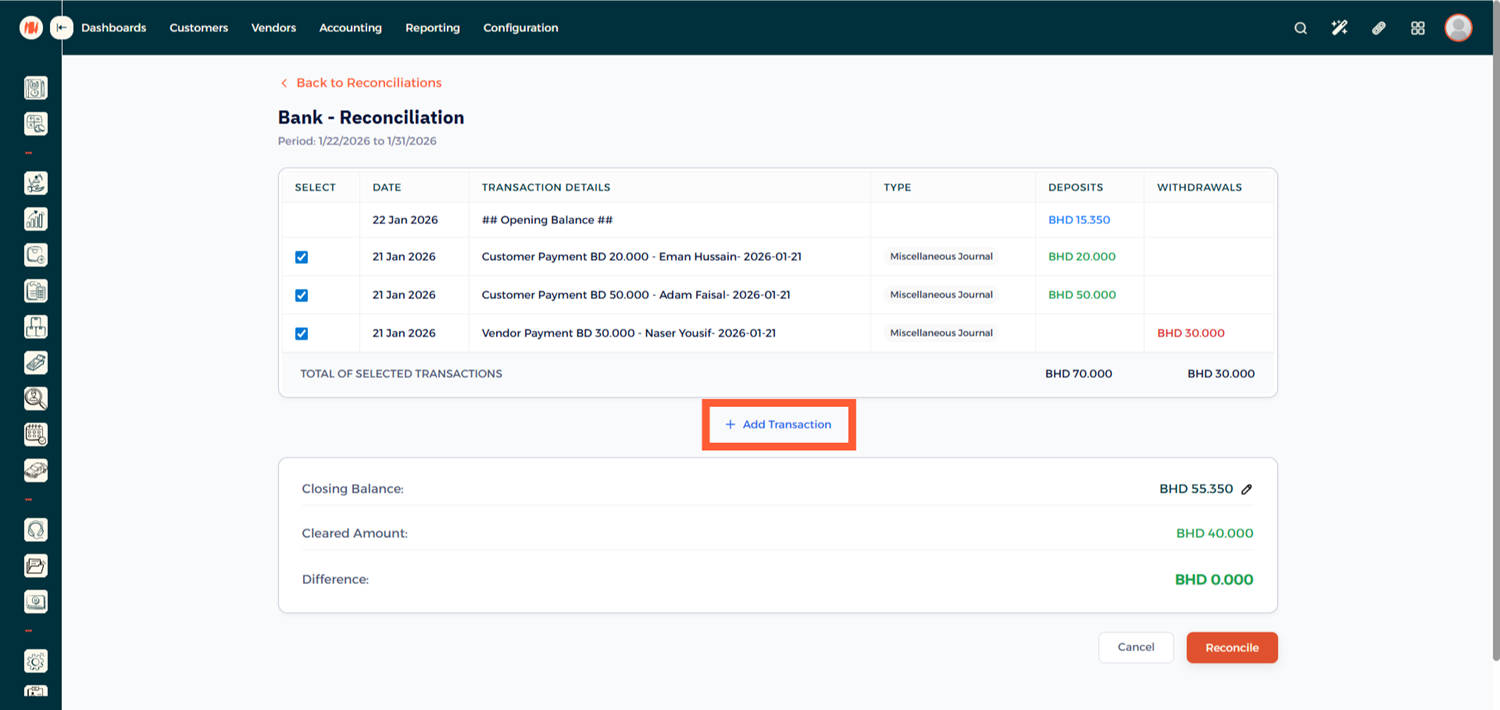
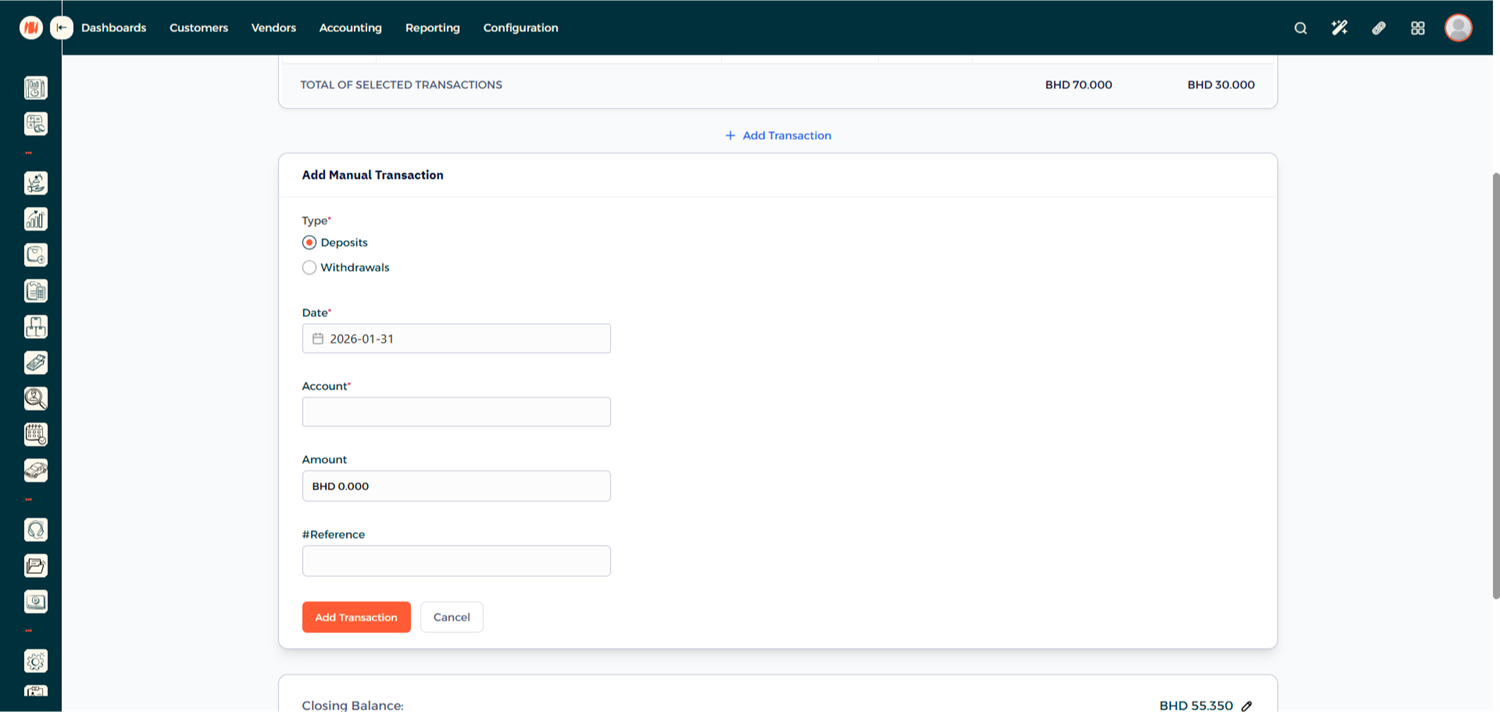
- Specify whether it is a Deposit or Withdrawal.
- Select the appropriate account.
- Enter the correct amount.
Step 7: Complete the Reconciliation
Once all transactions are reviewed and the balance matches, click Reconcile.
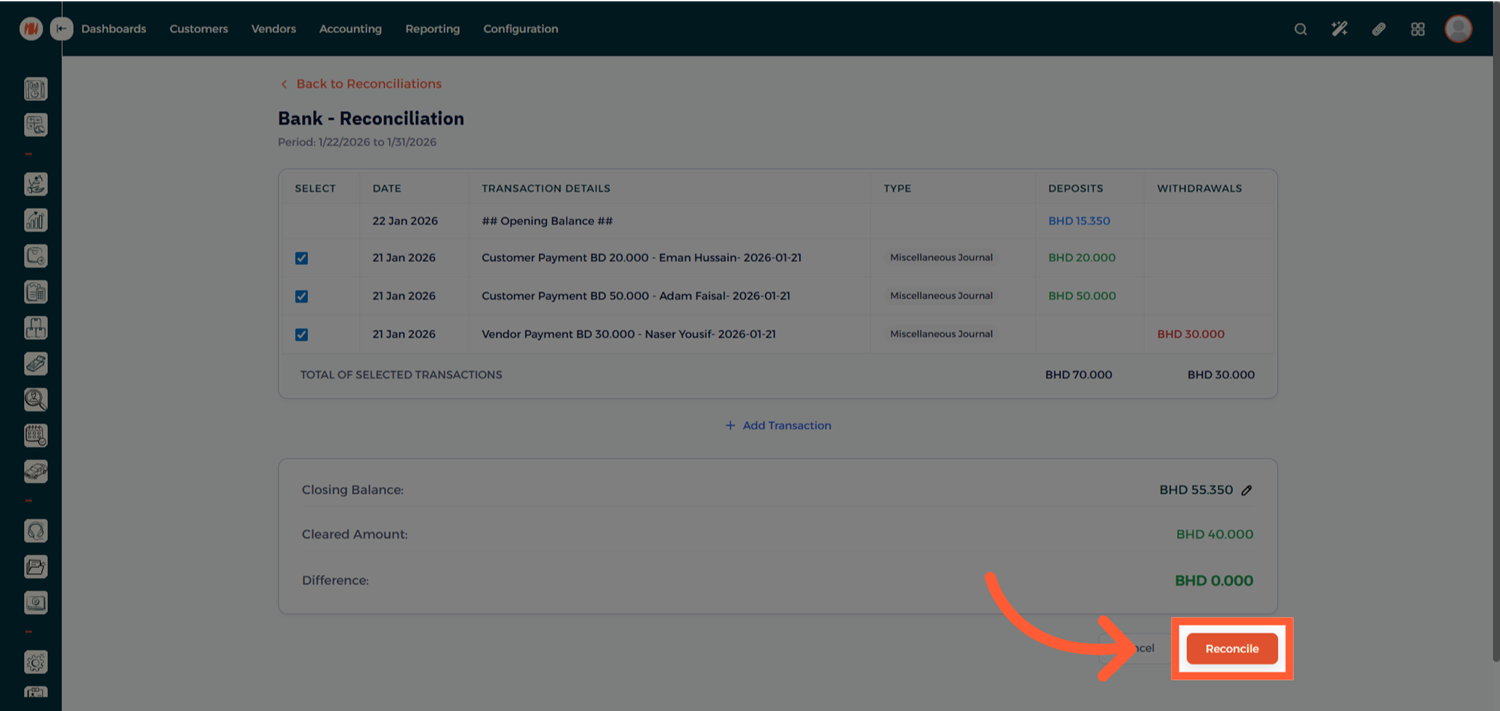
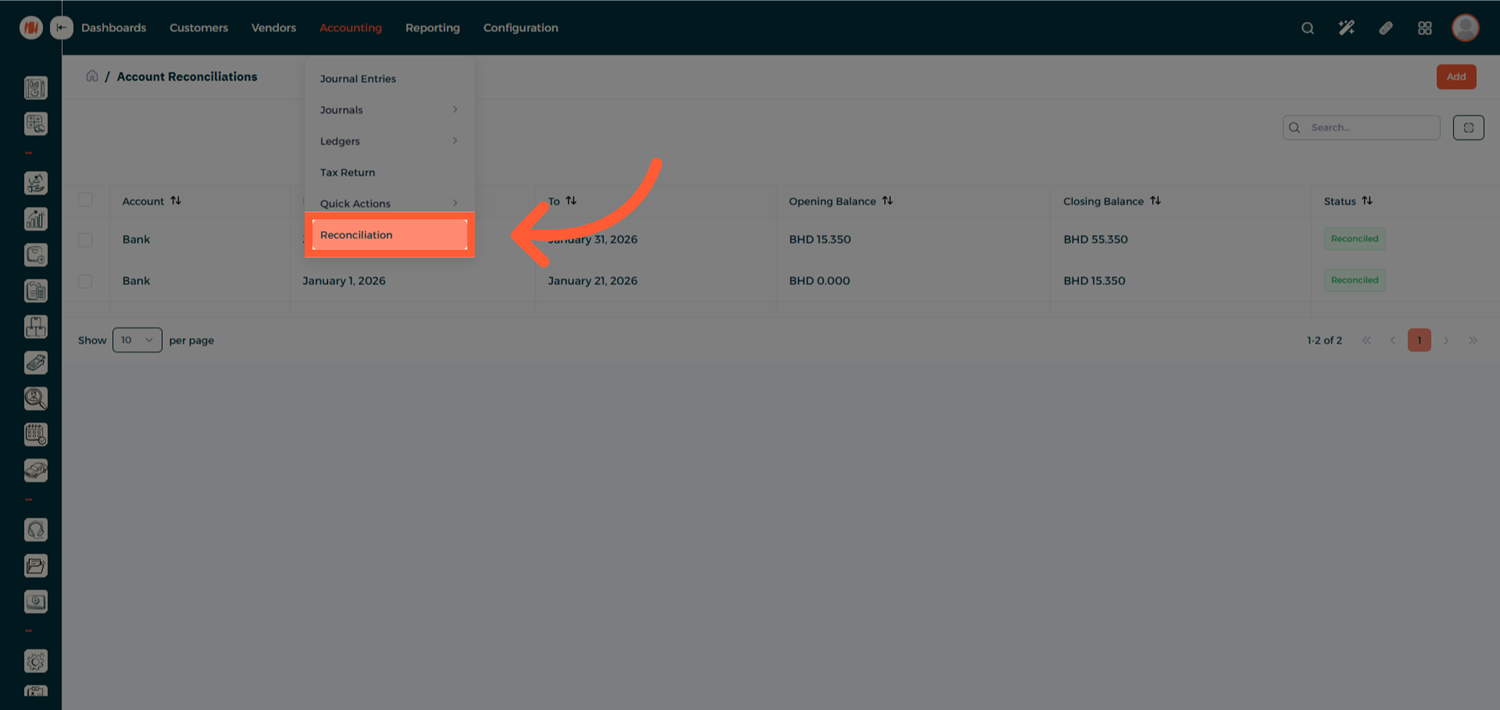
Step 8: Review Reconciled Records
Your account is now successfully reconciled. You can revisit the reconciliation record at any time for review or auditing purposes
Notes & Tips
- Reconcile accounts regularly to avoid large discrepancies.
- Use manual transactions only when necessary and ensure they are properly documented.
- Reconciled entries remain accessible for future reference and reporting.
FAQ
Q: Can I edit a reconciliation after it's completed? Reconciled records can be reviewed, but changes may require reversing or adjusting entries.
Q: What happens if I don't reconcile regularly? Delayed reconciliation can make discrepancies harder to track and may impact financial accuracy.
Q: Can I reconcile multiple bank accounts? Yes. Each bank account can be reconciled individually from the Journal Dashboard.