How to Configure and Use the National ID Reader in Invent ERP
Learn how to activate, configure, and use the National ID Reader to capture customer information accurately and efficiently.
Activating the National ID Reader in Invent ERP allows you to quickly read a customer's CPR (Civil Personal Registration) number directly from their national ID card. This speeds up customer lookup and reduces manual data entry errors.
Prerequisites
- Google Chrome, Microsoft Edge, or Firefox browser
- Invent ERP access with permissions to view/create customers
- A compatible GCC National ID reader device connected to your computer
- The Invent Desk Link Extension and its Native Messaging Host installed
Installation & Setup
Step 1: Install the Browser Extension
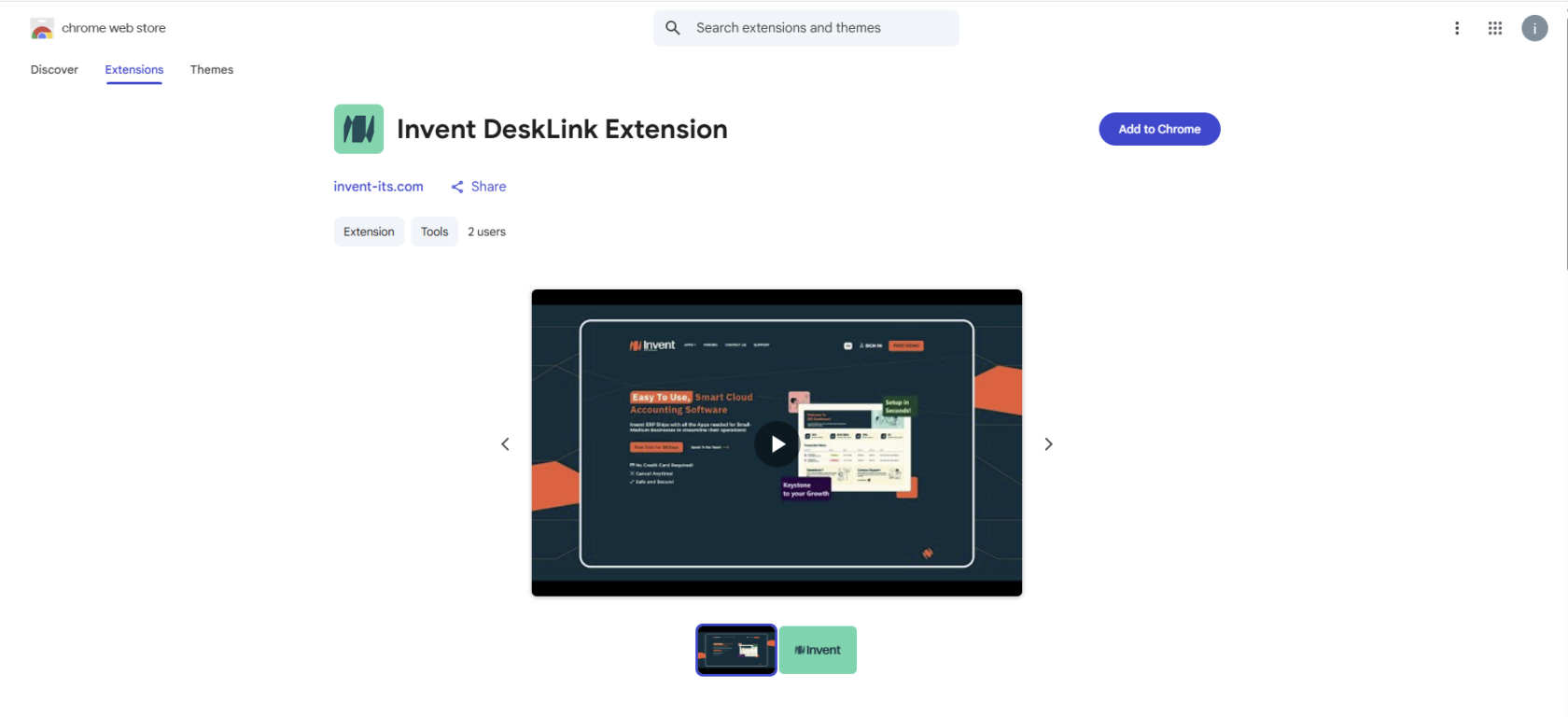
In Google Chrome or Microsoft Edge, go to Extensions, search for Invent Desk Link, and click Add to Chrome / Add to Edge to install the extension. or simply Click here to Install
Step 2: Install Native Messaging Host
Download the Invent Desk Link Native Messaging Host from here and install it on your system according to your OS instructions (Windows / macOS / Linux).
Step 3: Verify Downloads
- Confirm that both the extension and the Native Messaging Host are installed.
- Ensure your ID reader device is connected and recognized by your OS.
How to Use in Invent ERP
- Log in to your Invent ERP account with sufficient permissions.
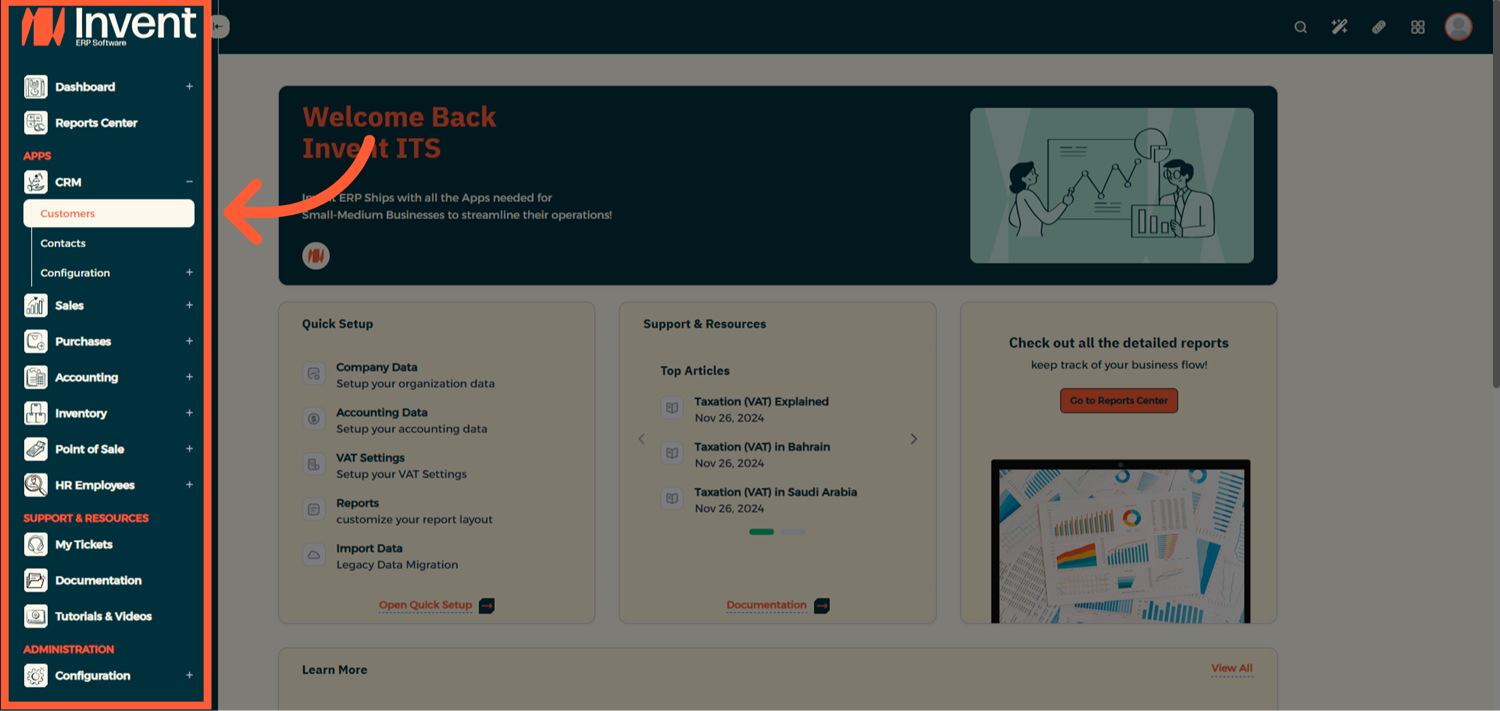
- Navigate to CRM → Customers.
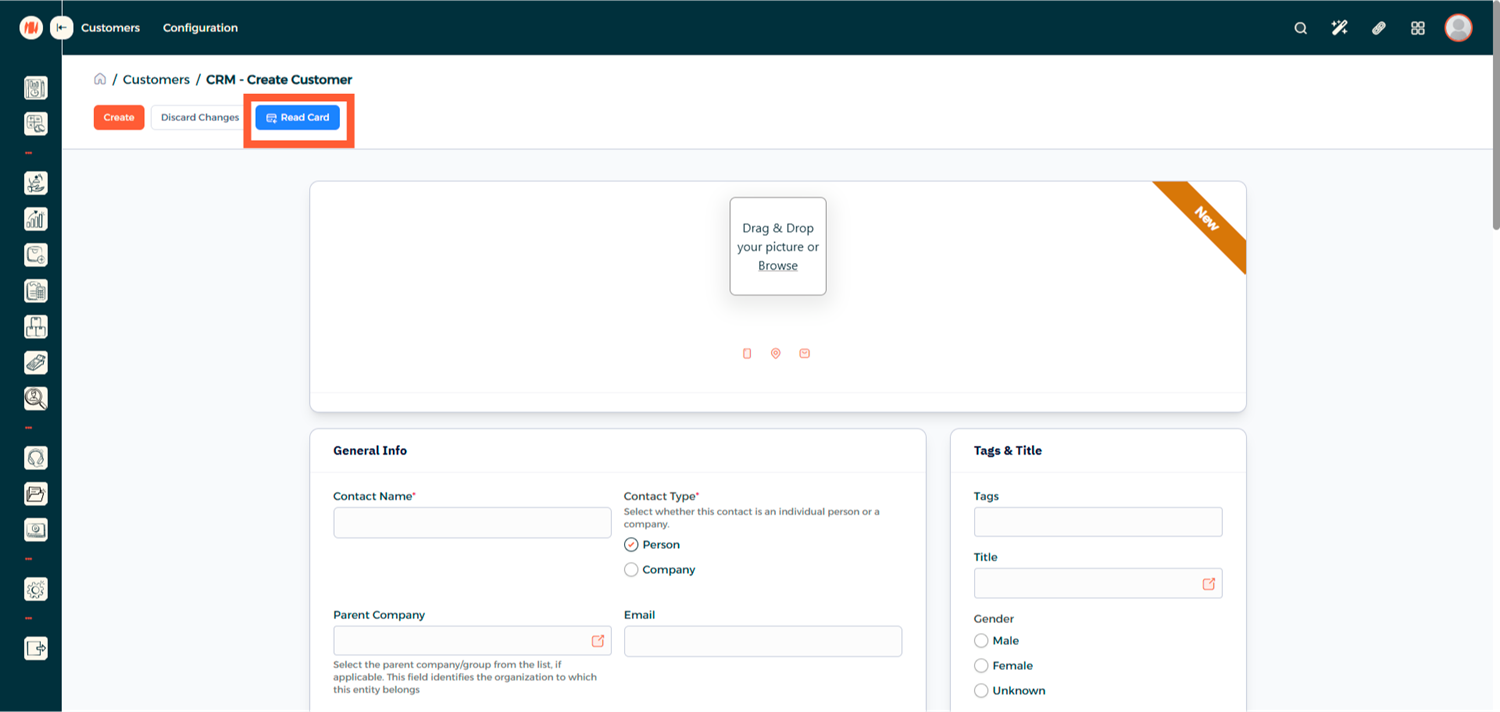
- When creating a new customer, click Read Card — the customer's name, CPR, and other identifiable details will be auto-filled.
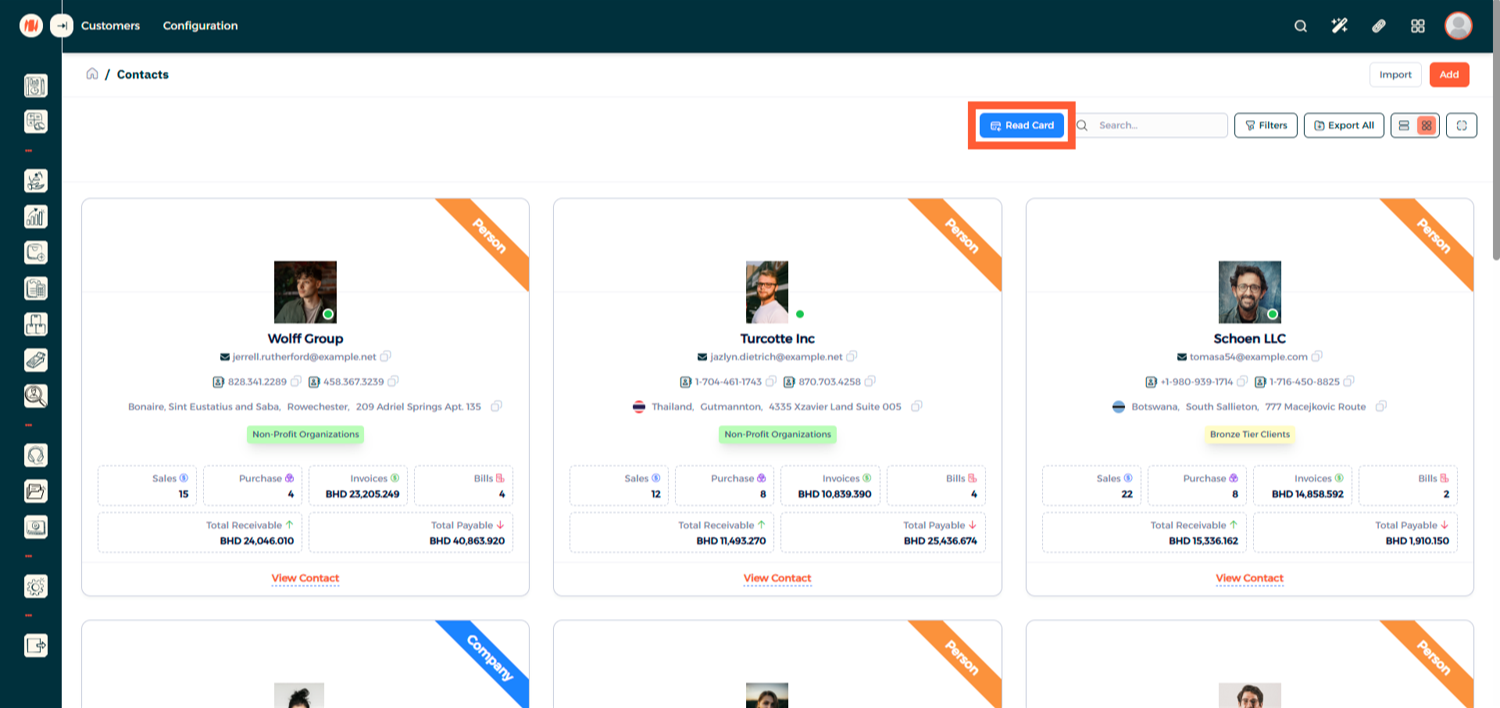
- On an existing customer's page, click Read Card to extract and match the CPR number.
Notes & Tips
- Make sure the reader is clean and placed correctly when scanning.
- If the system fails to read the card, try refreshing the page or re-installing the Native Messaging Host.
- Browser security settings may block native messaging; ensure permissions are granted.
- This feature only reads publicly storable fields (CPR, name, date of birth) as allowed by local regulations.
- The card chip must be facing the reader.
- This feature currently supports GCC-issued national ID cards only.