How to Add a Vehicle in Invent ERP to Improve Garage Management and Operational Efficiency
Learn how to register vehicles, enter make/model and registration details, assign drivers and cost centers, schedule maintenance reminders, and link vehicles to transactions and routes to reduce downtime and lower operating costs.
Step-by-Step Process
Step 1: Navigate to Garage Management
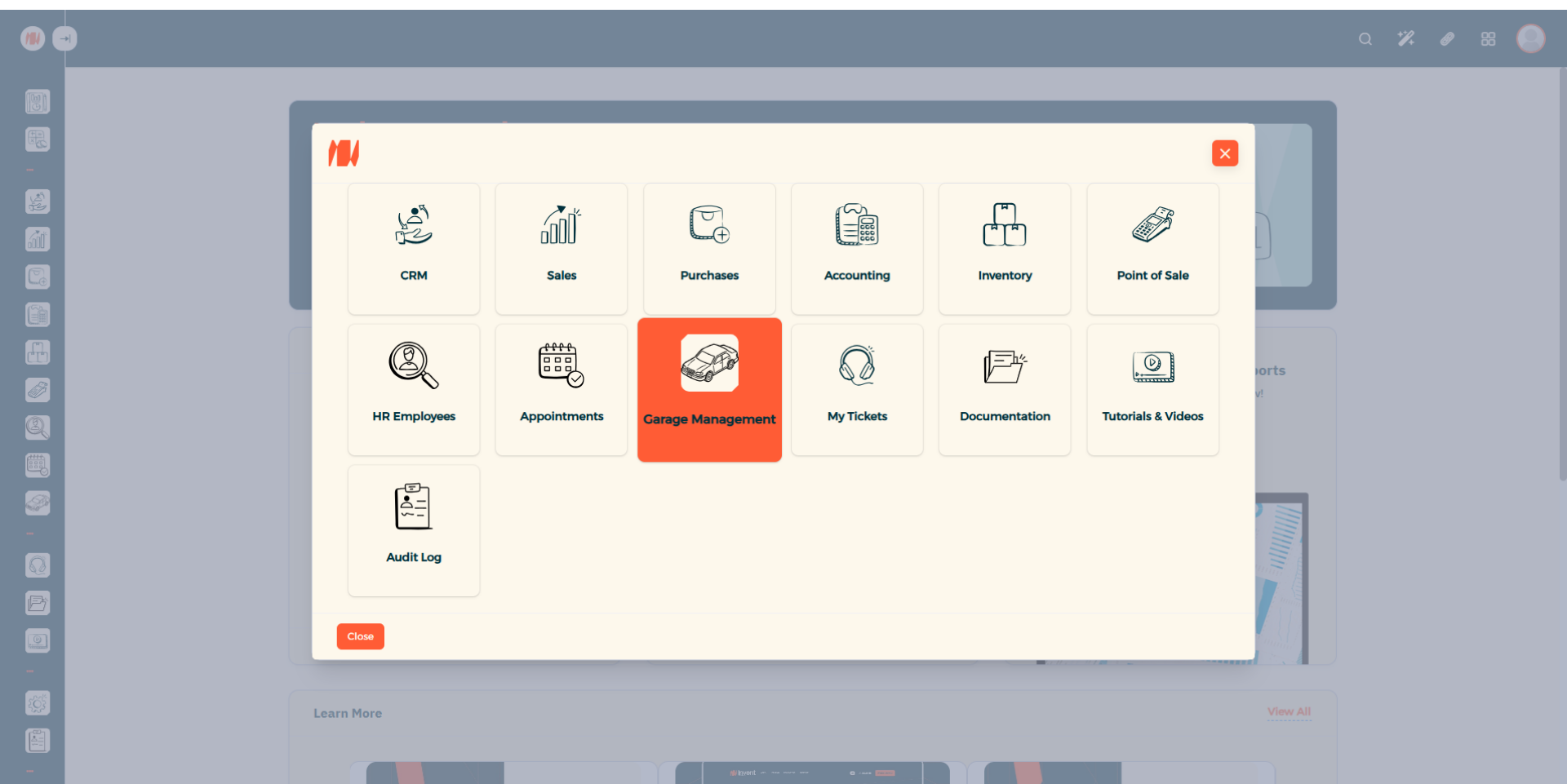
From the Main Menu, look at the top right corner then click on All apps. Then Select Garage Management.
Step 2: Add a Vehicle
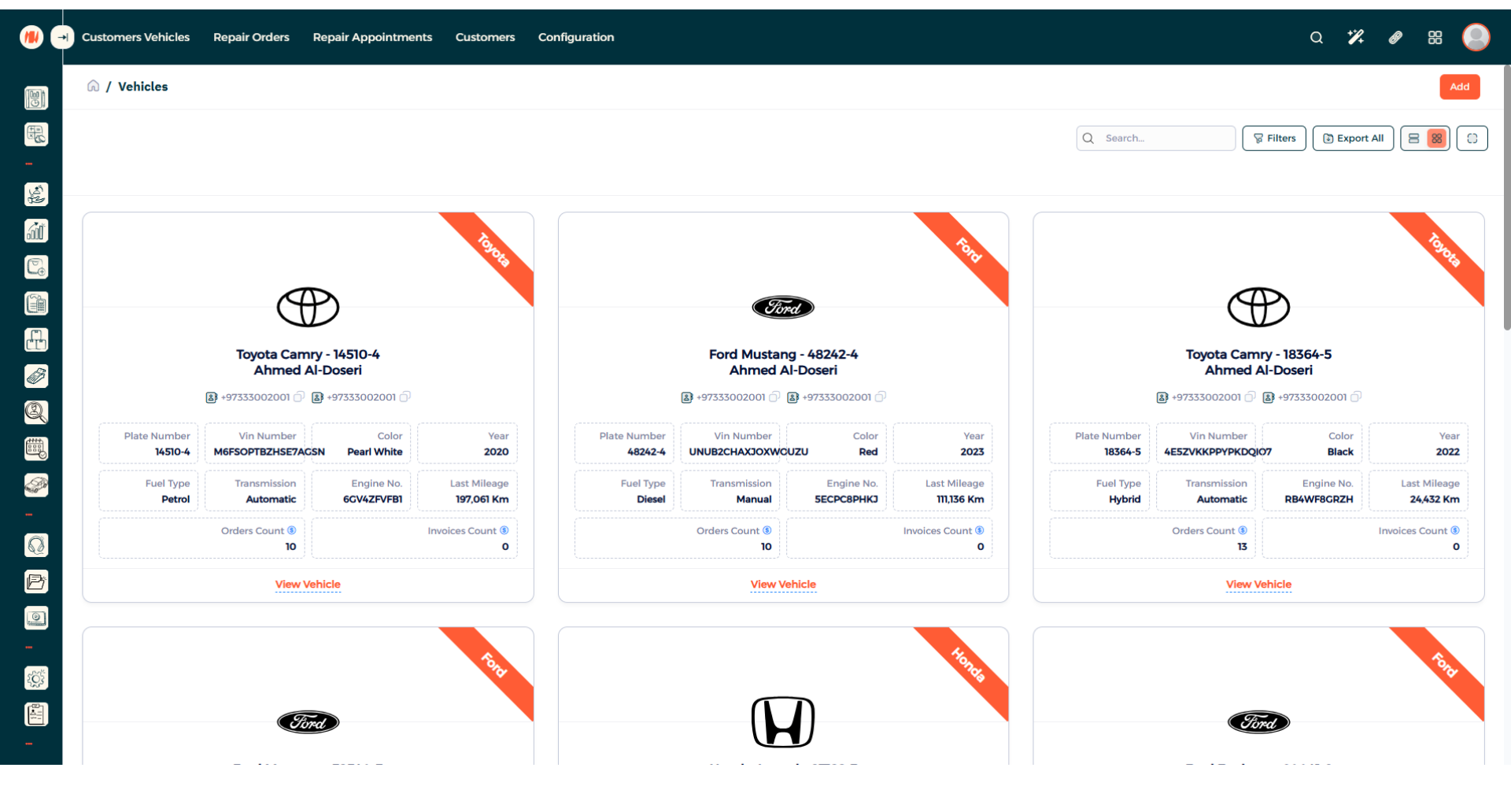
To add a new vehicle, in the top right corner press add.
Step 3: Select Customer
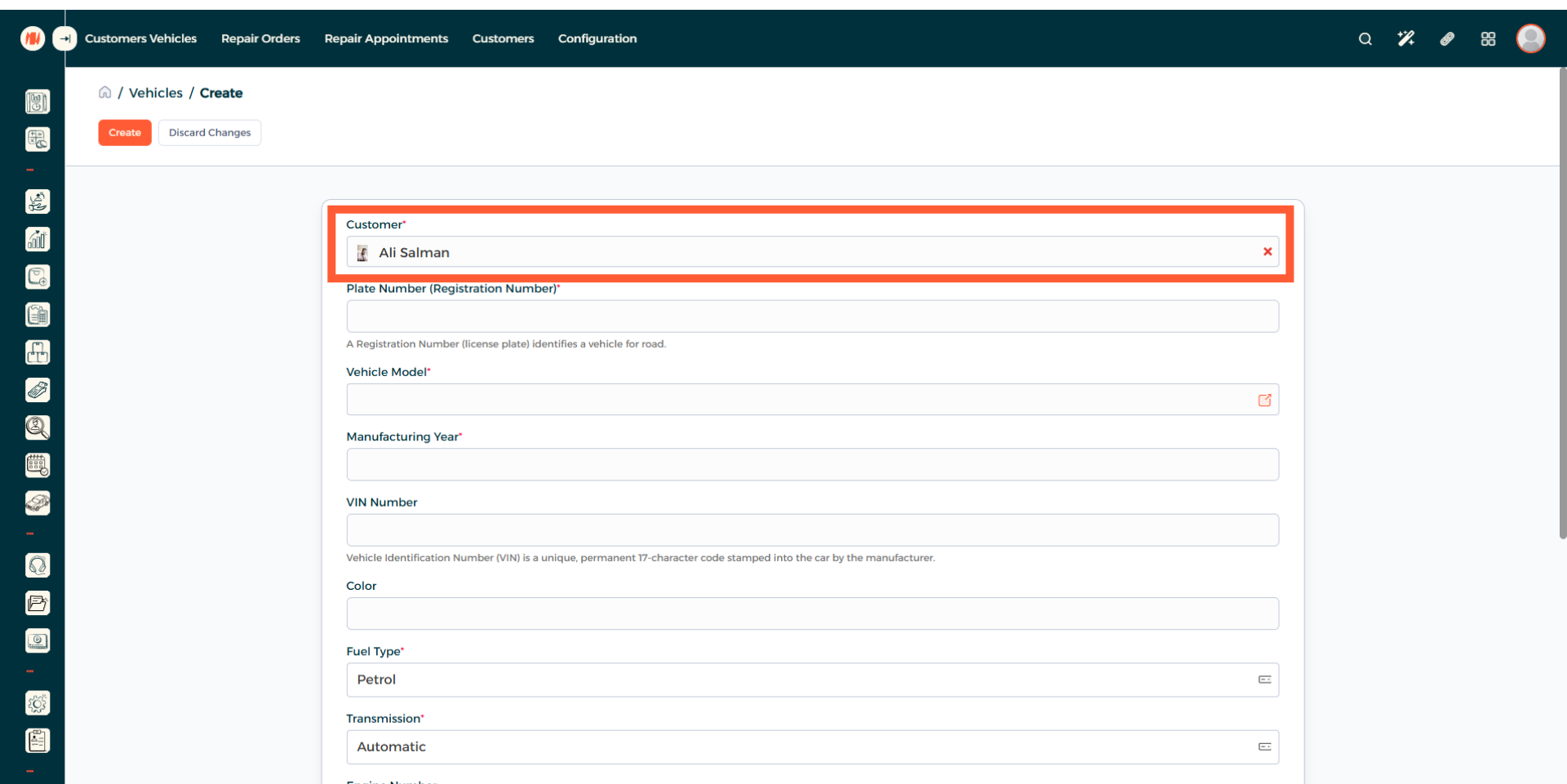
Now you can see the vehicle creation page. Begin by adding a customer.
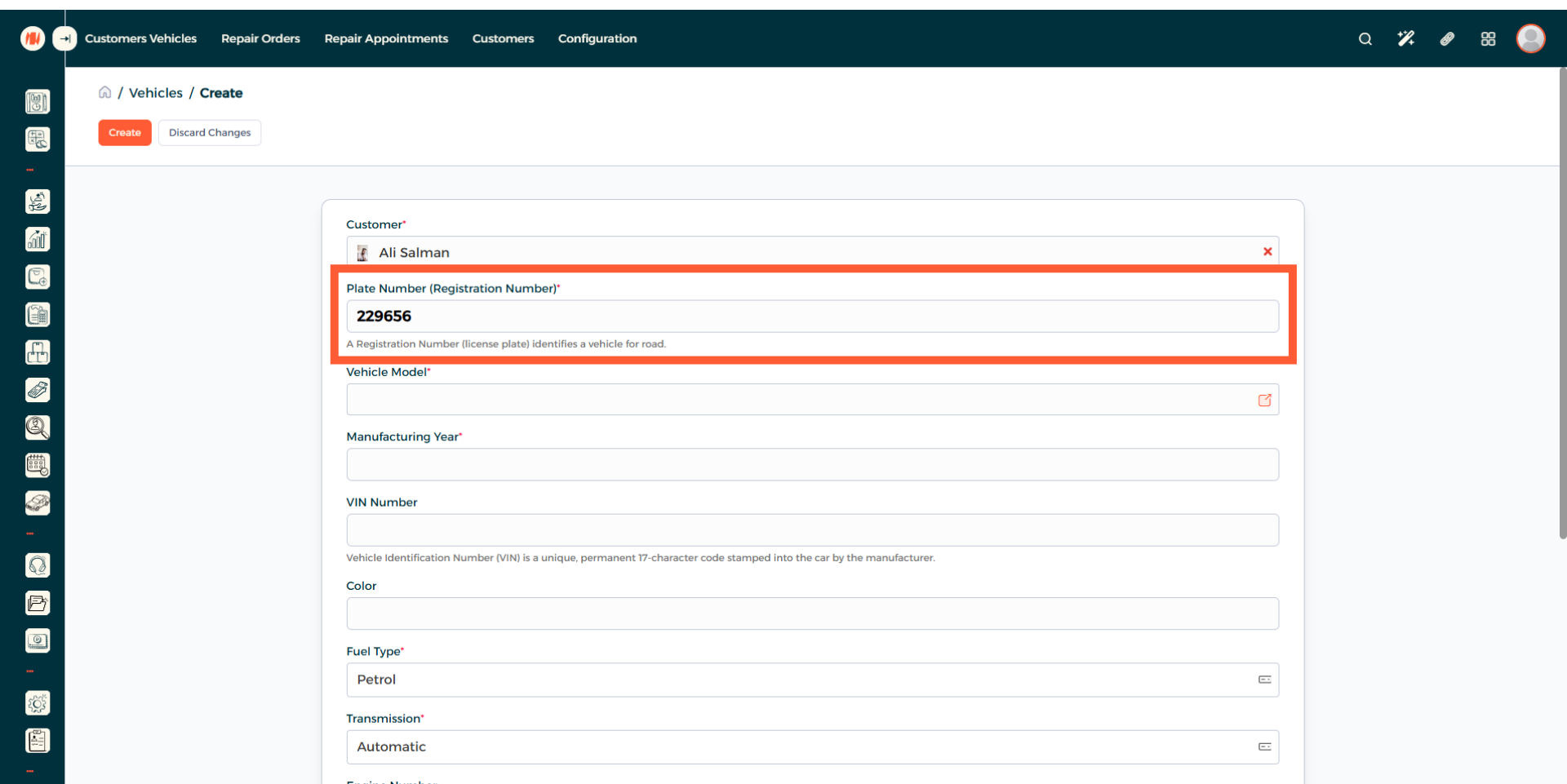
Step 4: Enter Vehicle Plate number (Registration Number)
Step 5: Choose Vehicle Model
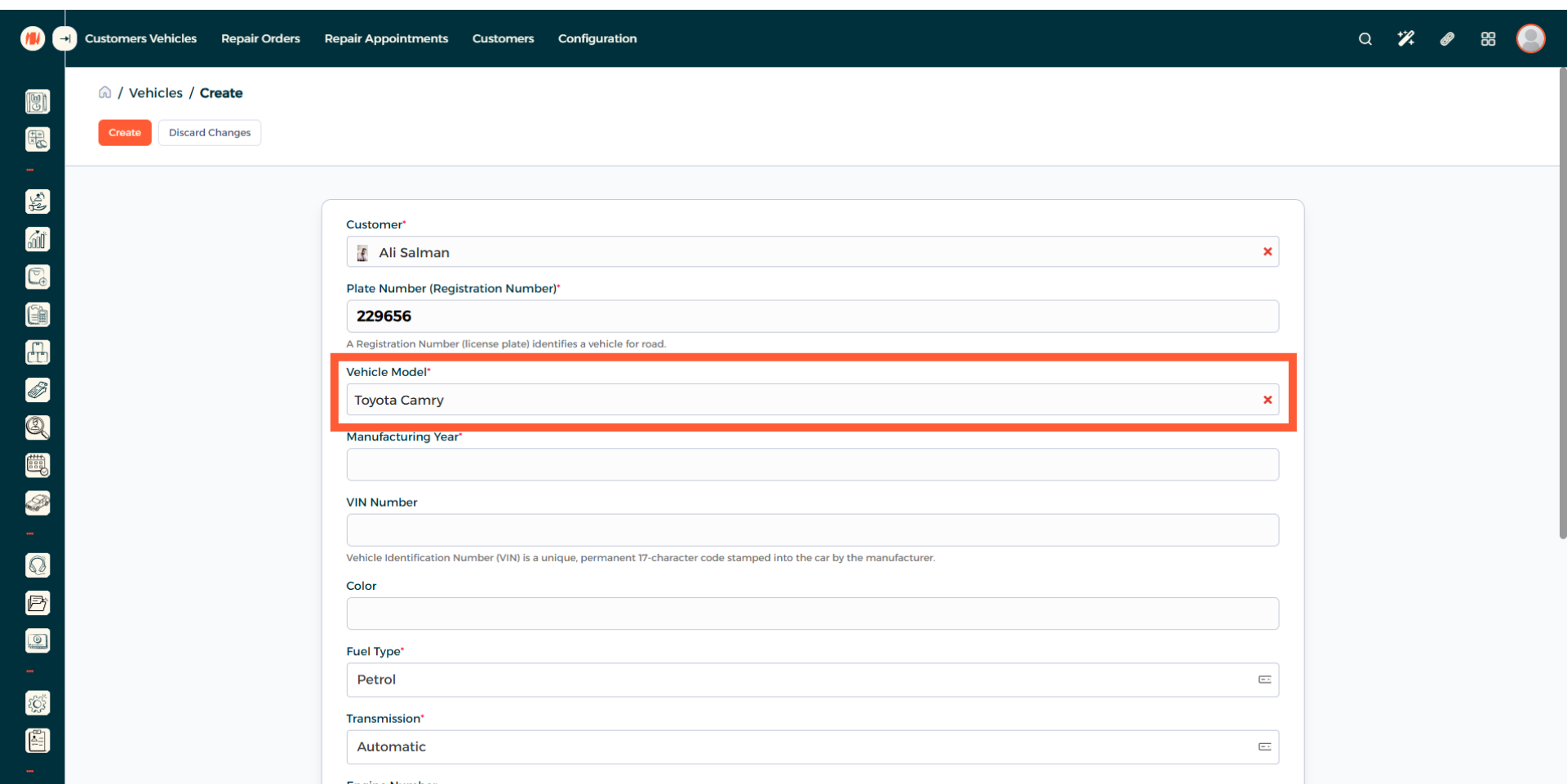
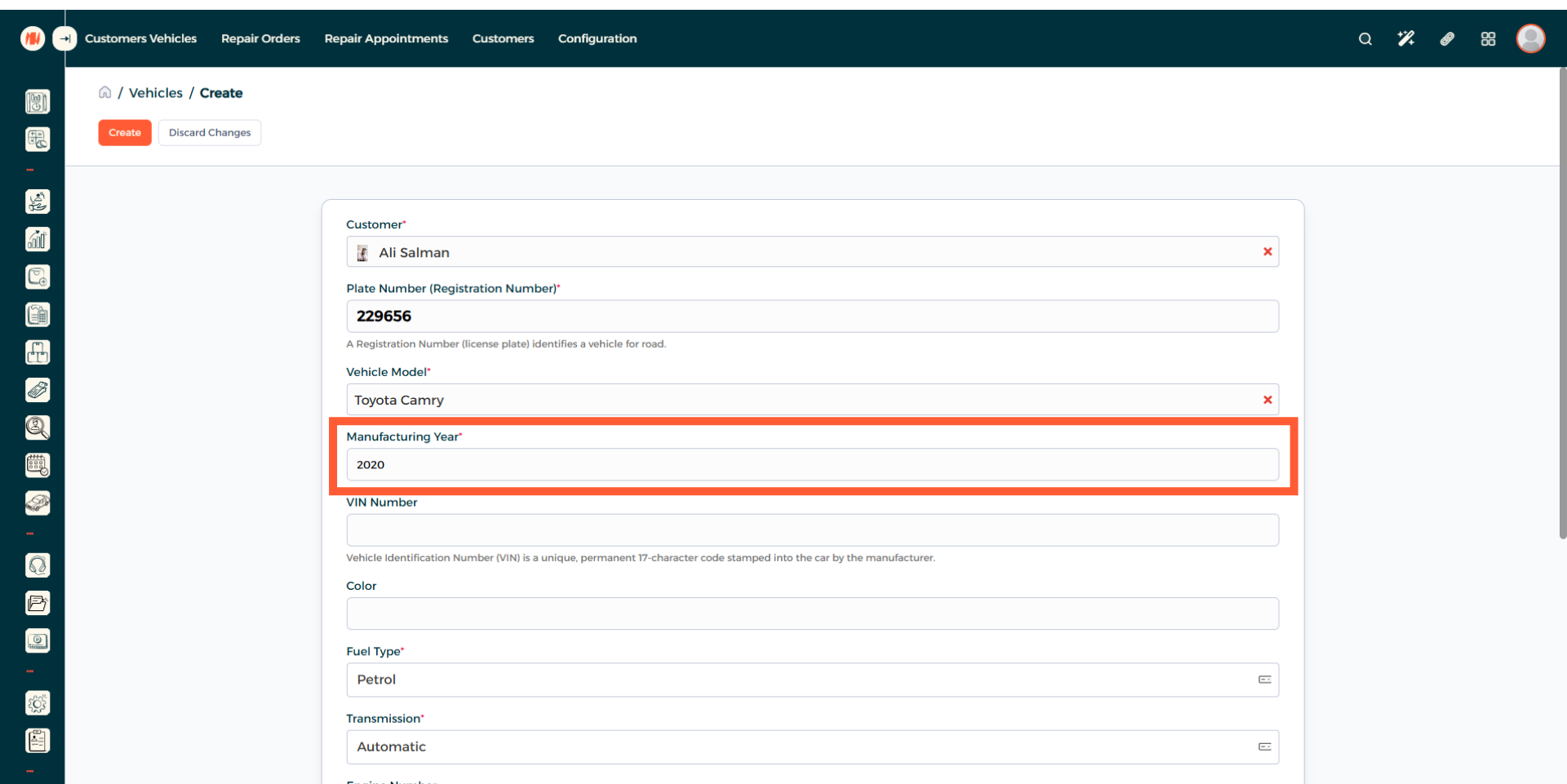
Step 6: Enter Manufacturing Year
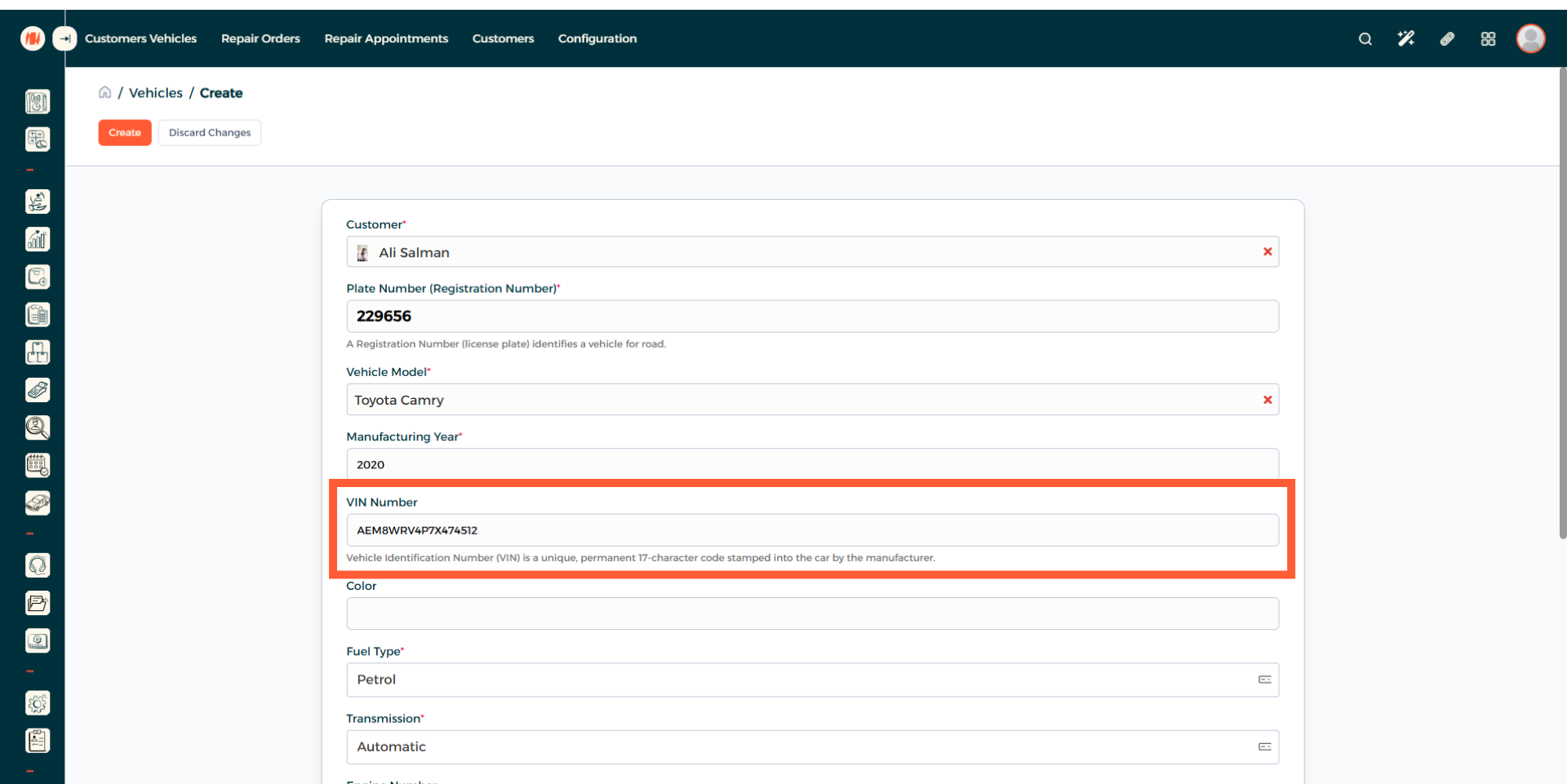
Step 7: Enter VIN Number
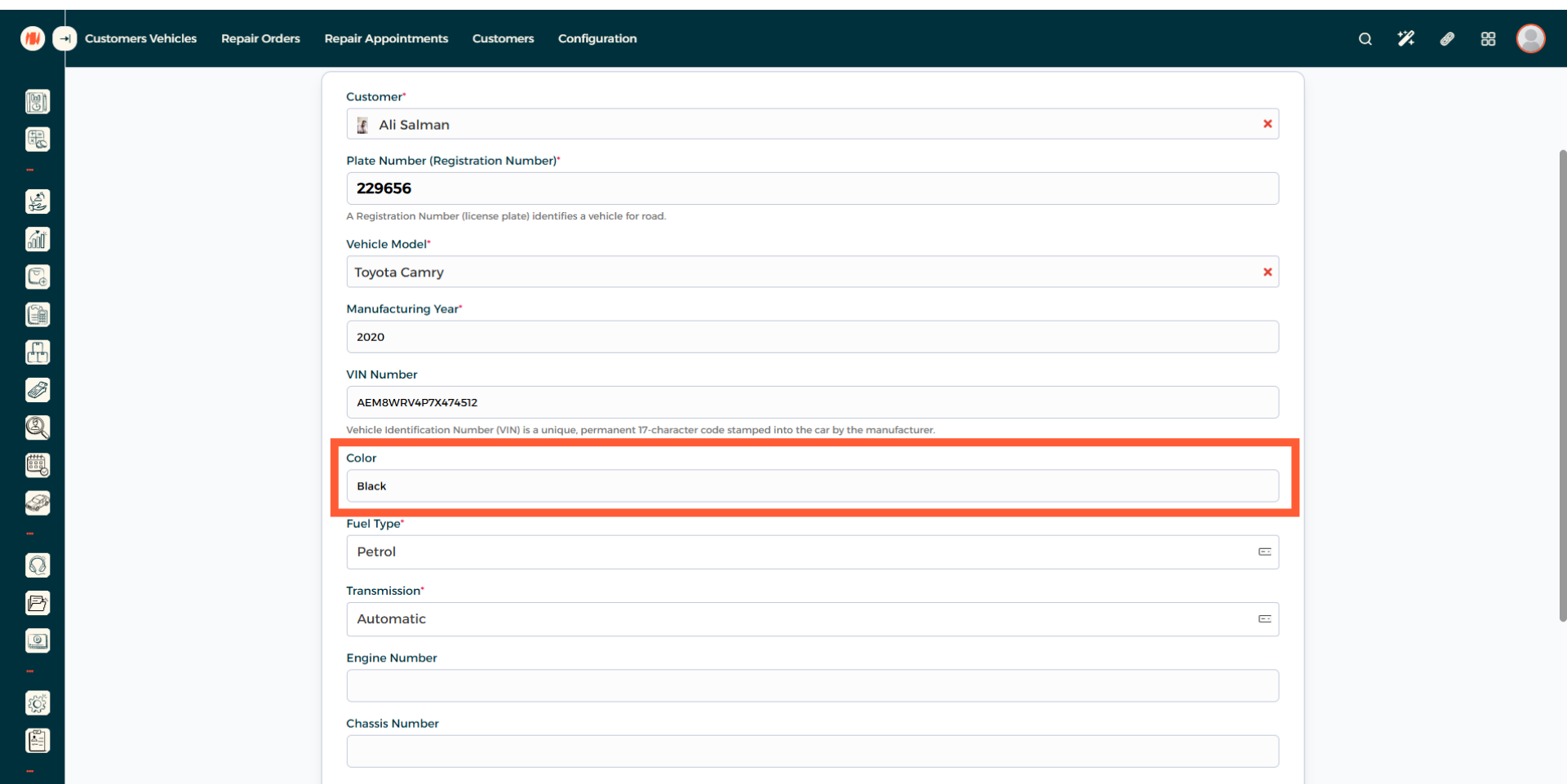
Step 8: Specify Vehicle Color
Step 9: Choose the Fuel Type
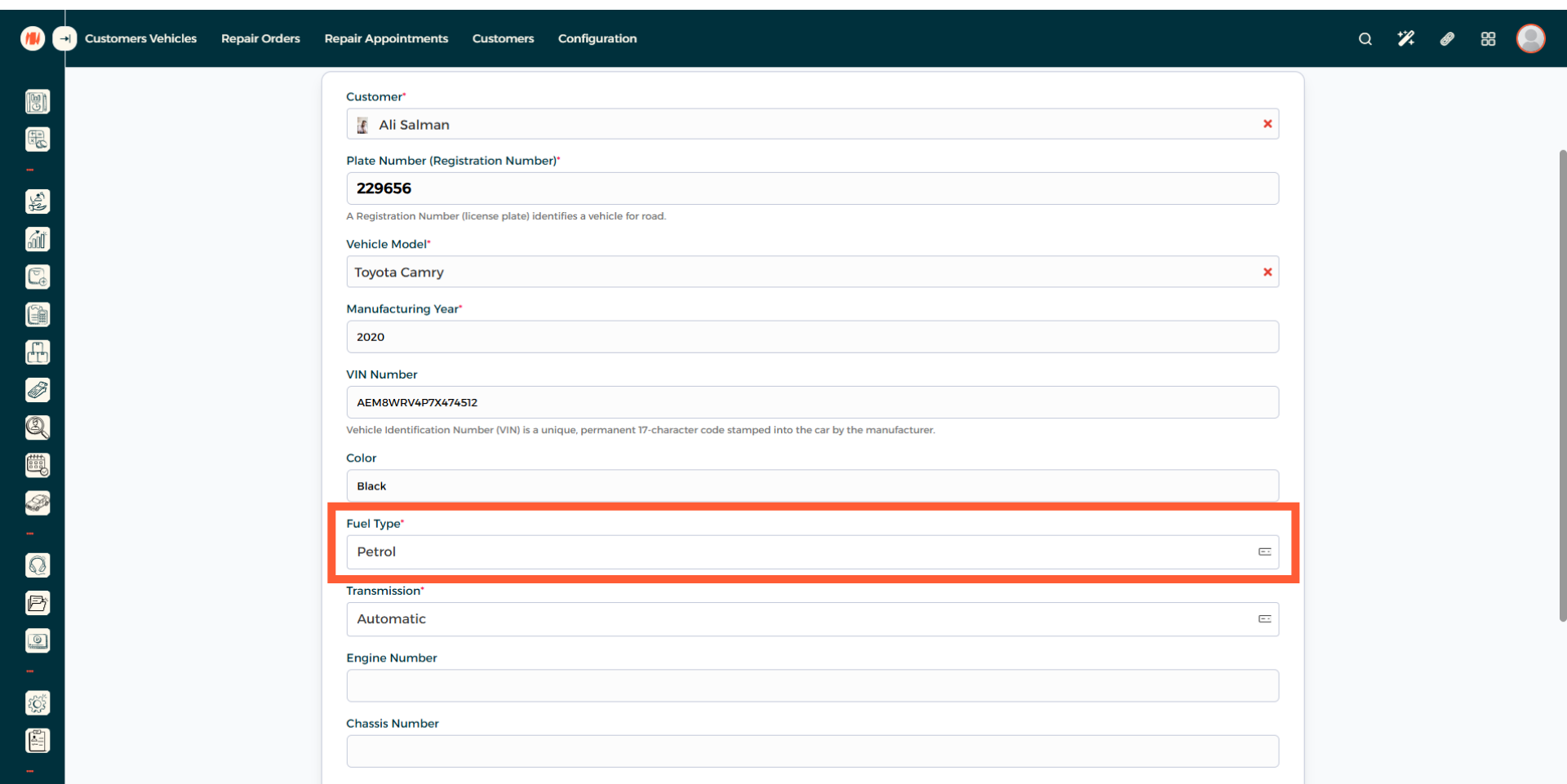
Step 10: Select Vehicle Transmission
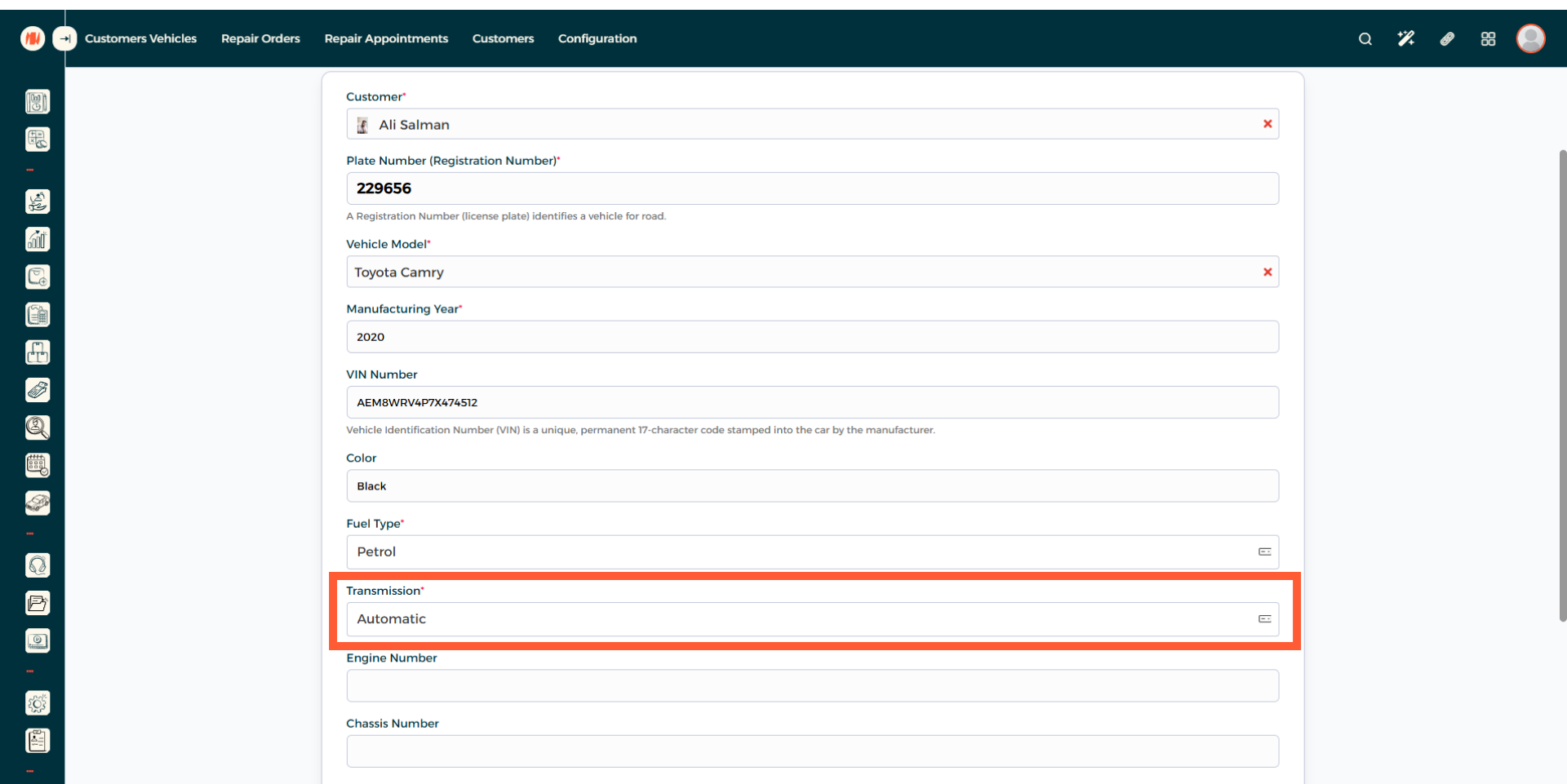
Step 11: Enter Engine Number
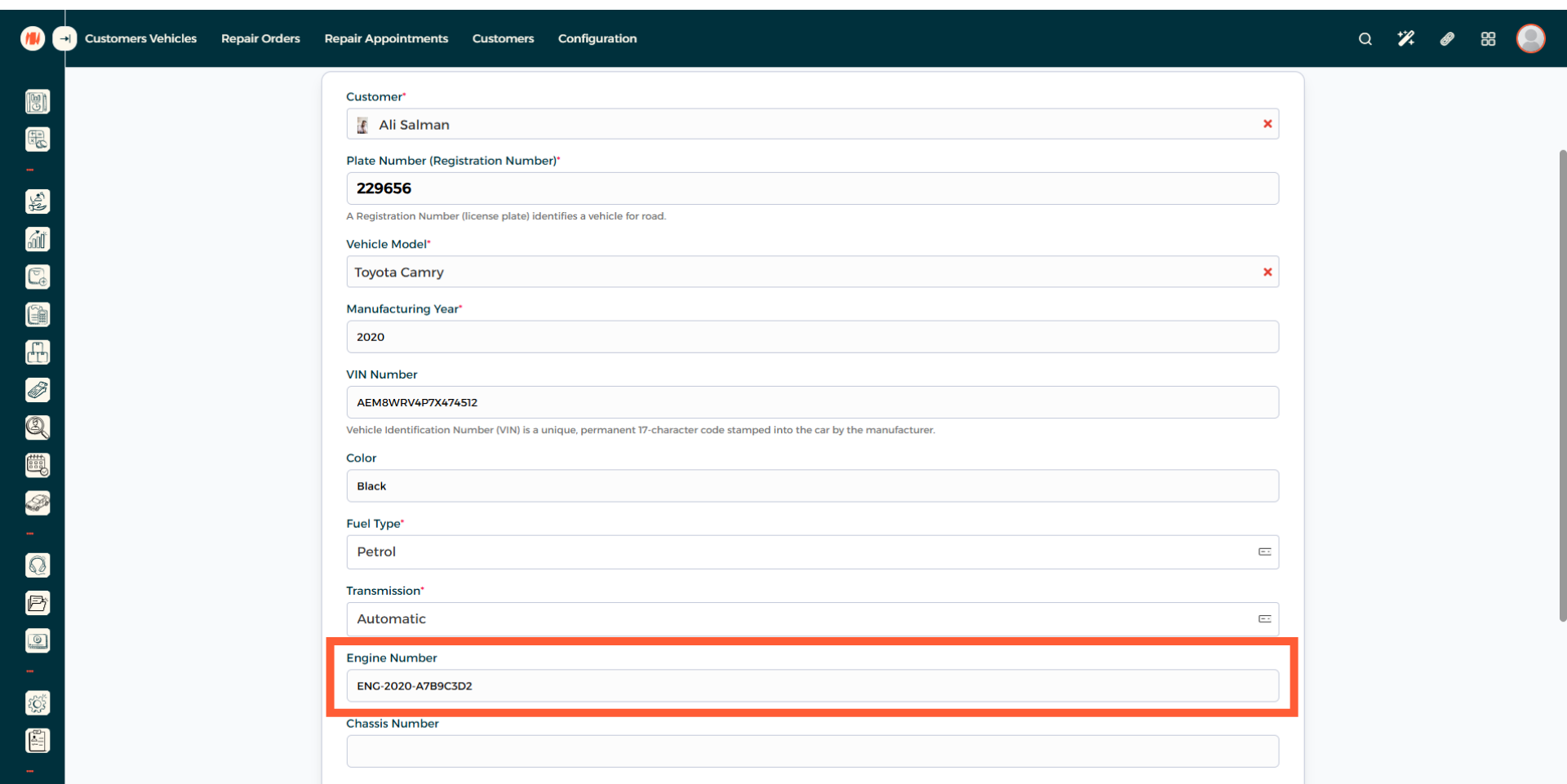
Step 12: Enter Chassis Number
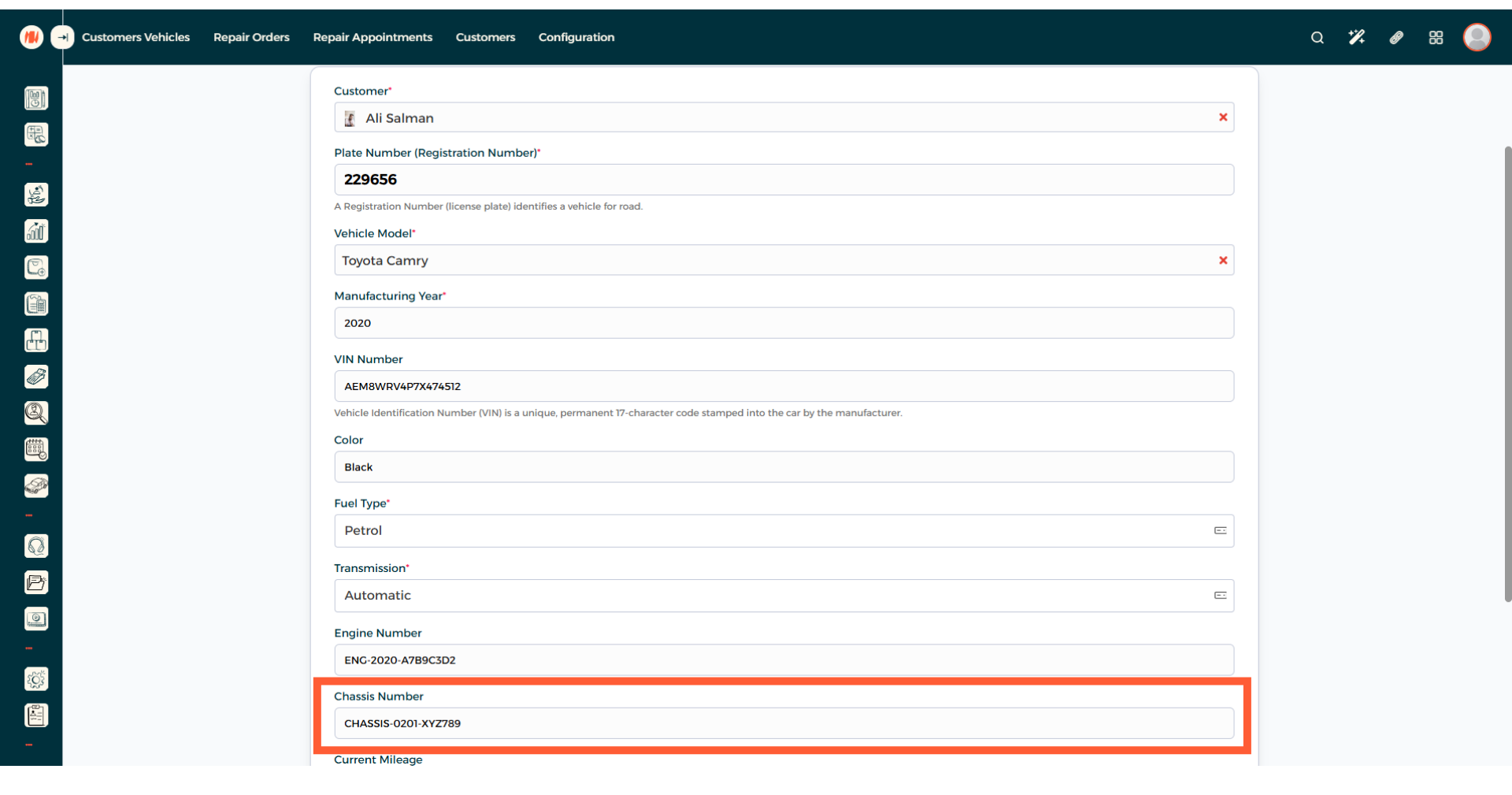
Step 13: Add Current Mileage
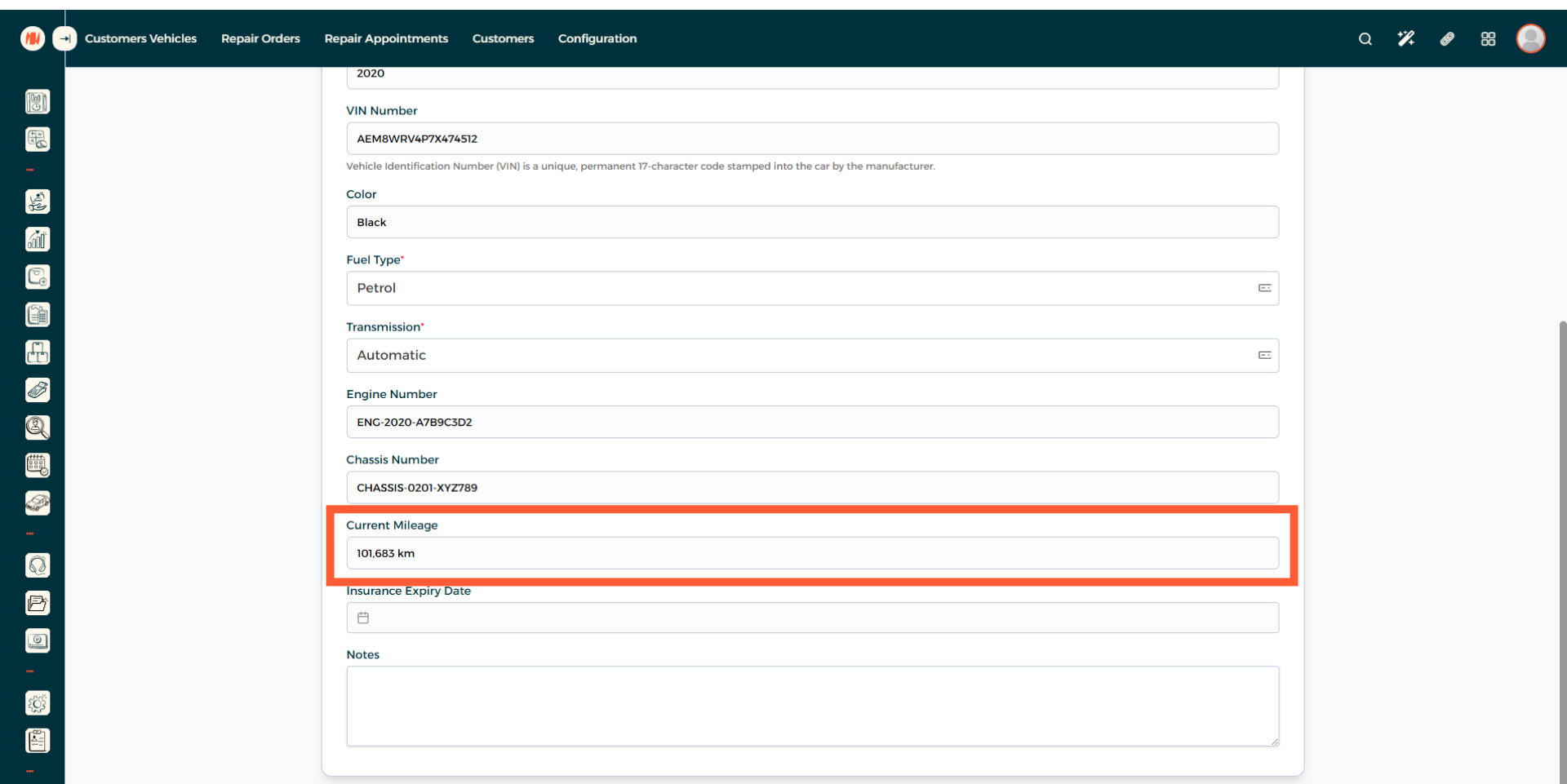
Step 14: Input Insurance Expiry Date
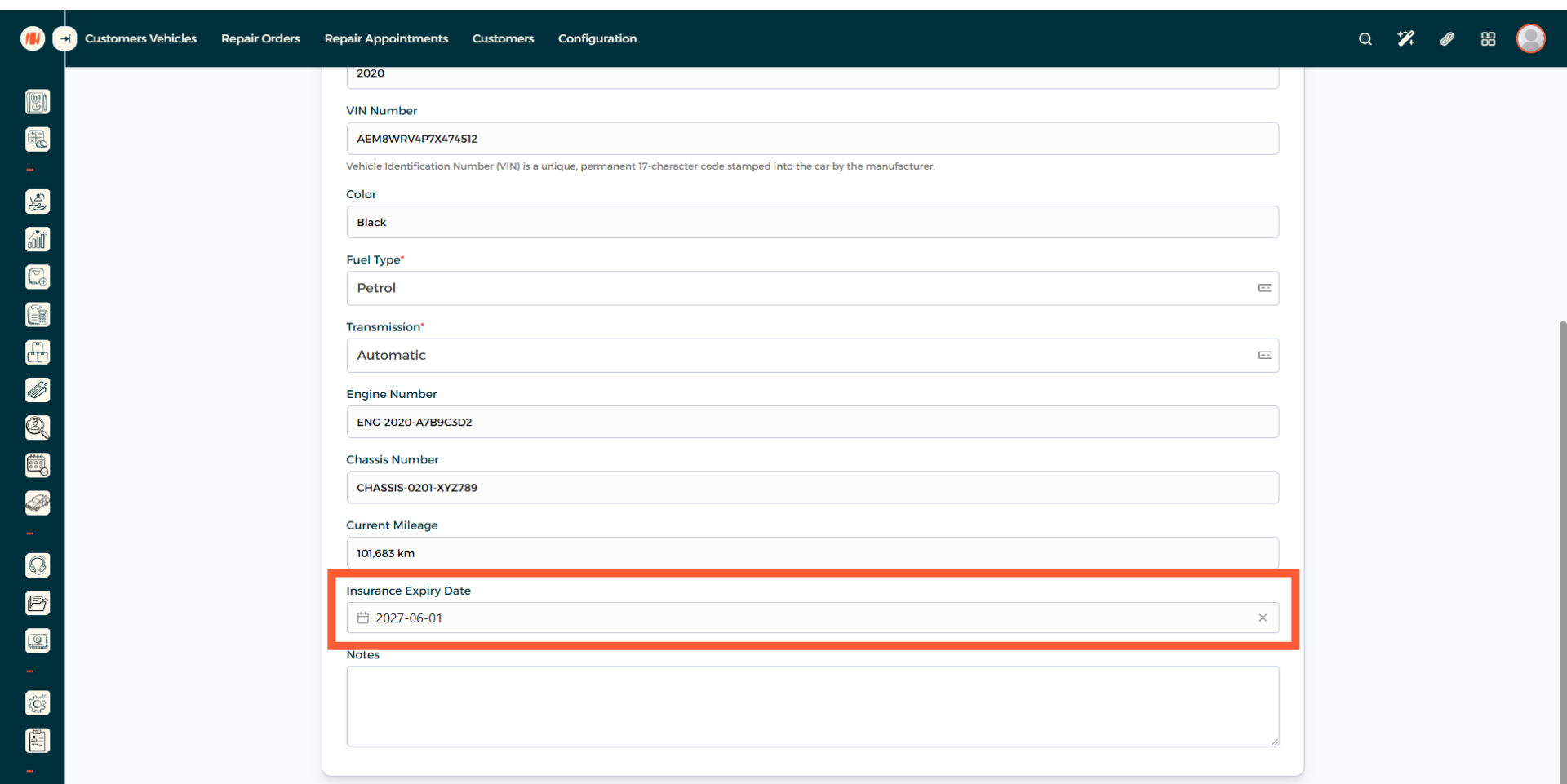
Step 15: Add Notes
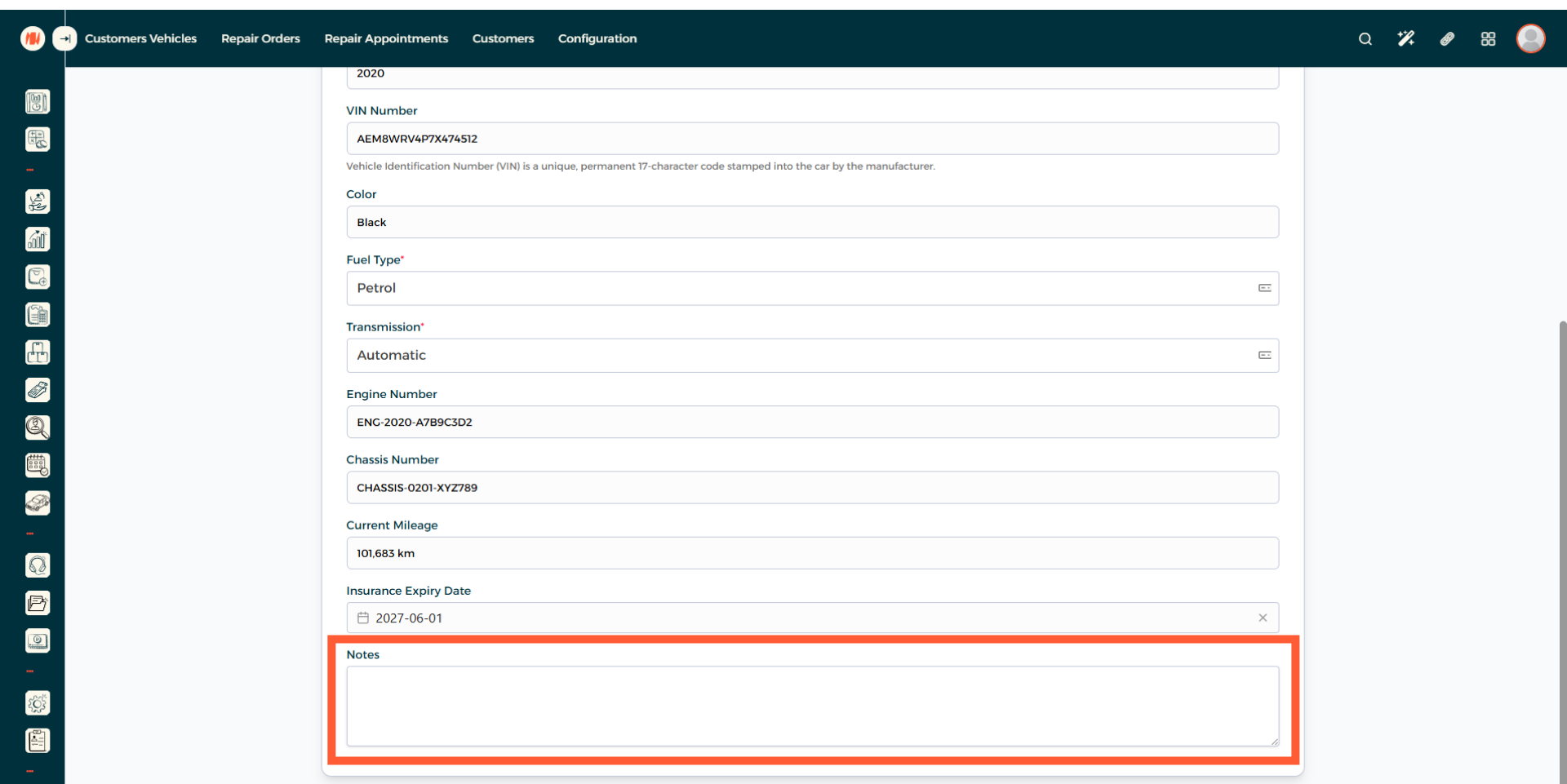
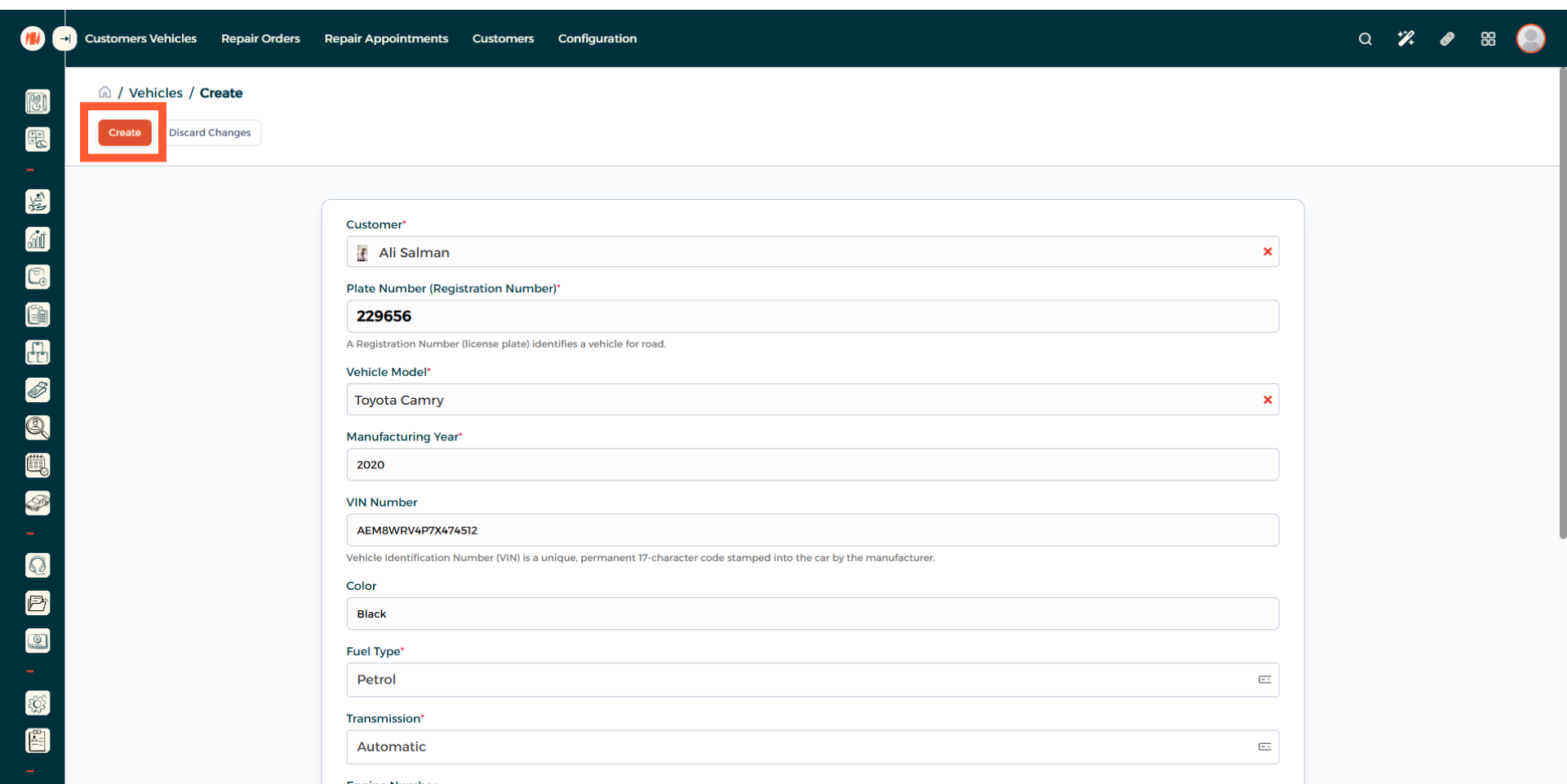
Step 16: Vehicle Creation
Review all the information, when everything looks correct create the vehicle. That's It! you have successfully created a vehicle in Invent ERP.
Notes & Tips
- Always double check your information before creation especially VIN number, engine number, chassis number, and registration number before saving to prevent record errors or issues in the future.
- It is recommended to add detailed customer concerns or doubts in the notes section for more focused and efficient work.
FAQ
Q: Can a customer have more than one vehicle?
Yes, you can add multiple vehicles under a single customer record and manage each vehicle’s work.
Q: How do I search for a vehicle after I created one?
In the vehicle's page, you can search by plate number, customer's mobile number, customer's name, VIN number, or just use the filter option available.