How to Configure Accounting Journals for ZATCA Compliance in Invent ERP
Learn how to configure accounting journals and tax settings to meet Saudi ZATCA requirements.
Step-by-Step Process
Step 1: Open the Accounting Module
From All Apps
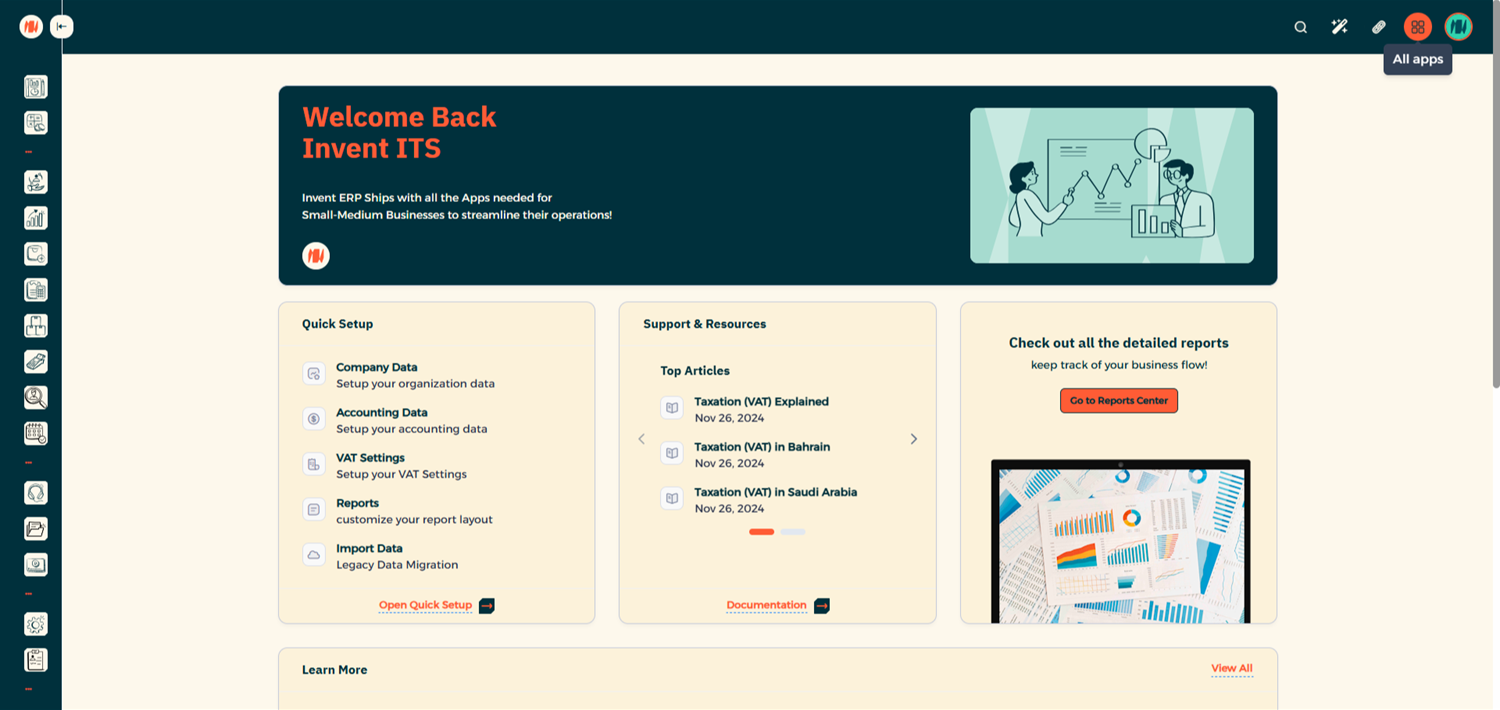
Navigate to Accounting
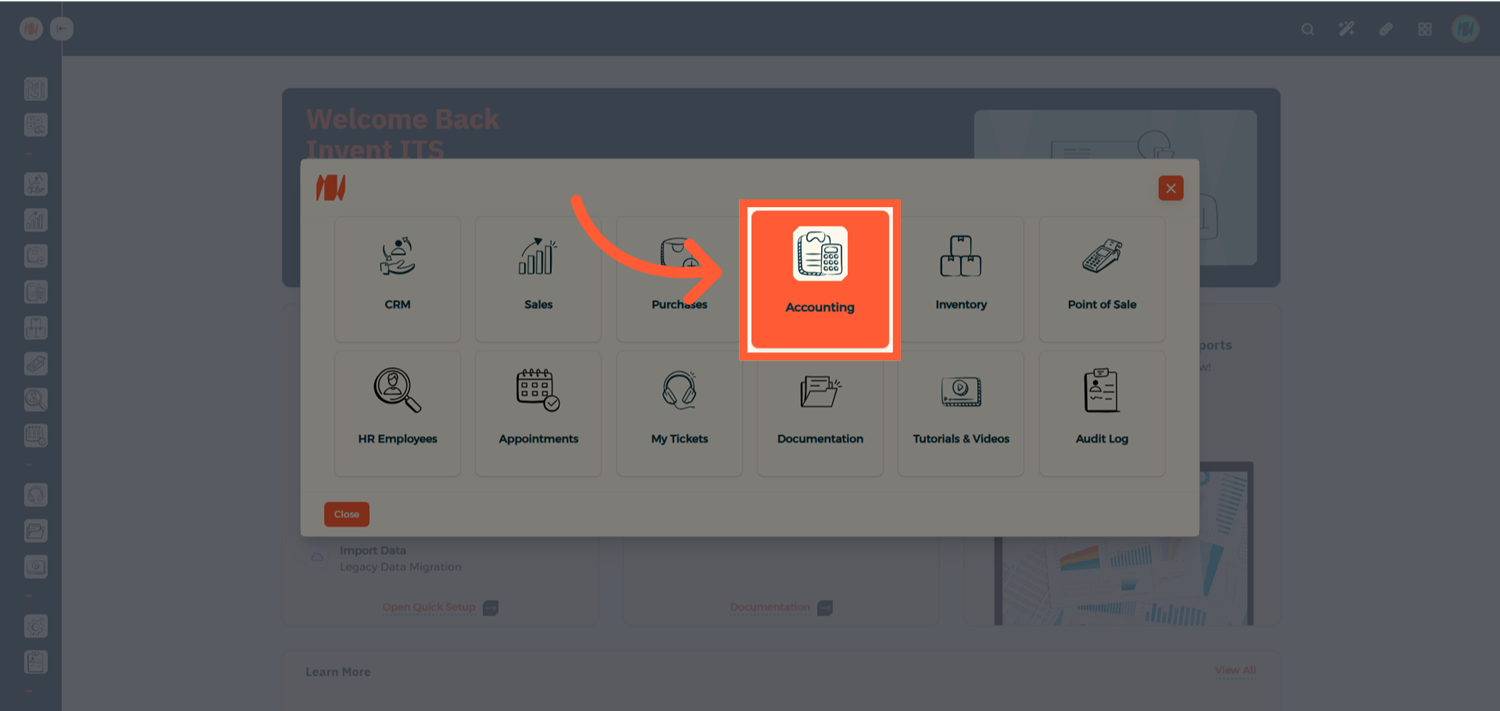
Step 2: Access the Customer Invoice Journal
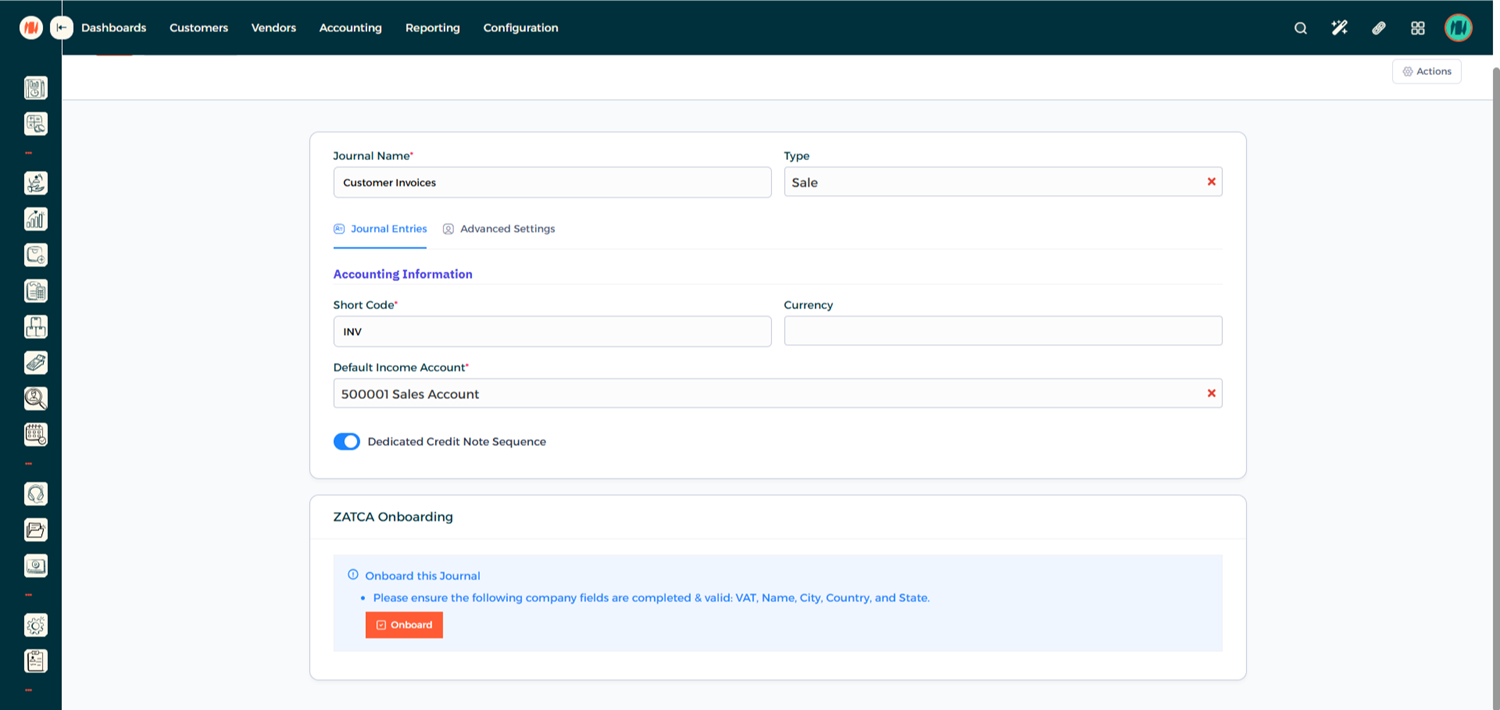
Go to Configuration → Accounting → Journals
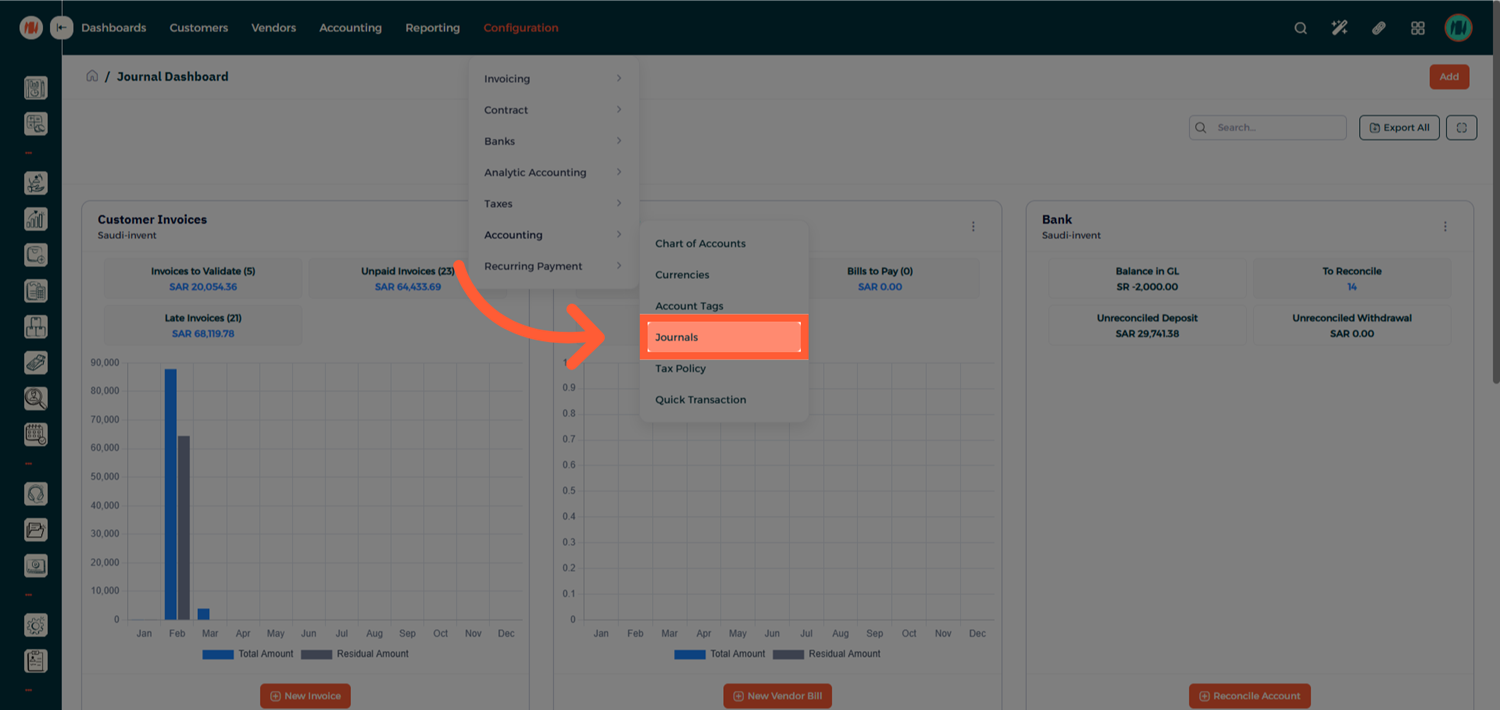
Then select the Customer Invoice Journal.
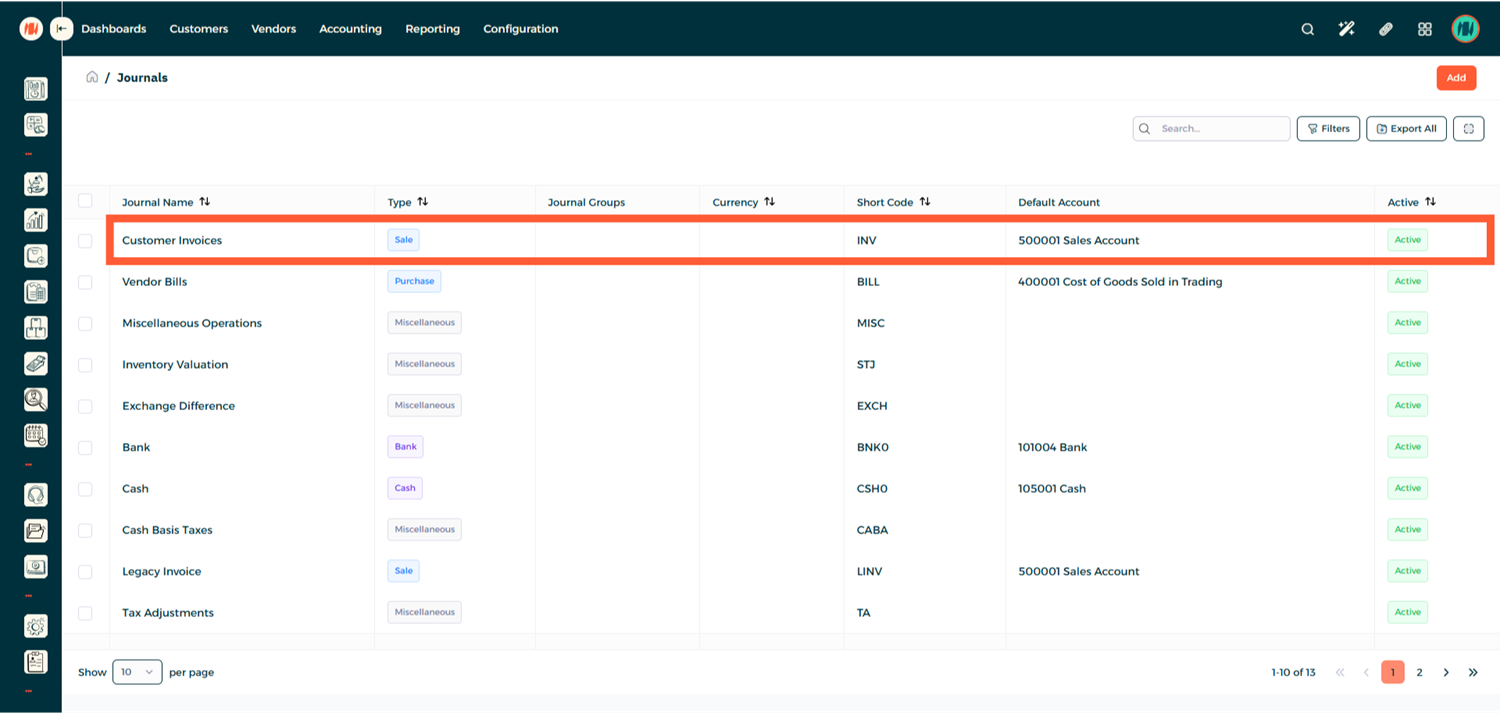
Step 3: Obtain the OTP from the Fatoora Portal
To complete the onboarding process, you will need an OTP (One-Time Password) generated from the Fatoora Portal.
Step 4: Generate the OTP in the Fatoora Portal
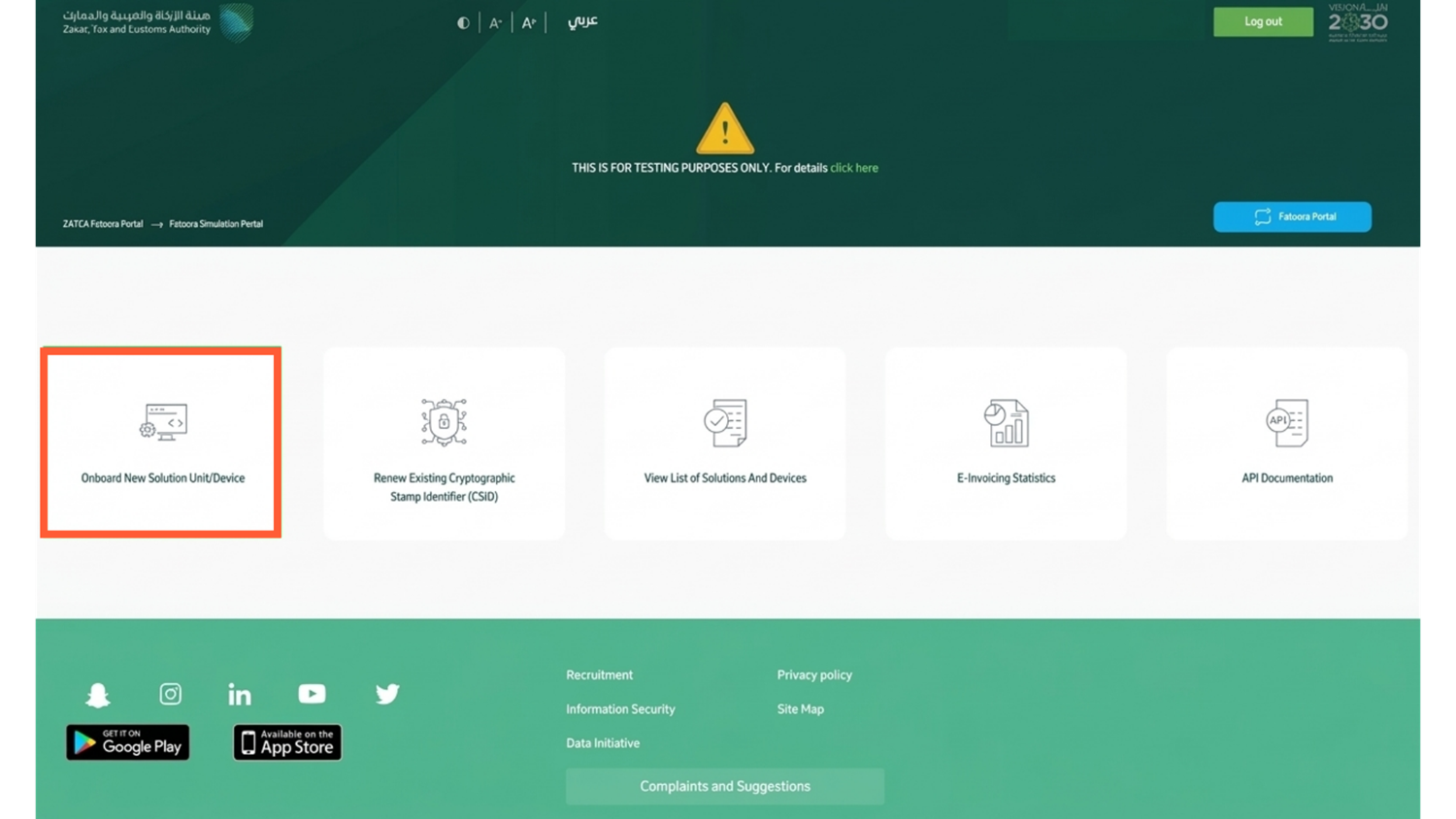
In the Fatoora Simulation Portal, navigate to Onboard New Solution Unit / Device.
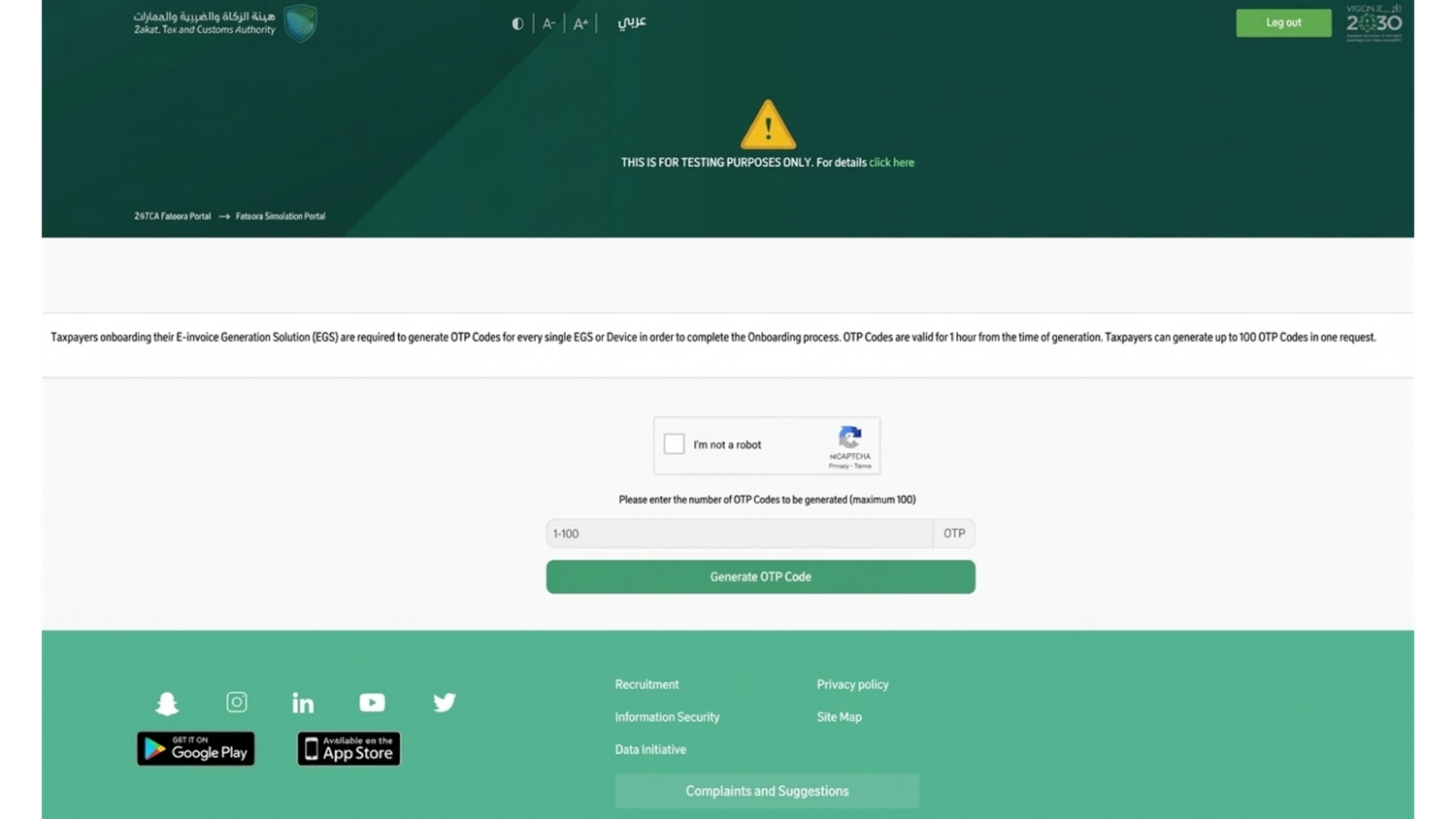
Then enter the number of OTP codes you want to generate.
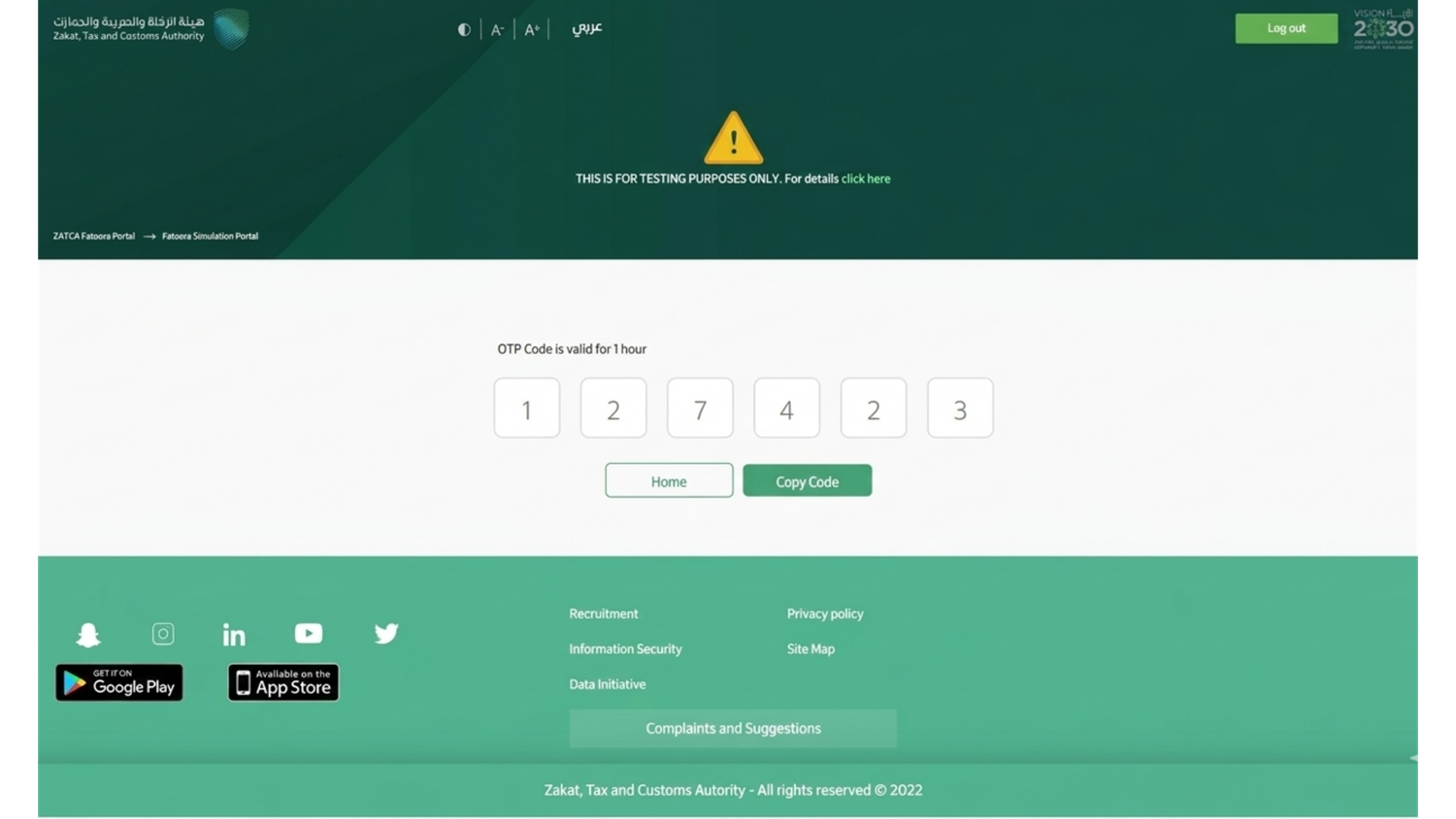
When that is done just copy the OTP code.
Make sure that the ZATCA API Mode in Invent ERP matches the mode used in the Fatoora Portal.
- If your company is set to Simulation Mode, you must use the Fatoora Simulation Portal.
- If your company is set to Production Mode, you must use the Fatoora Production Portal.
Step 5: Enter the OTP in Invent ERP
Return to the Customer Invoice Journal, Paste the copied OTP Code into the OTP field and click Confirm.
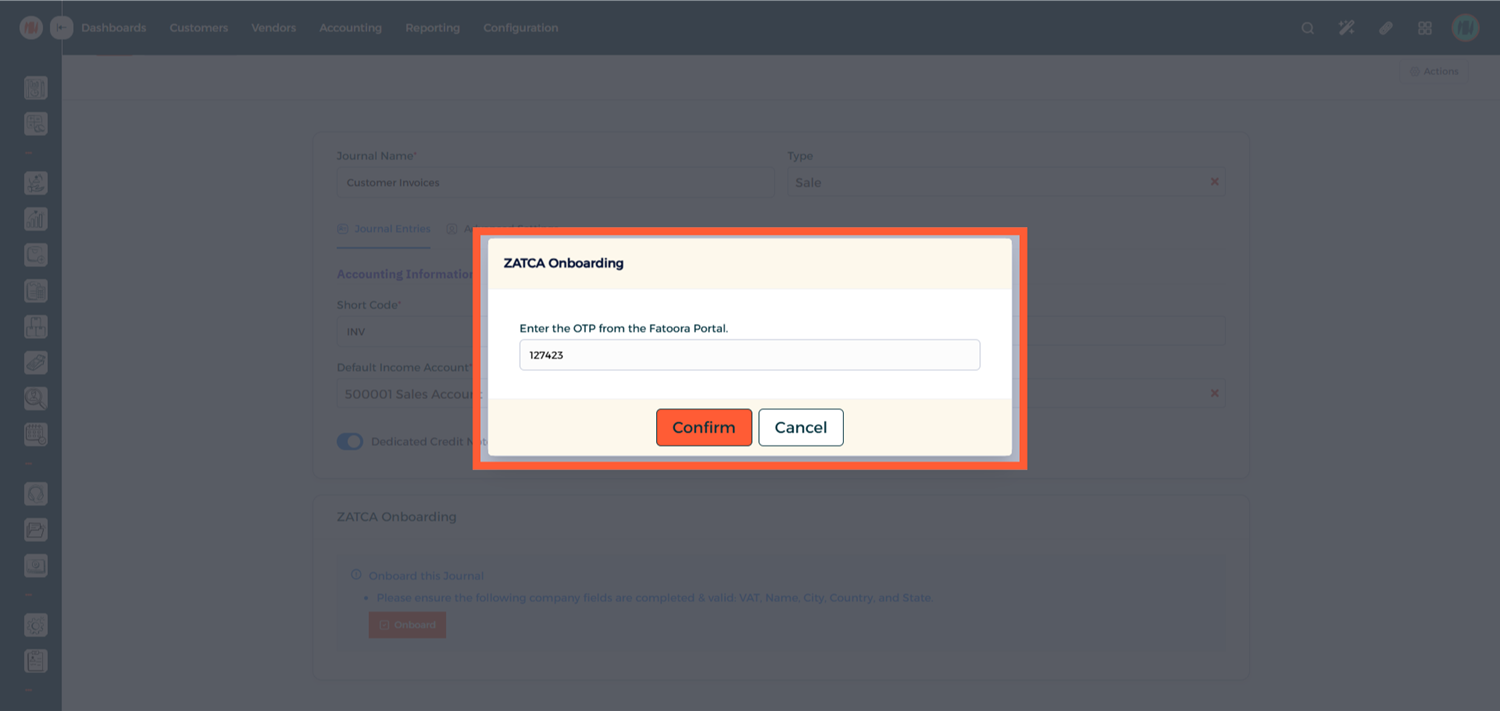
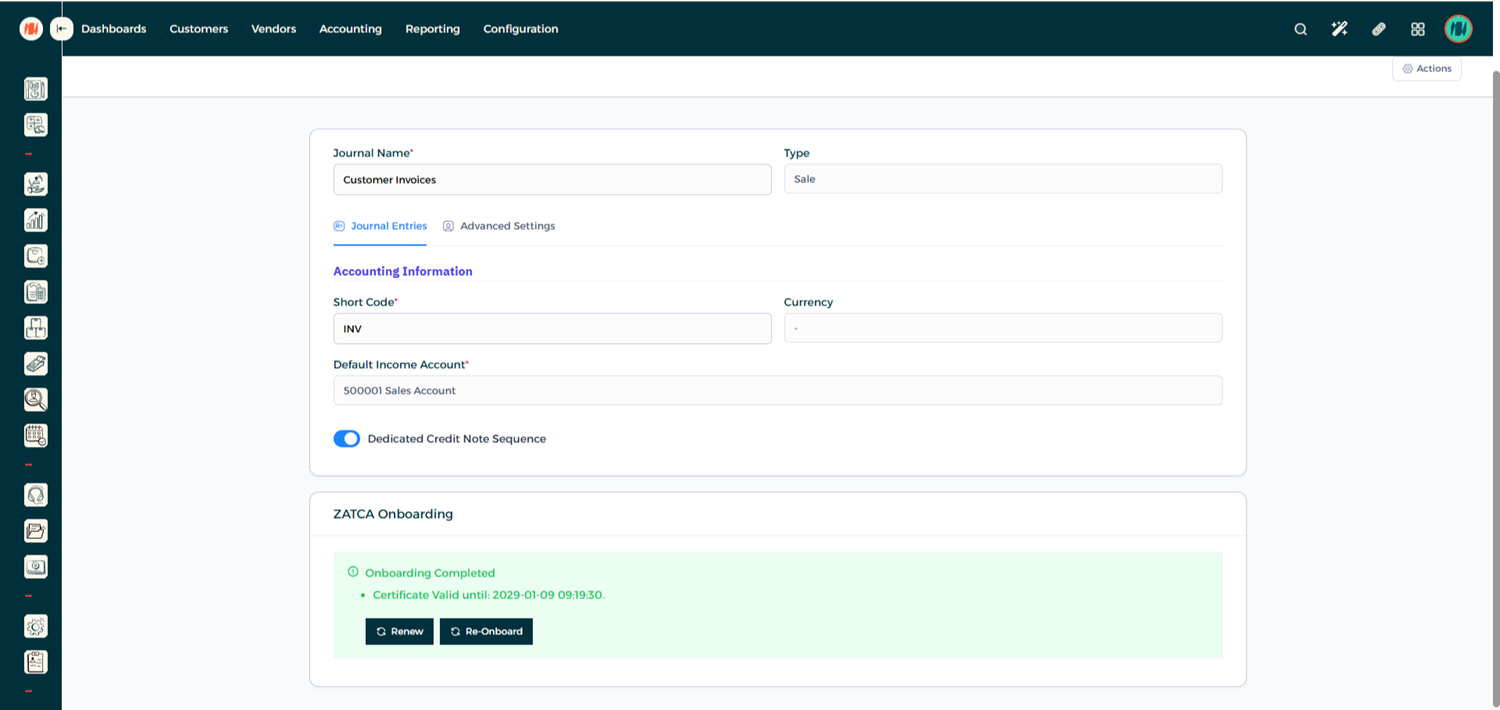
Once confirmed, the system will complete the journal onboarding process.
Notes & Tips
- Use Simulation Mode first to test your integration before going live.
- OTP codes are time-sensitive, so generate and use them promptly.
- If onboarding fails, generate a new OTP and repeat the confirmation process.
- After switching to Production Mode, invoices created in Invent ERP will be submitted directly to ZATCA