How to Complete Company Onboarding and Initial Configuration in Invent ERP
Learn how to set up your company profile, business settings, users, and operational preferences.
Step-by-Step Process
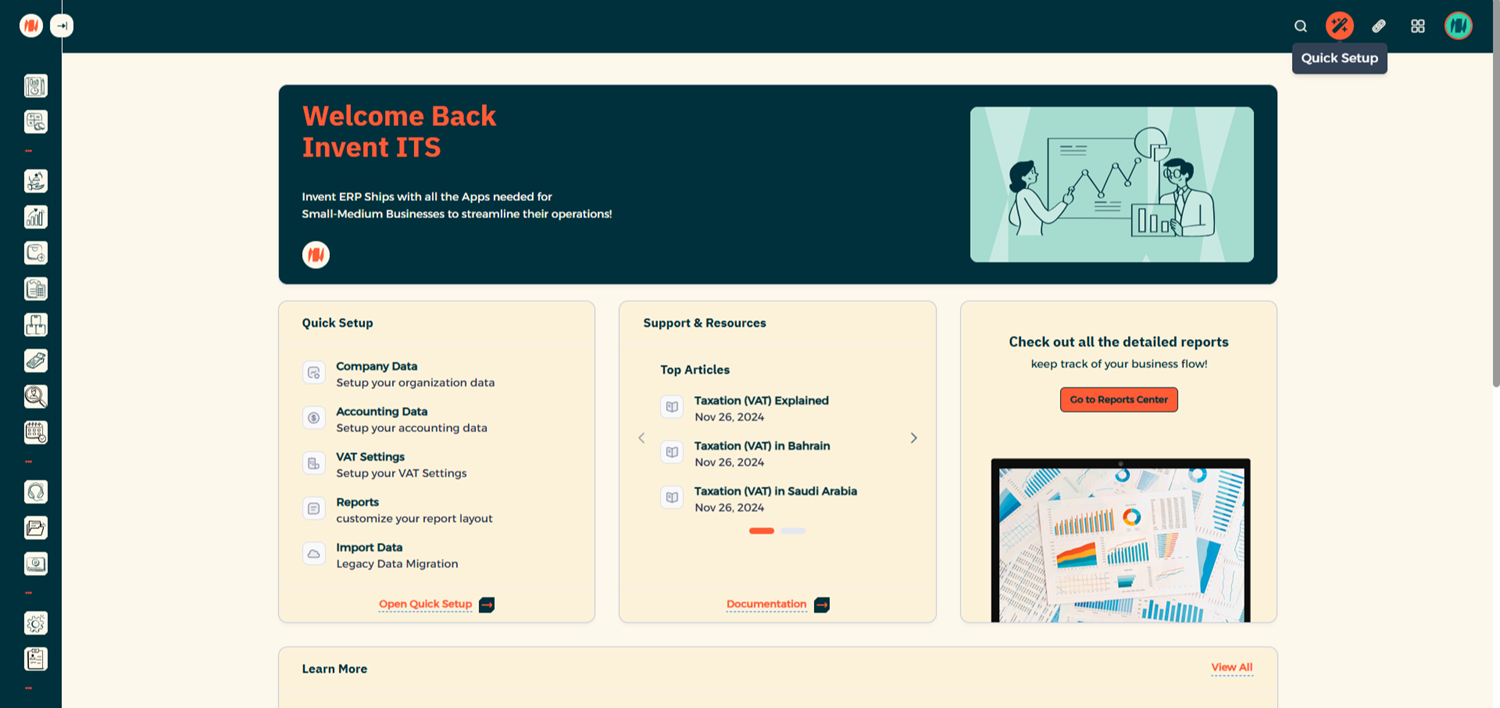
Step 1: Open Quick Setup
From your Homepage, go to Quick Setup to begin the company onboarding process.
Step 2: Add Your Company Information
Fill in your company details:
-
Company name, contact details, address, and company logo.
-
Click Submit.
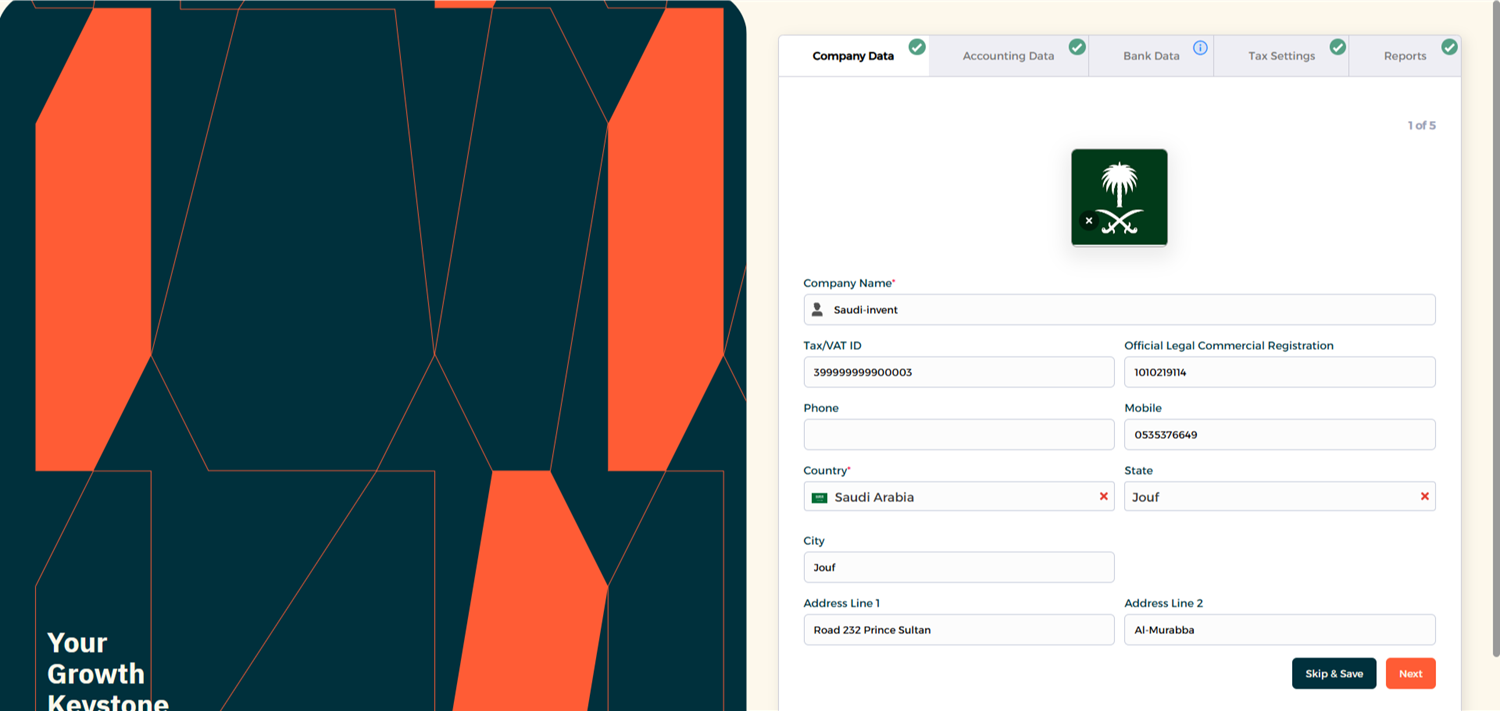
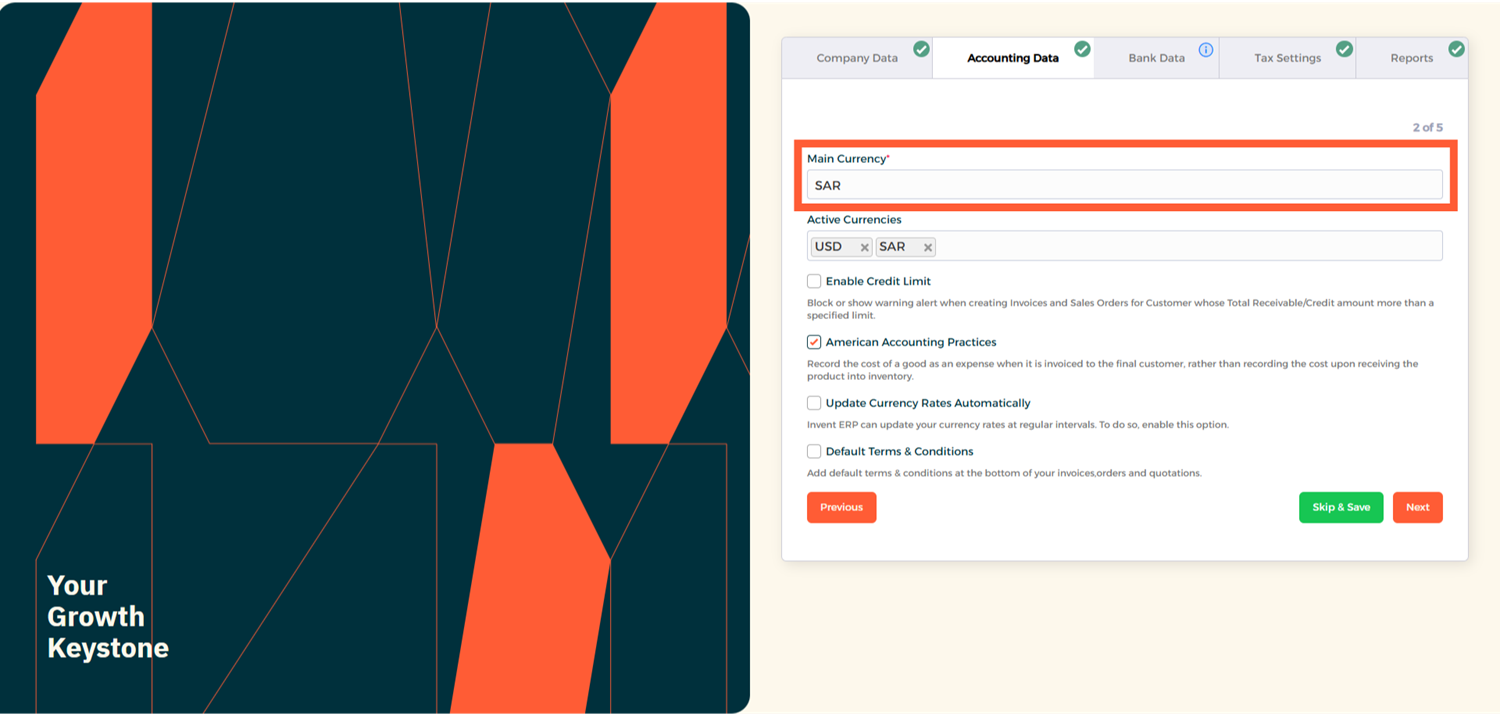
- In Accounting Data, select the correct base currency.
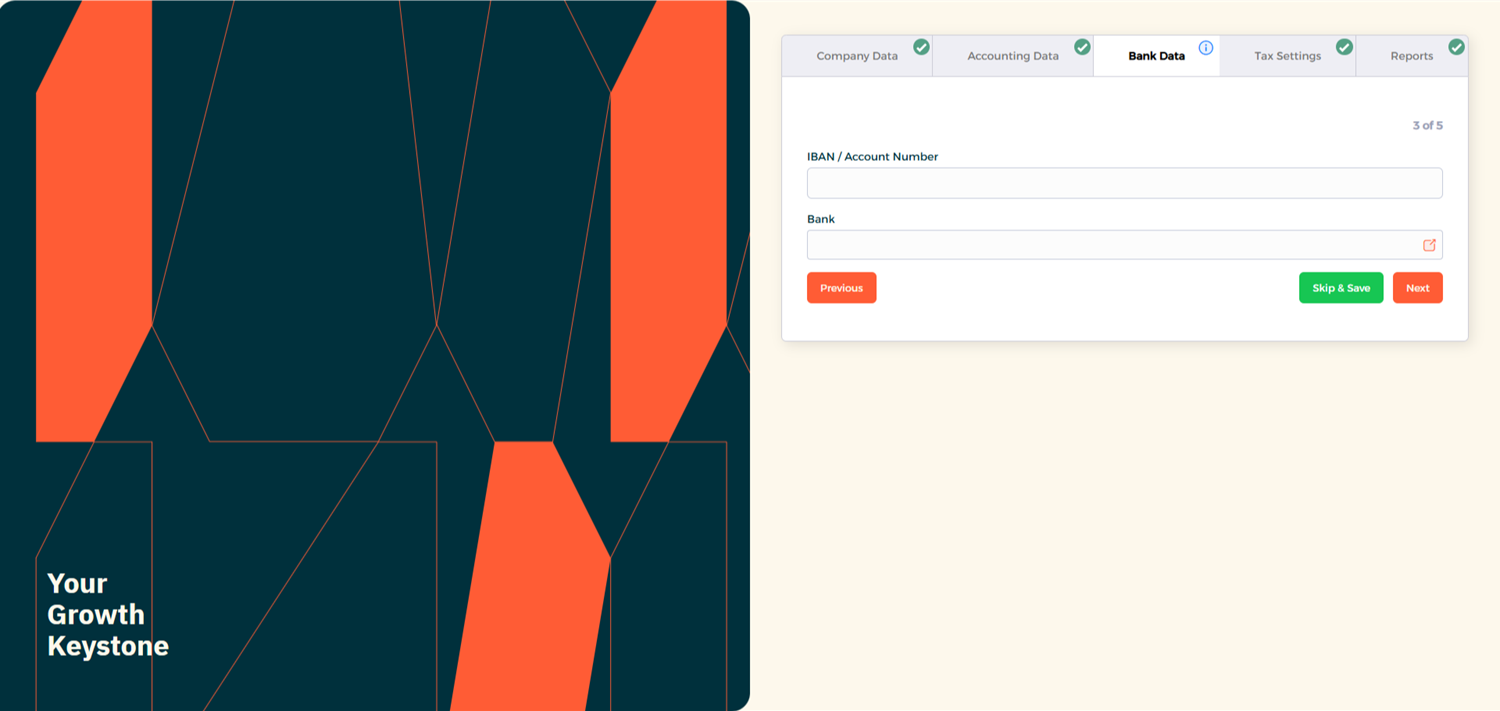
- Enter your company bank details in Bank Data.
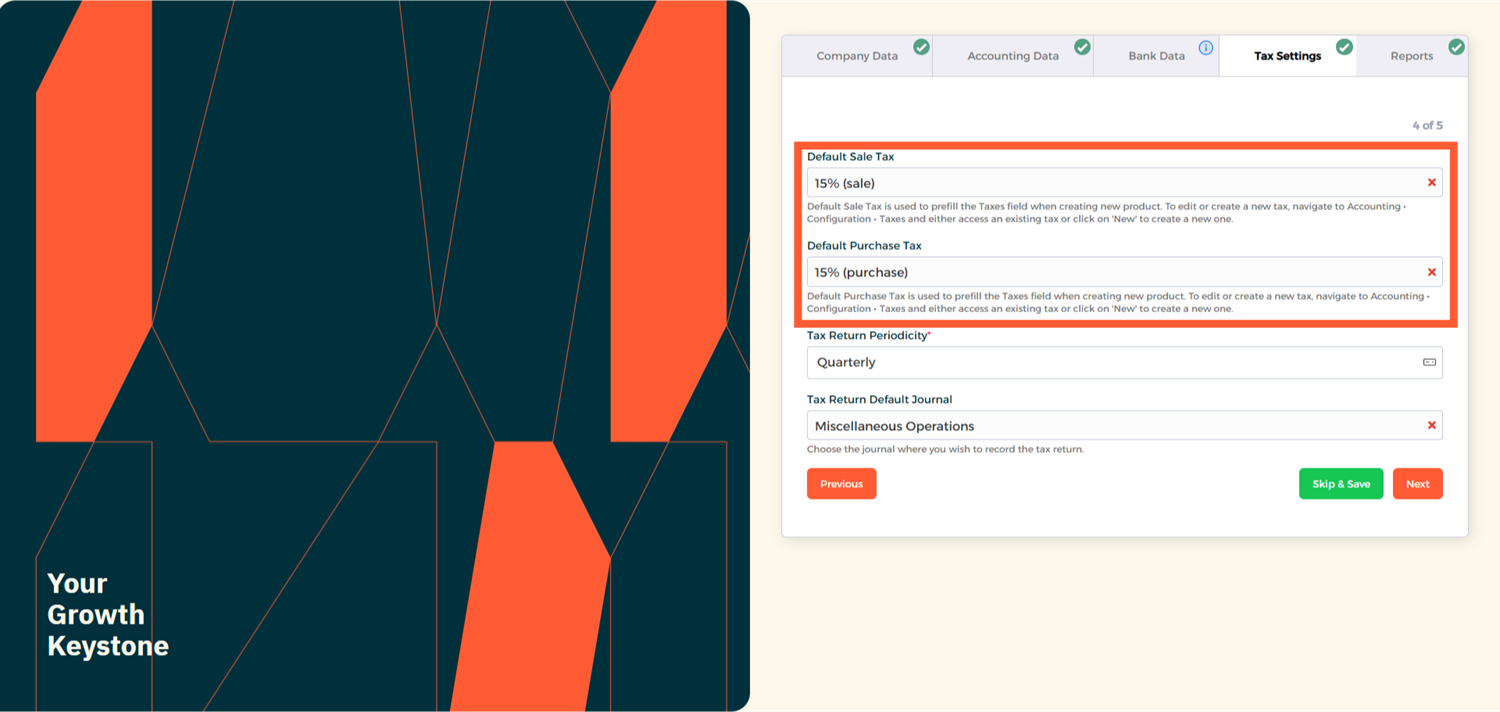
- Under Tax Settings, configure 15% VAT for Sales and Purchases.
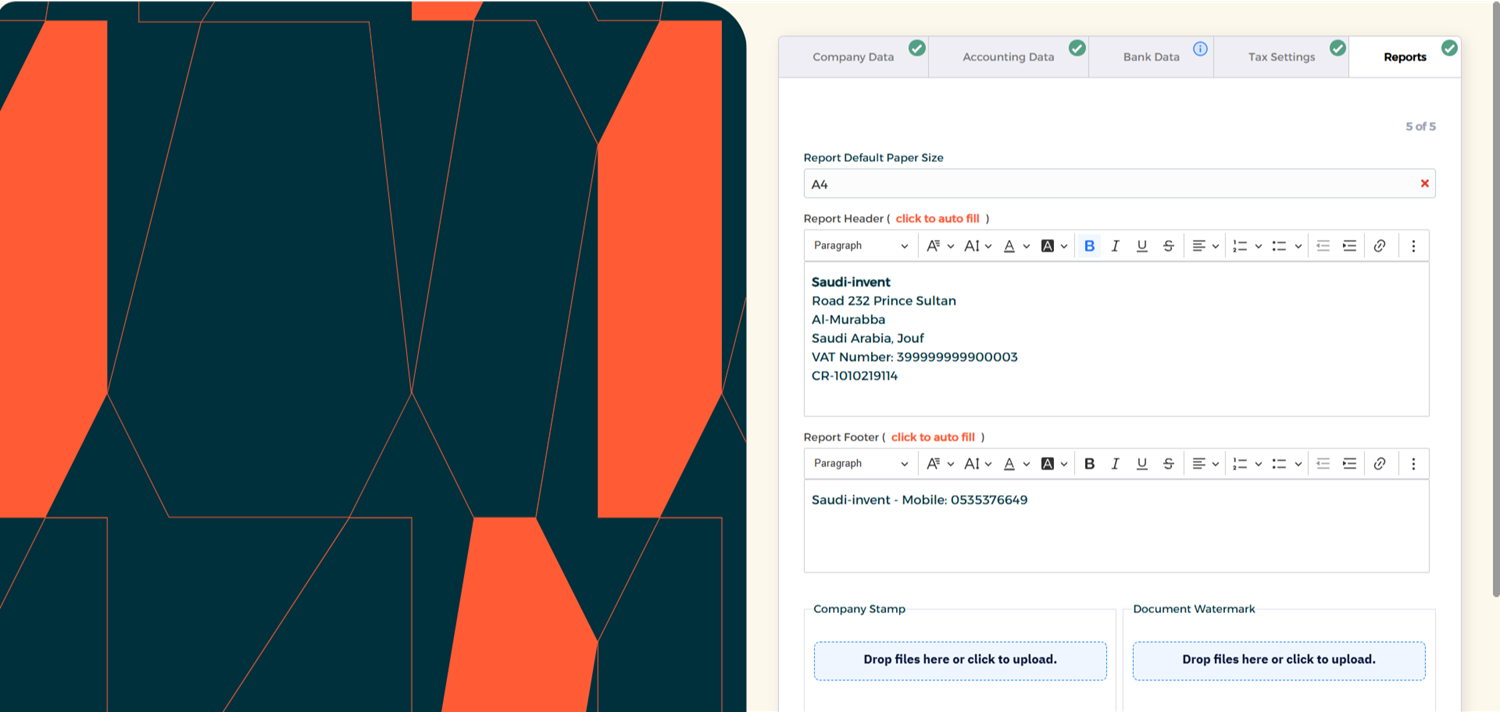
- In Reports, verify company details, upload your official company stamp, and configure your report watermark if required.
Once you have completed all the sections and verified that the information is accurate, click Submit.
Step 3: Advanced Company Setup
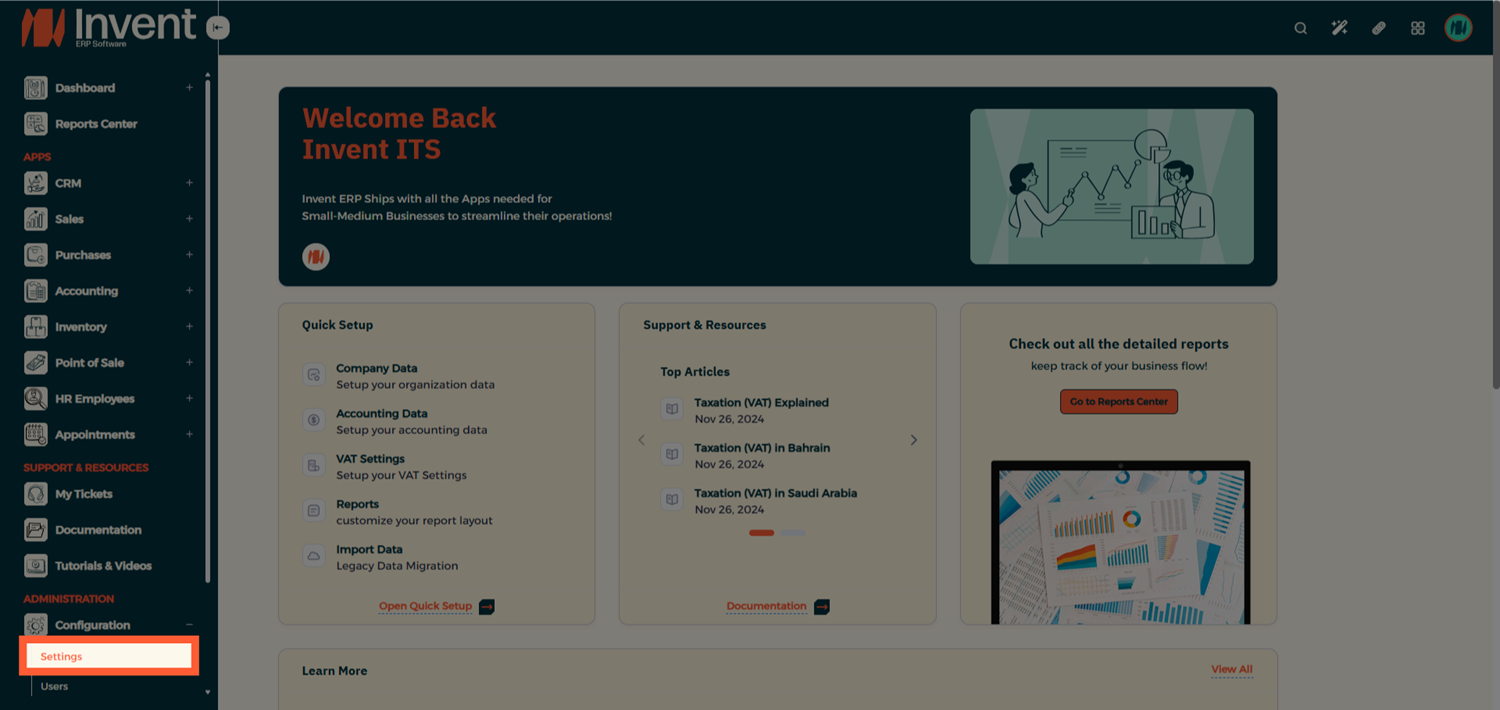
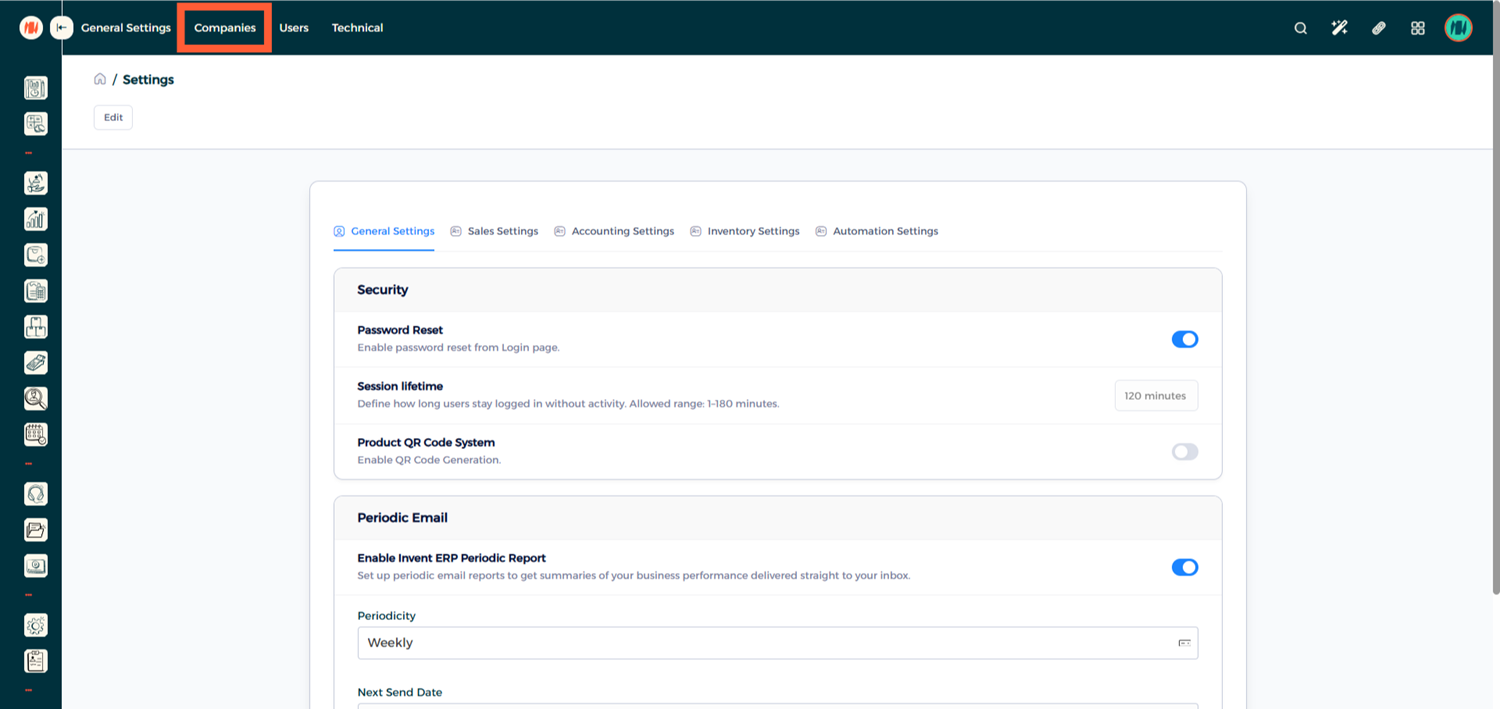
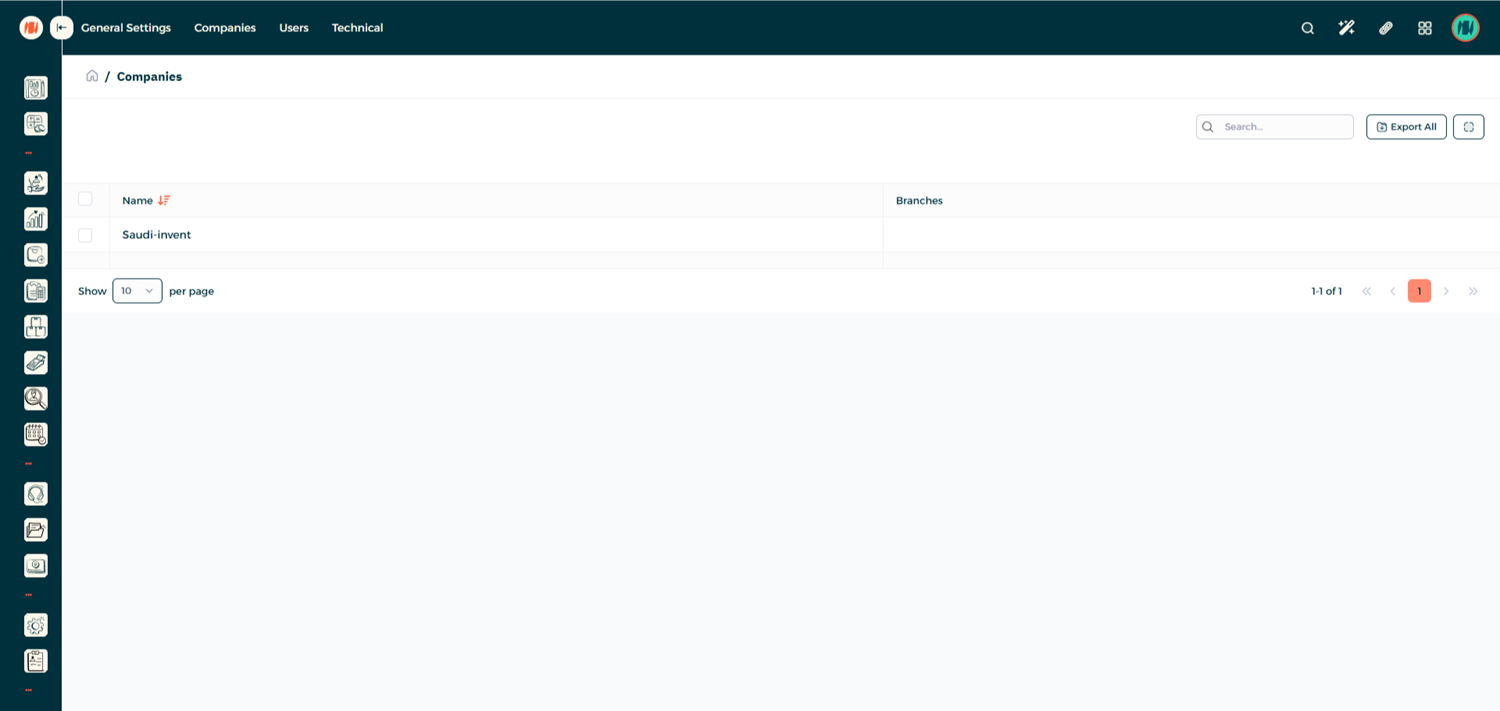
- Navigate to Settings → Companies and from the list select your company
Step 4: Review Company Information
Carefully review all company details again to ensure accuracy.
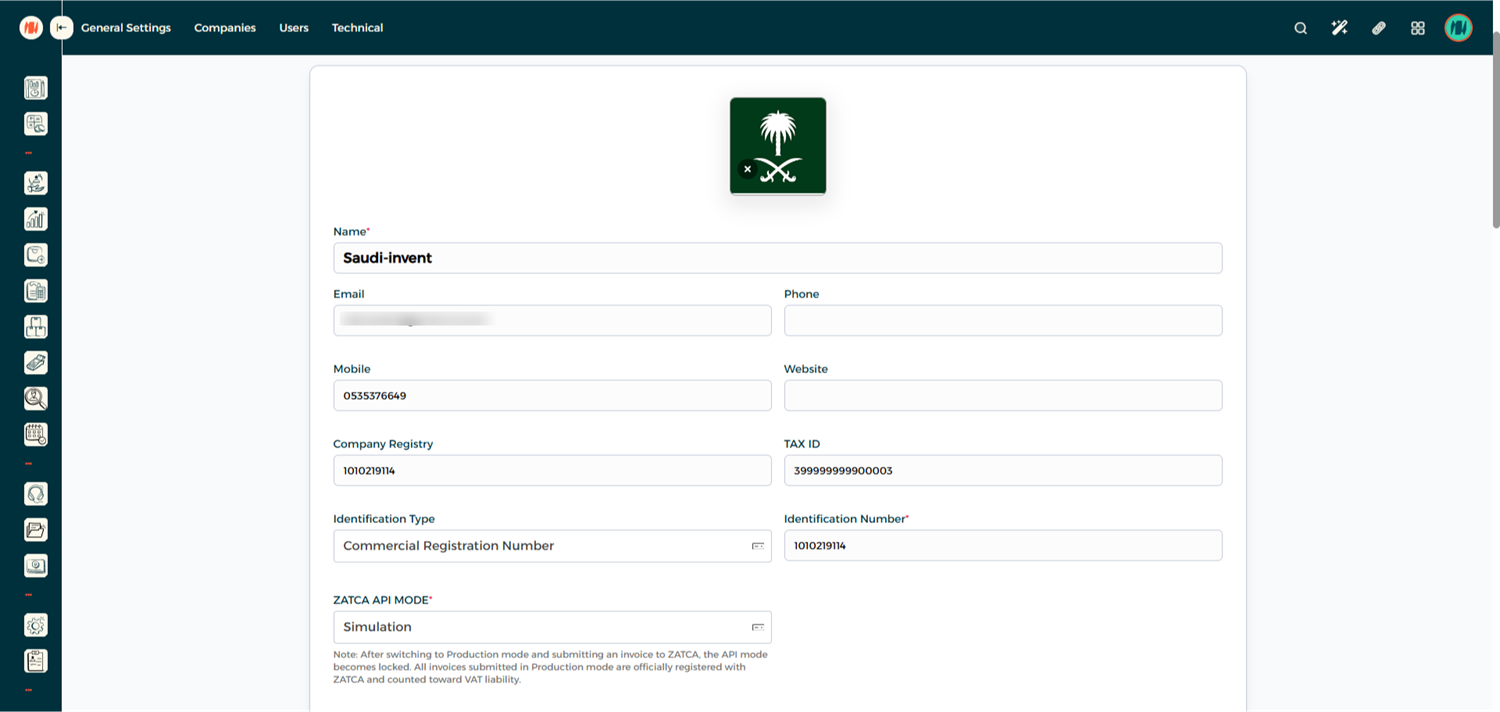
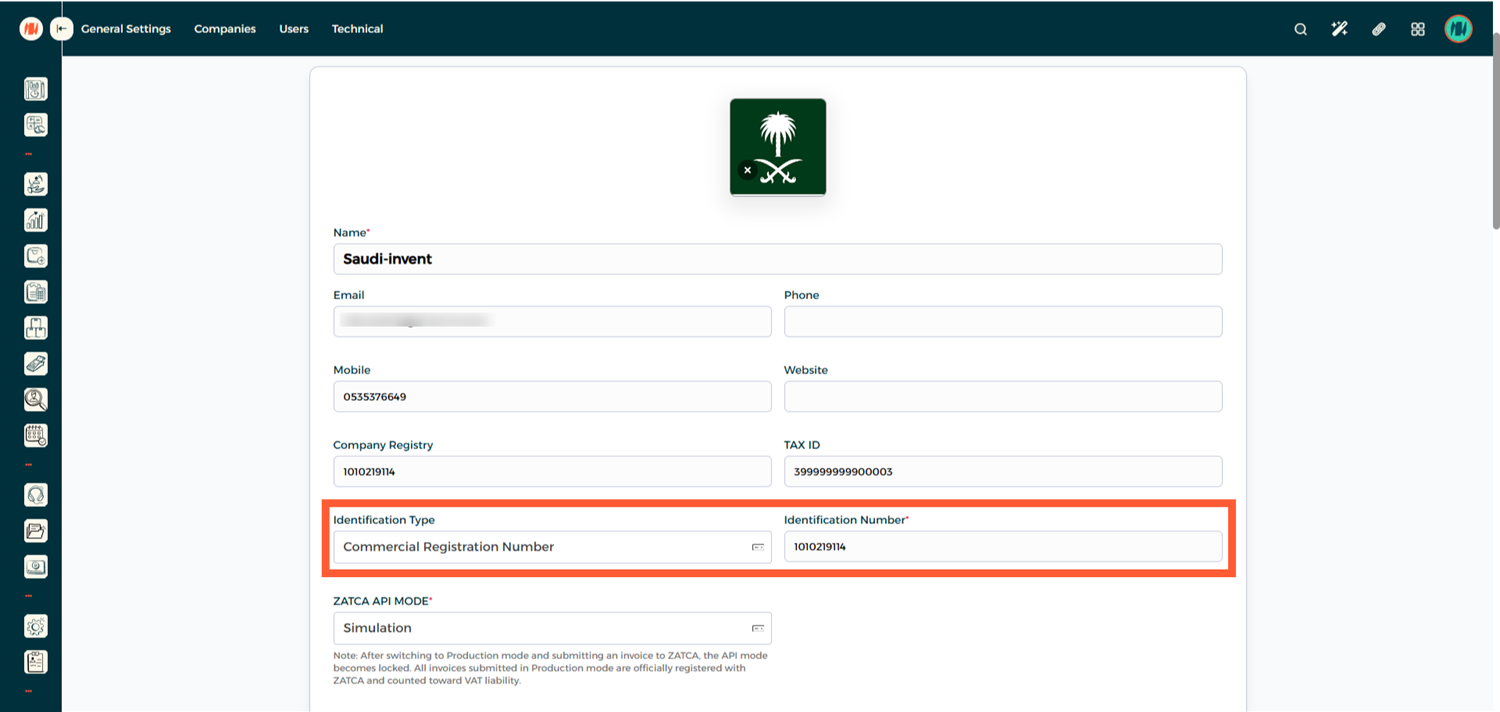
- Set the Identification Type to Commercial Registration Number and add your CR number.
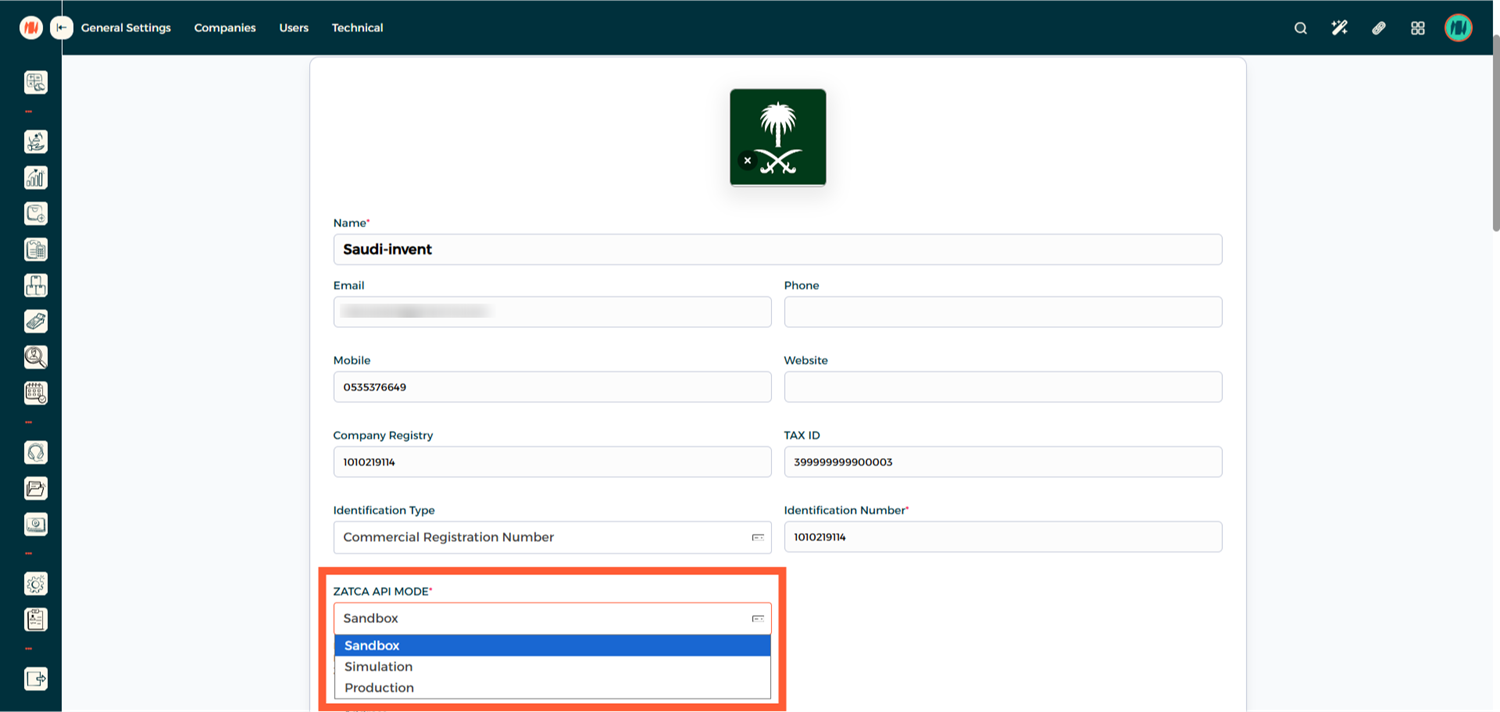
- Set the ZATCA API Mode
- Sandbox — Used for technical testing and development.
- Simulation — Used for testing the invoicing process from the customer side.
- Production — Used for live integration with ZATCA toSandbox which is used for technical testing and development.
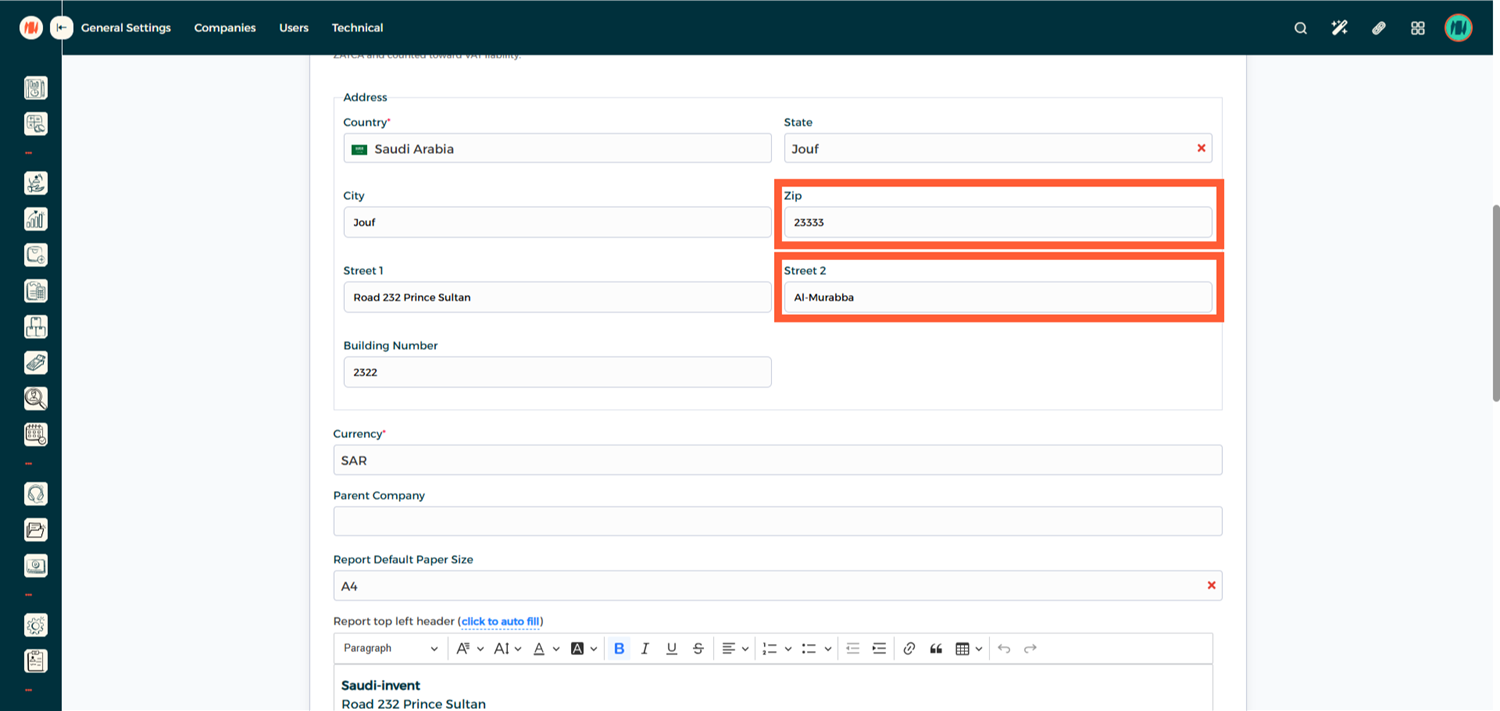
- Complete your company address, including Zip Code (Postal Code) and Street 2 (District Name).
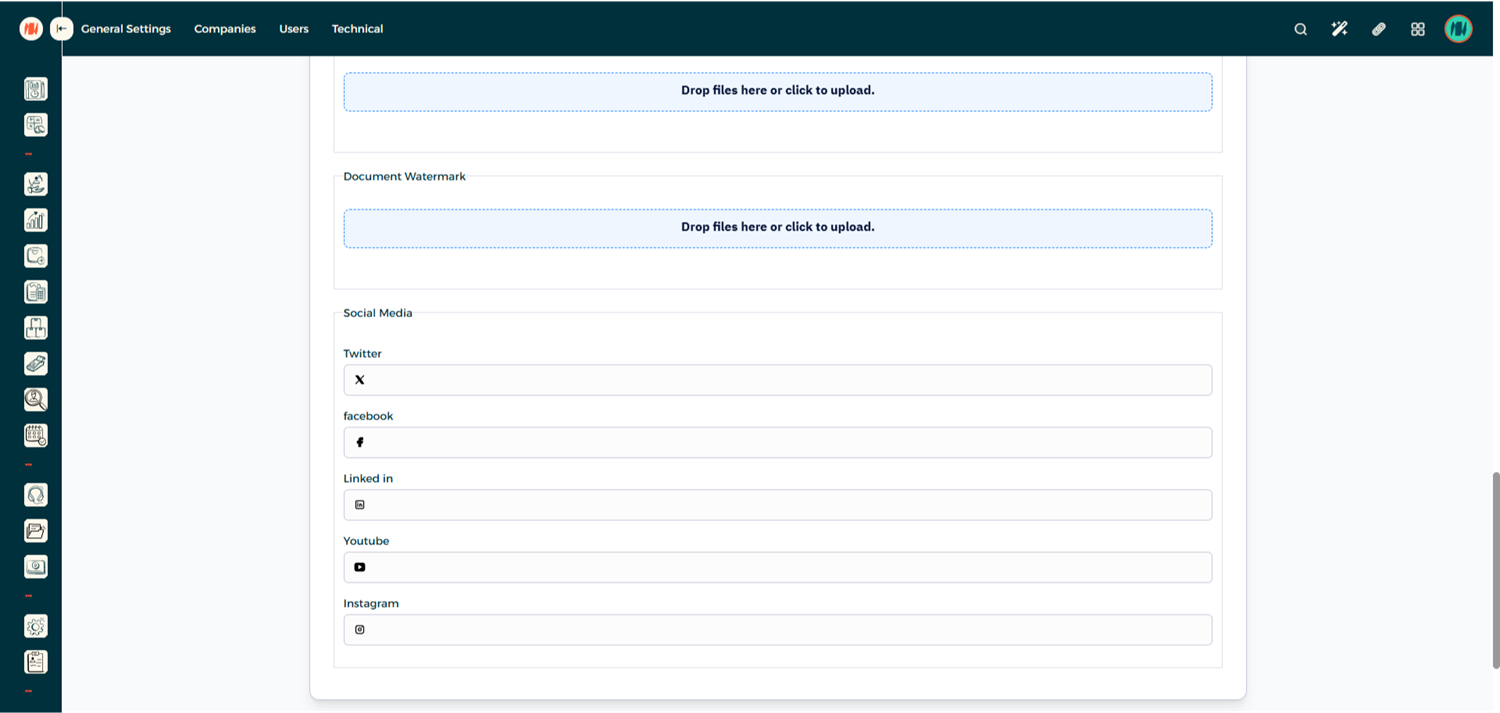
You may also add Company Social Media Accounts if needed.
Notes & Tips
- Always ensure your Company Name and CR Number match official government records.
- Double-check your VAT configuration (15%) for both sales and purchases.
- Start with Simulation Mode before switching to Production Mode for live invoicing.
- Incorrect company information may cause ZATCA invoice rejections.