How to Manage Customer Credit, Open Invoices, and Pay-Later Sales Using POS
Learn how to handle customer credit accounts, open invoices, advance settlements, and flexible pay-later scenarios.
Step-by-Step Process
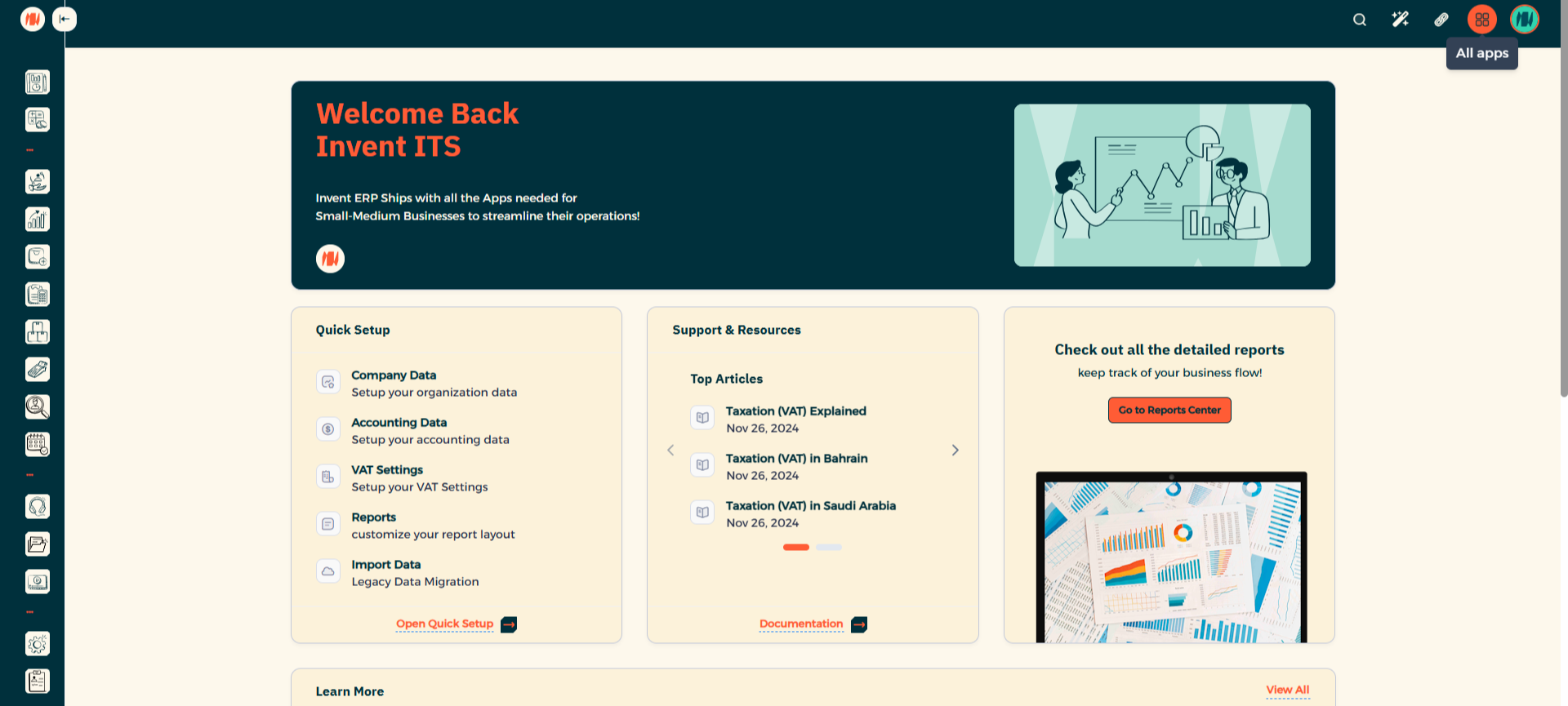
Step 1: Navigate to All Apps
From the Main Menu, look at the top right corner then click on All apps.
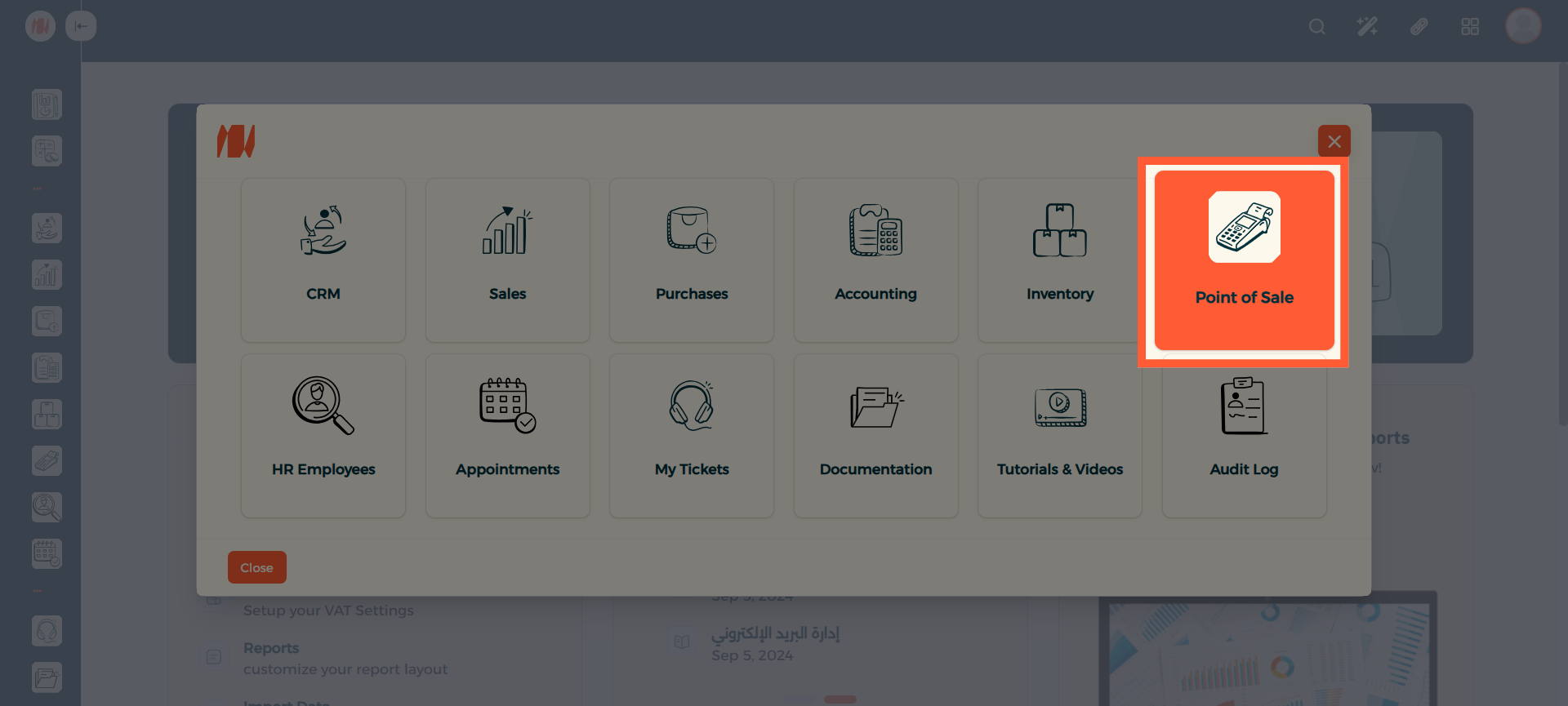
Step 2: Select Point of Sale
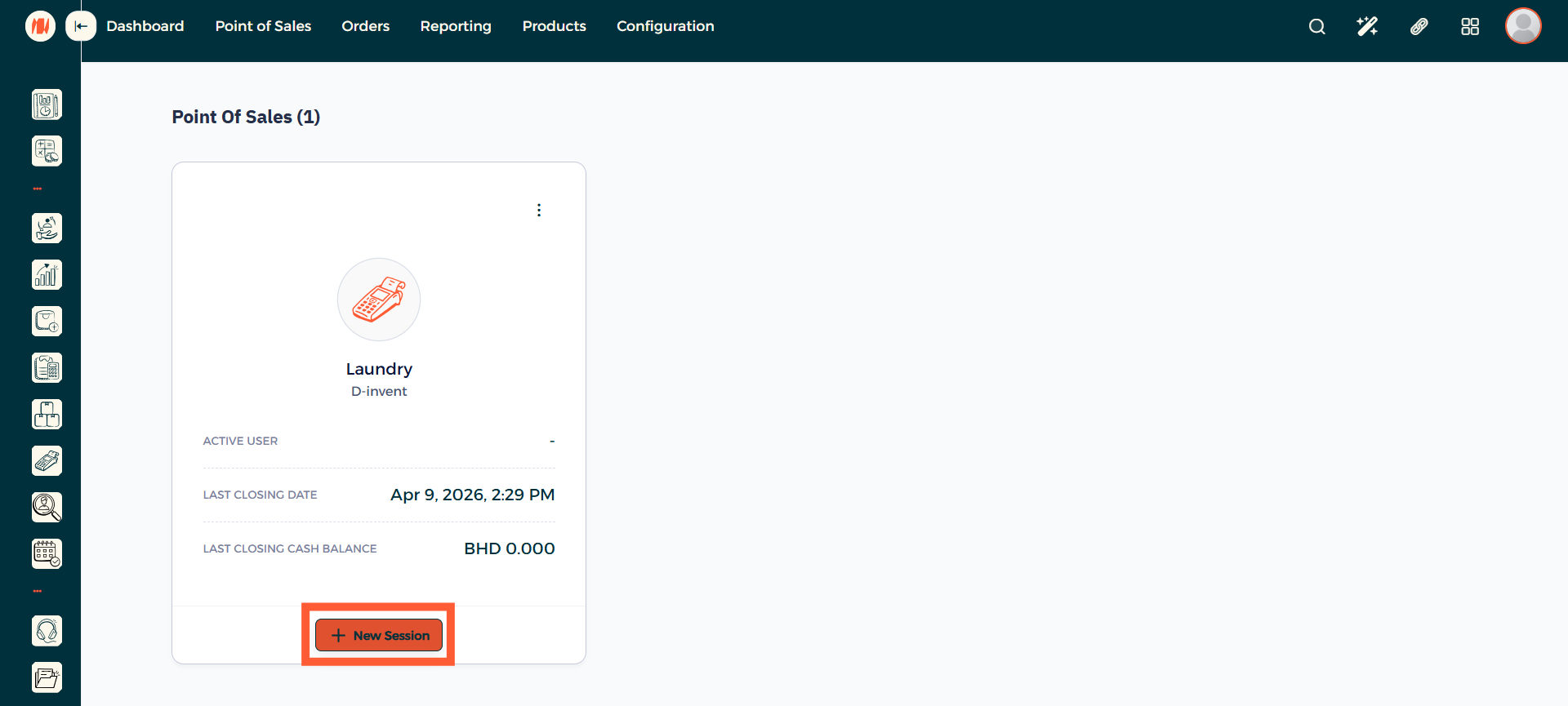
Step 3: Start a New POS Session
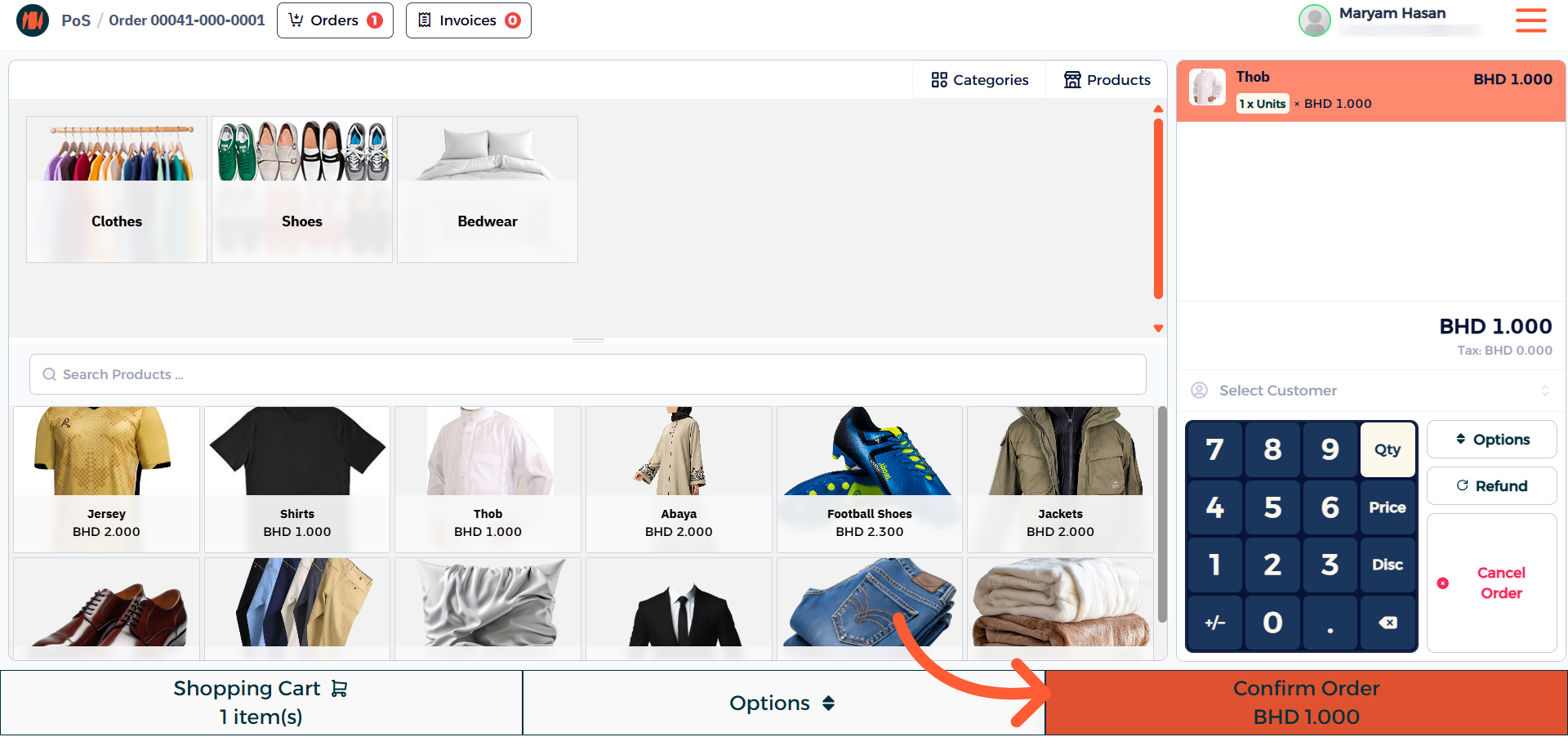
Step 4: Select Product and Confirm Order
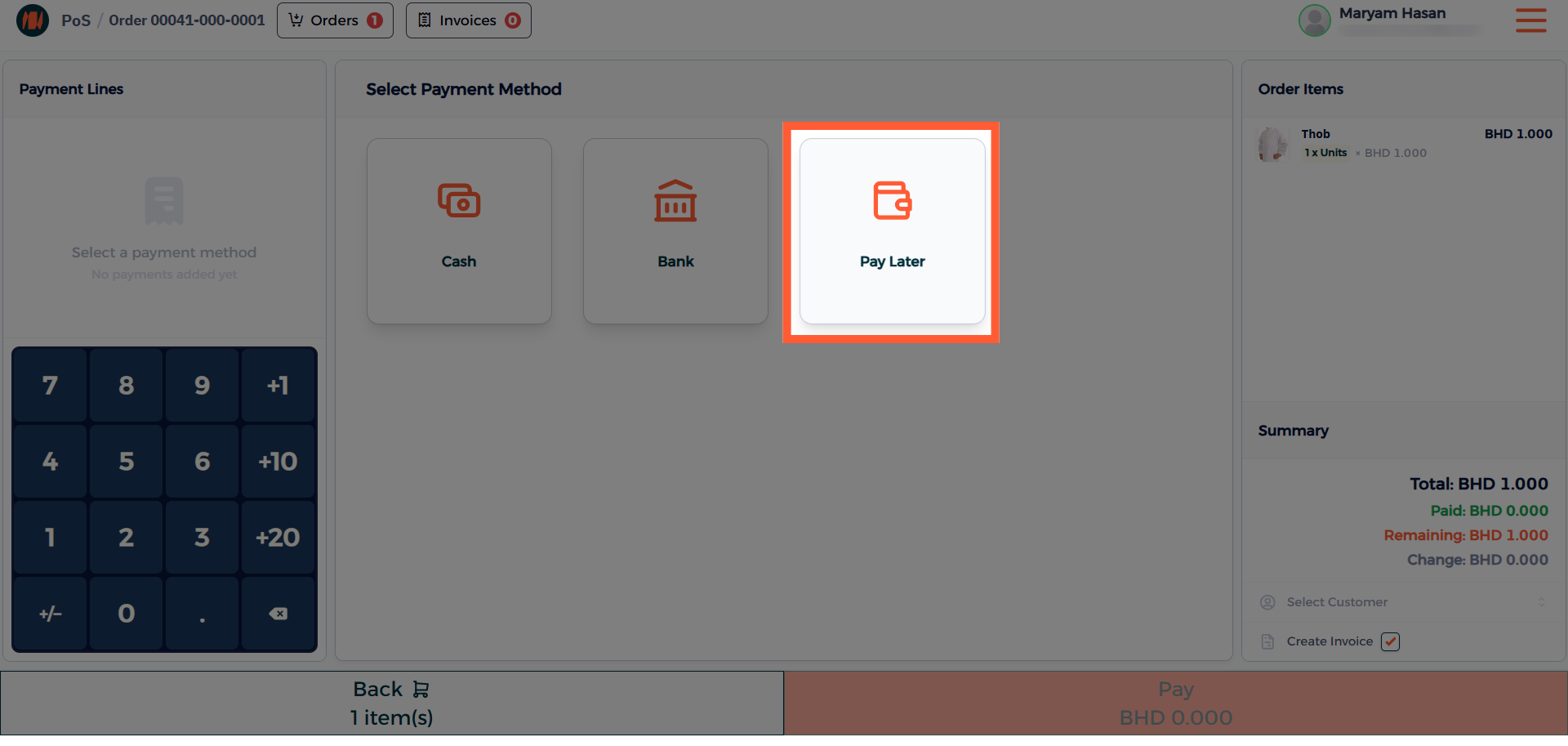
Step 5: Select Payment Method
From your payment methods, select the Pay Later option. After that, complete the order.
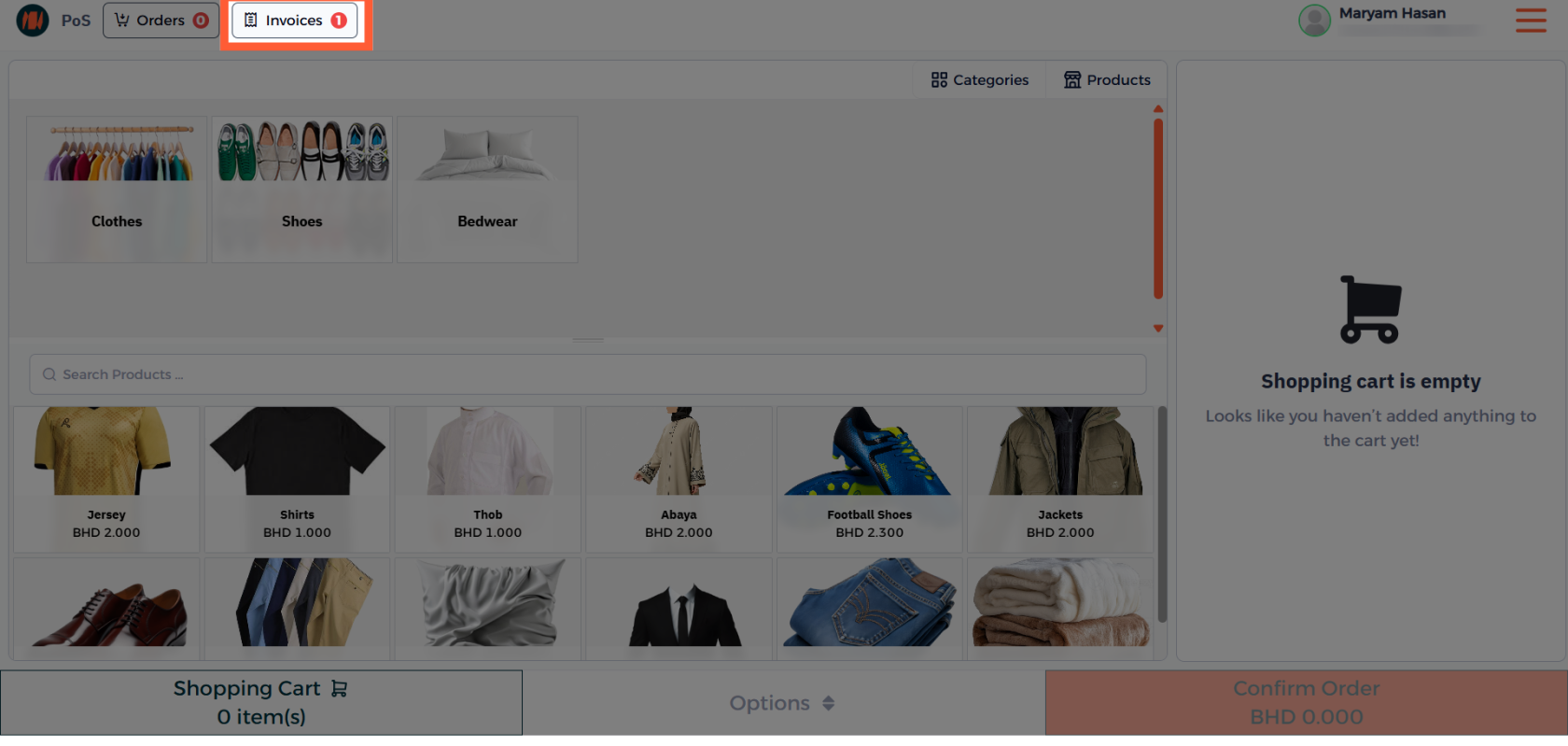
Step 6: Navigate to Invoices
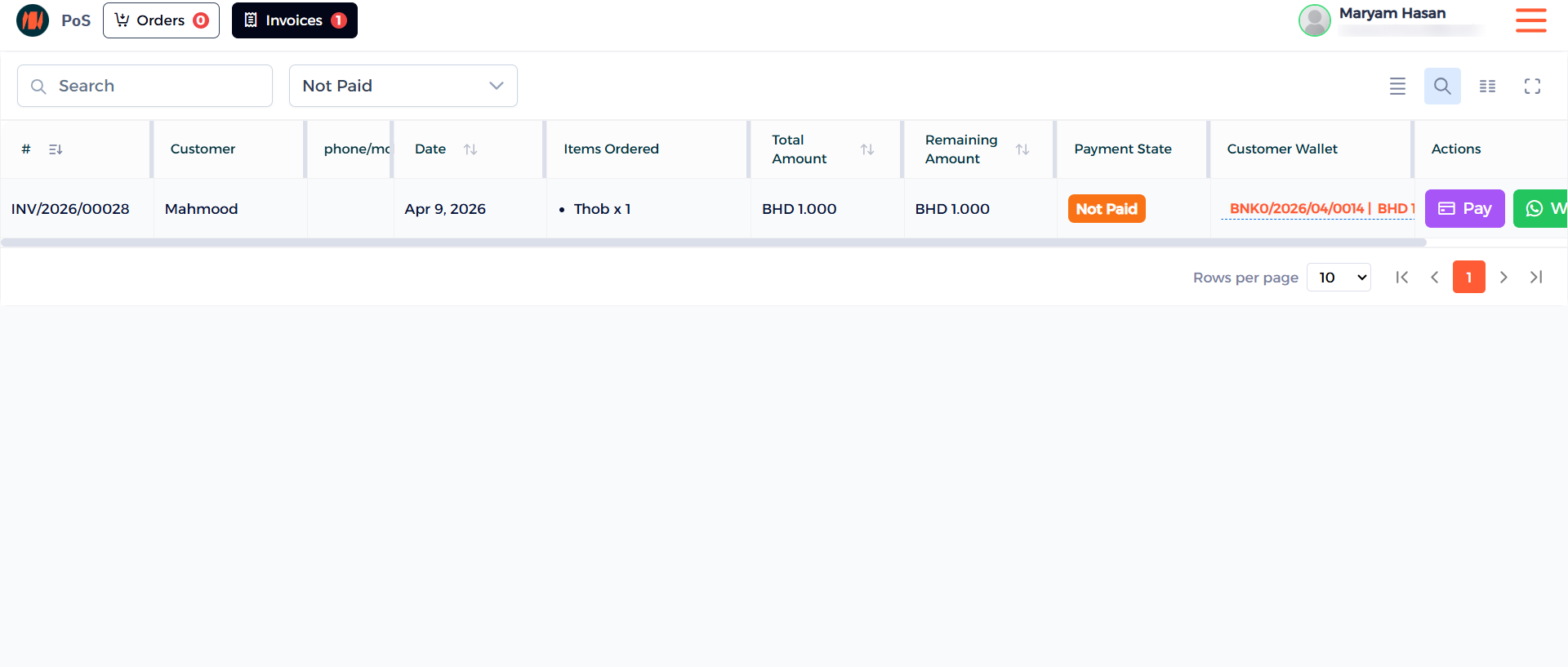
Step 7: View Invoices
Here you can see all the unpaid invoices.
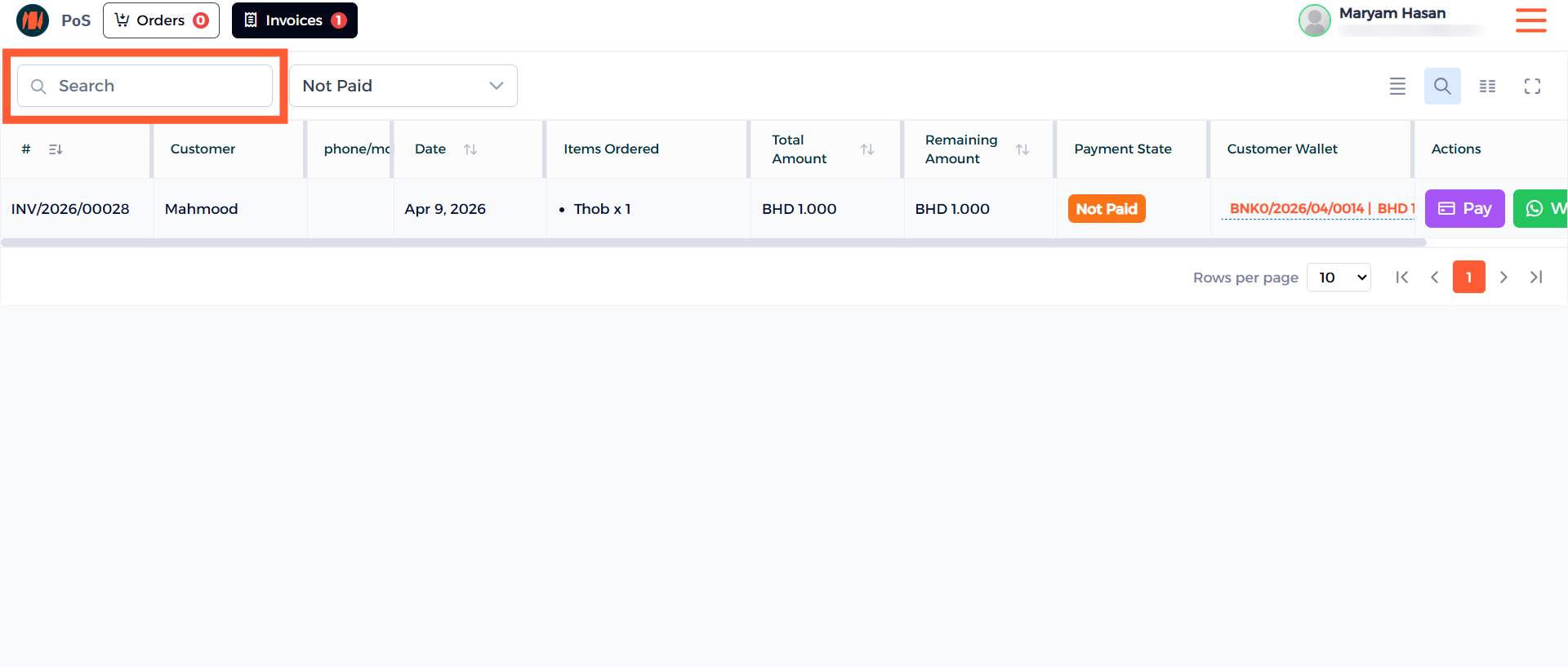
Step 8: Search for an Invoice
You can easily search by invoice number, customer's name or mobile number.
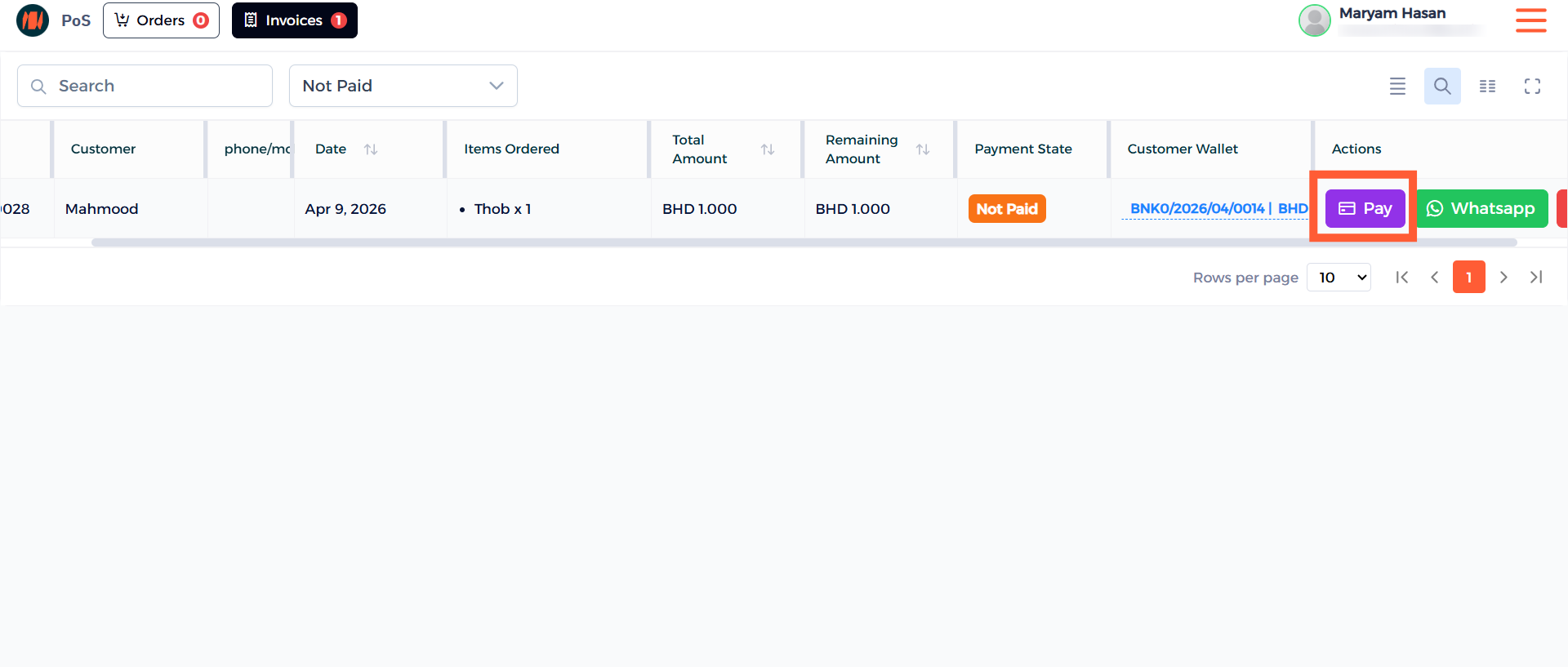
Step 9: Payment Actions
After you found your customer select the Pay button.
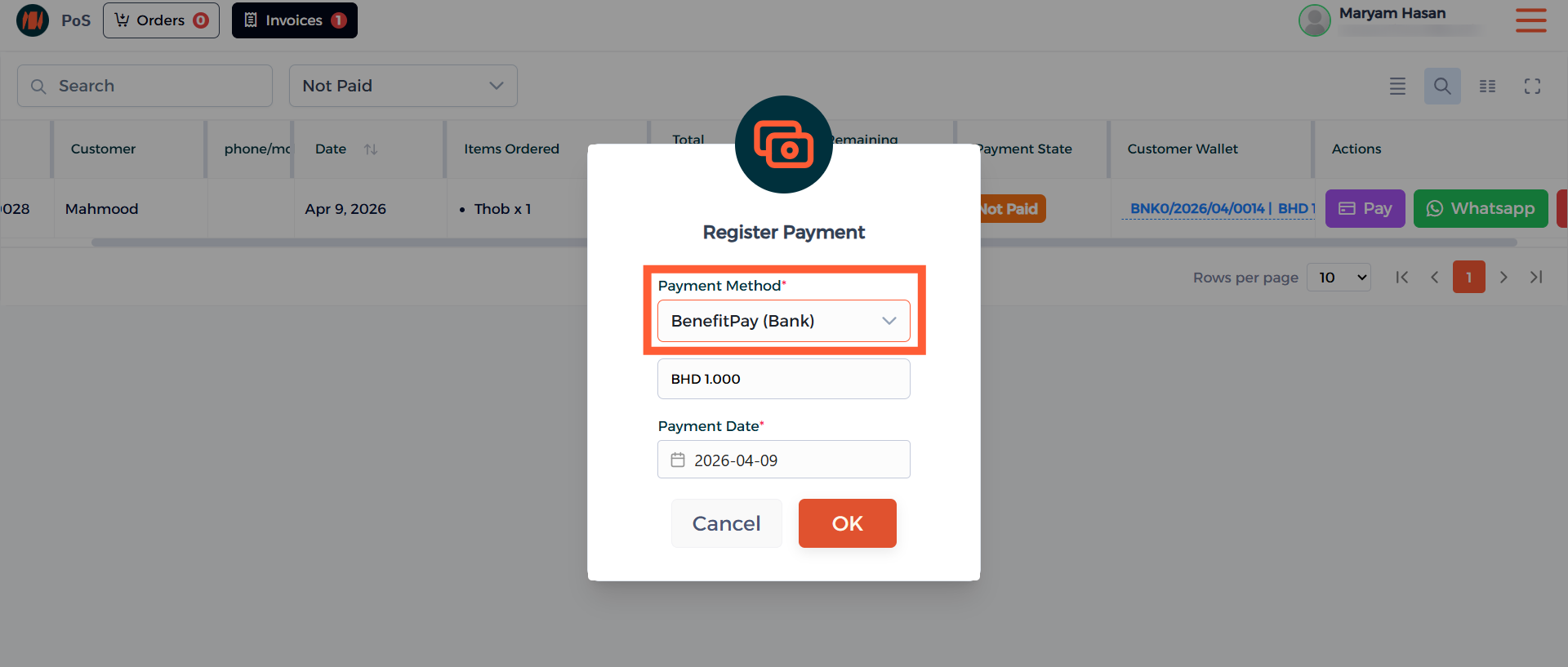
Step 10: Choose Payment Method
Select the preferred payment method of the customer and then confirm it.
Notes & Tips
- An important tip is to ensure the customer information is accurate before proceeding with using the Pay Later Feature. Correct details help avoid issues with pending payments.
- Always select Pay Later at checkout, this keeps the transactions smooth and ensures your workflow run efficiently.
FAQ
Q: When do we use the Pay Later Feature? Use the Pay Later Feature when a customer prefers to pay after receiving the product or service.
Q: Can I only use this in Point-of-Sale (POS)? Yes, this is only available in Point-of-Sale (POS).
Q: Can I do partial payments for Pay Later? Yes customers can make partial payments, just choose a payment method, enter the amount, and confirm it.