How to Analyze Retail Performance Using Point of Sale Reports
Learn how to generate POS reports, monitor sales trends, analyze cashier performance, and gain insights into retail operations.
Step-by-Step Process
Step 1: Navigate to All Apps
From the Main Menu, look at the top right corner then click on All apps.
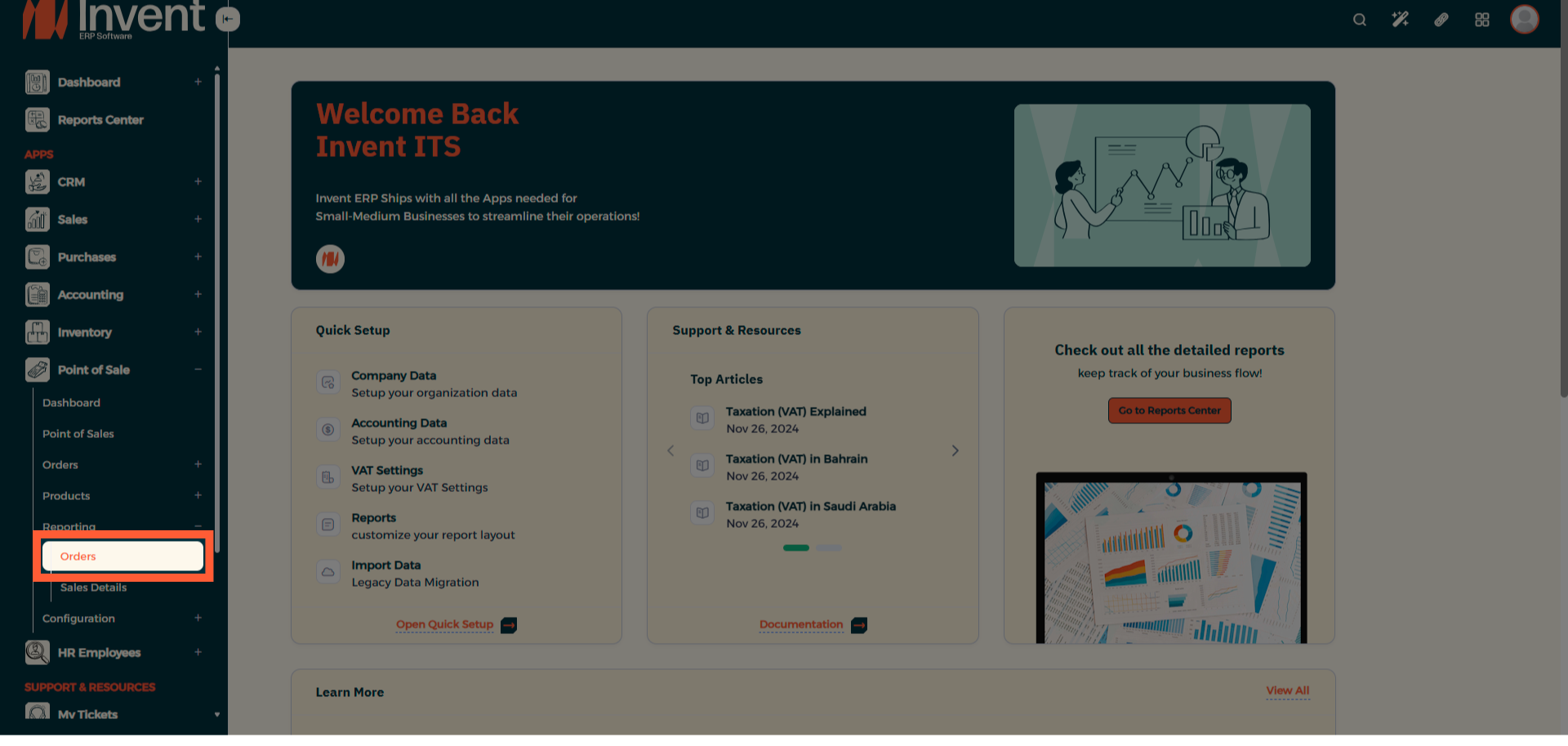
Step 2: View POS Orders Report
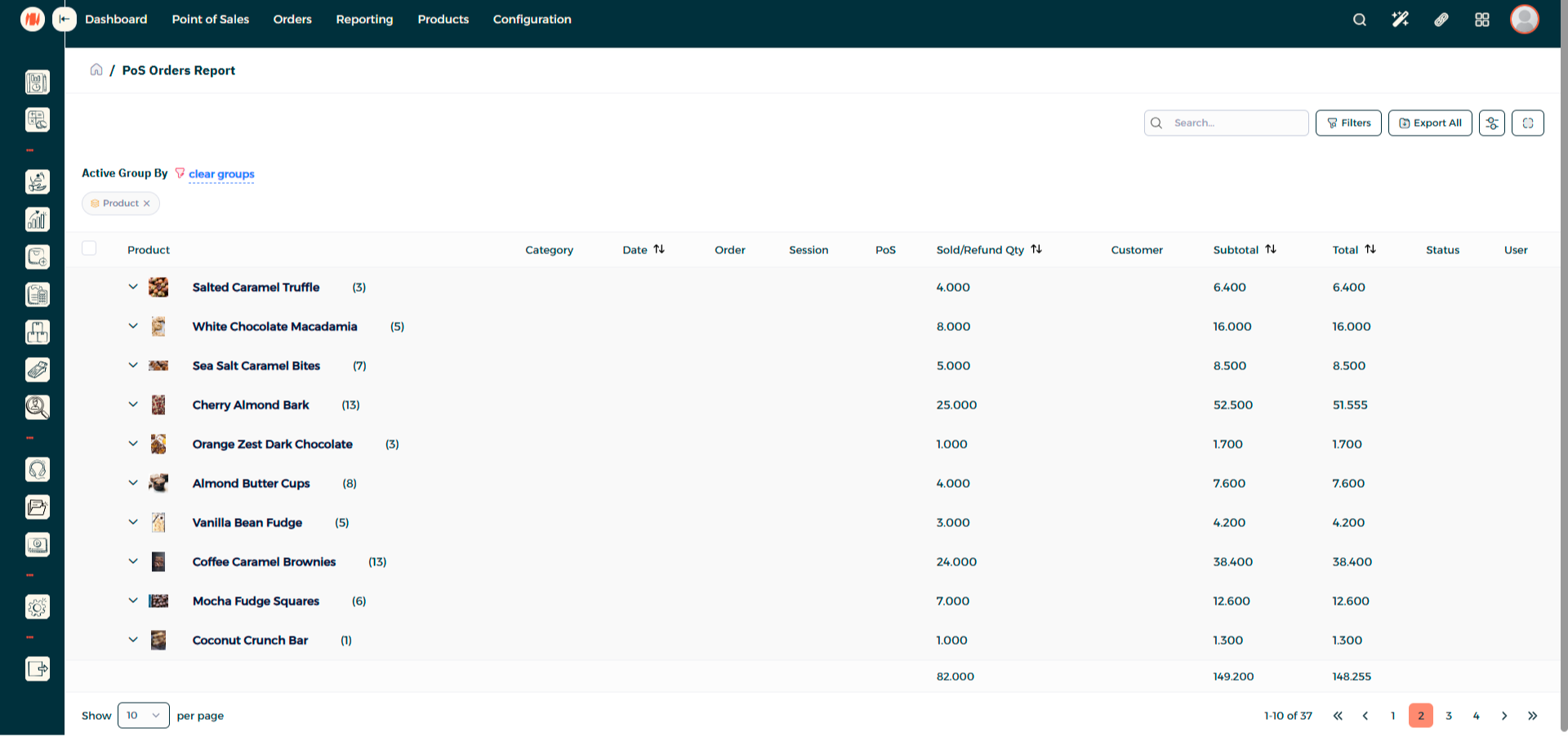
Here you can see all your POS order reports. In the top right corner of this page you can search for a specific order, apply filters, export all, change column visibility, or switch to full screen.
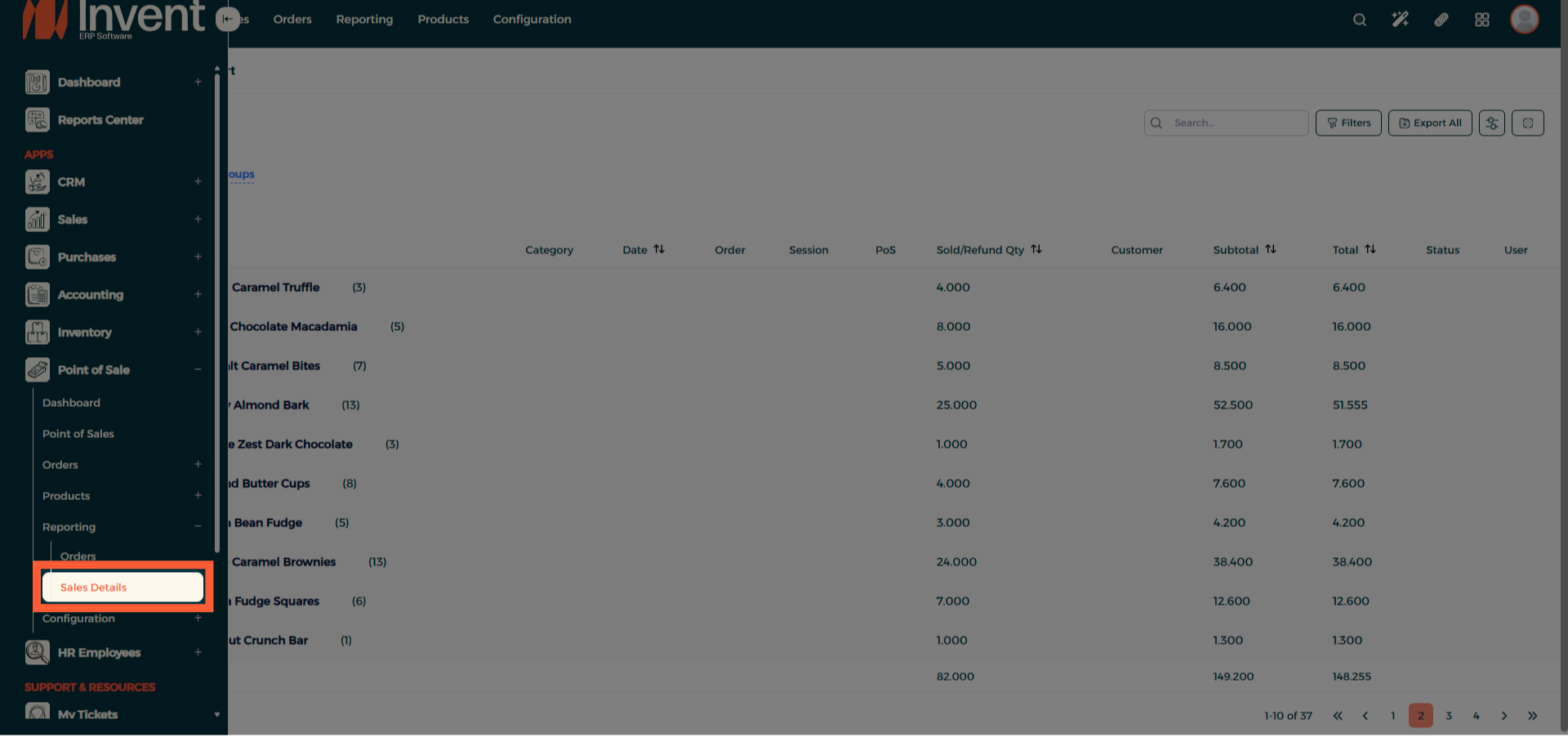
Step 3: Navigate to Sales Details
Step 4: View POS Sales Report
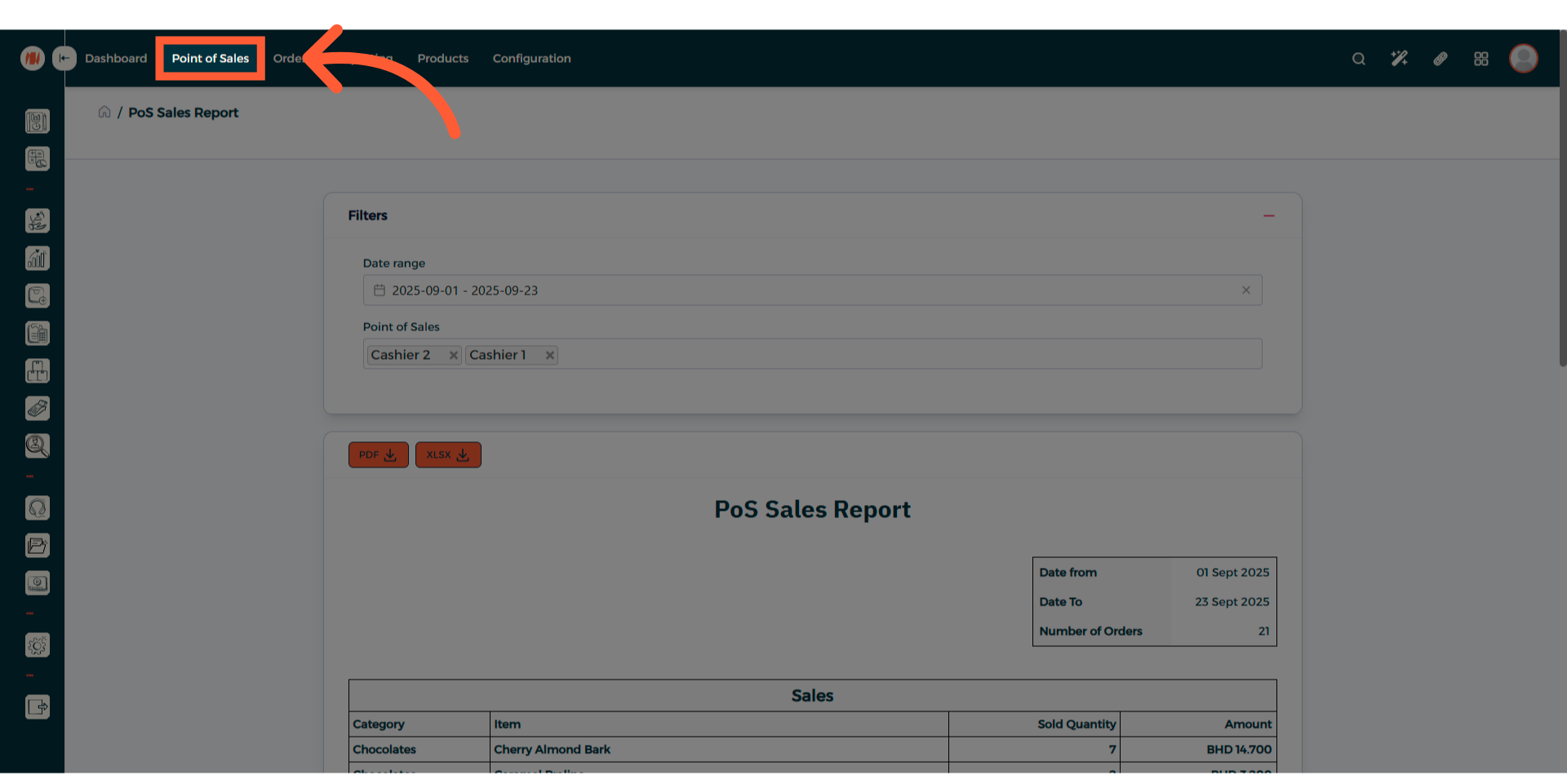
Here you can see your POS sales report. In the top center, click Filters to specify a date range. When ready, you can export the report as a PDF or an Excel file.
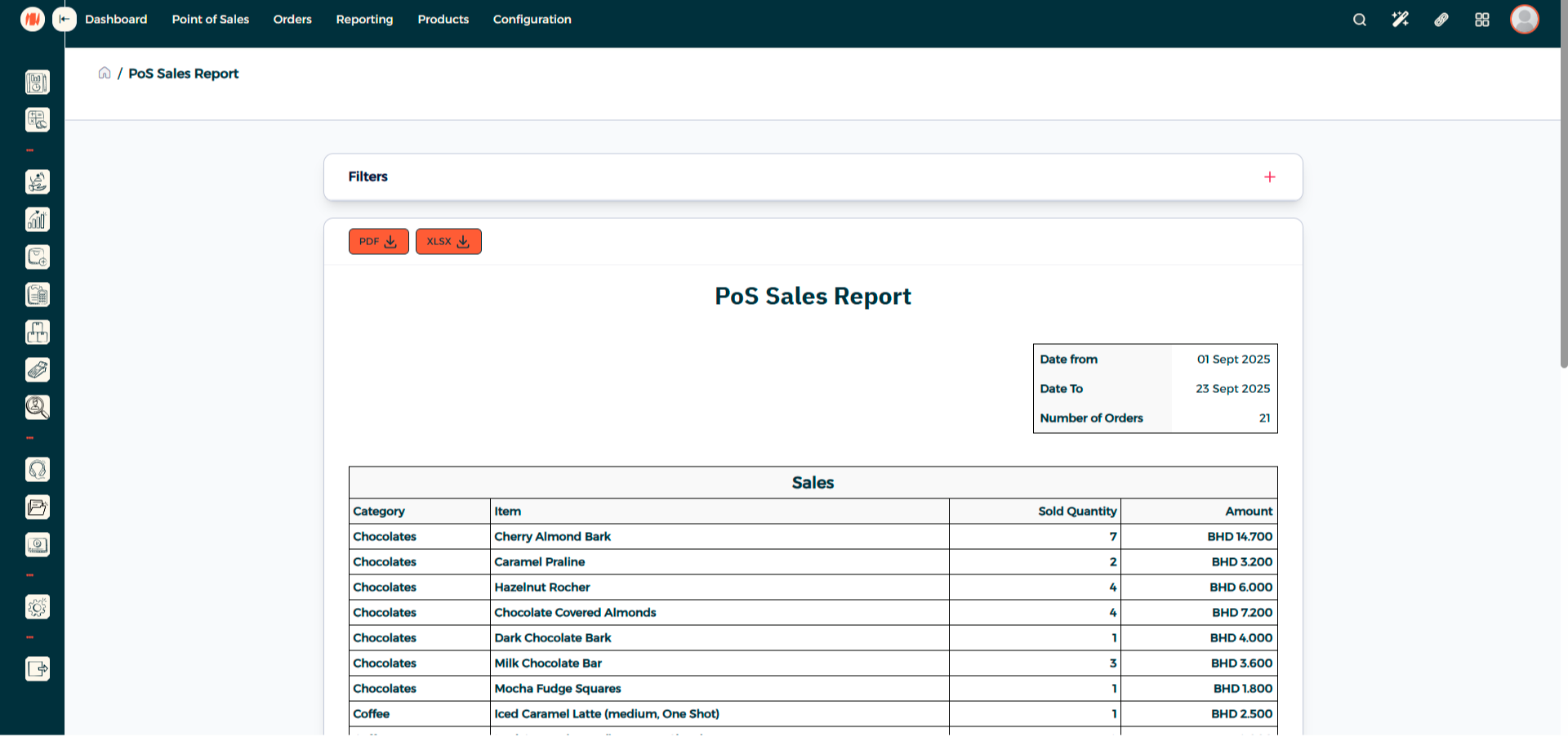
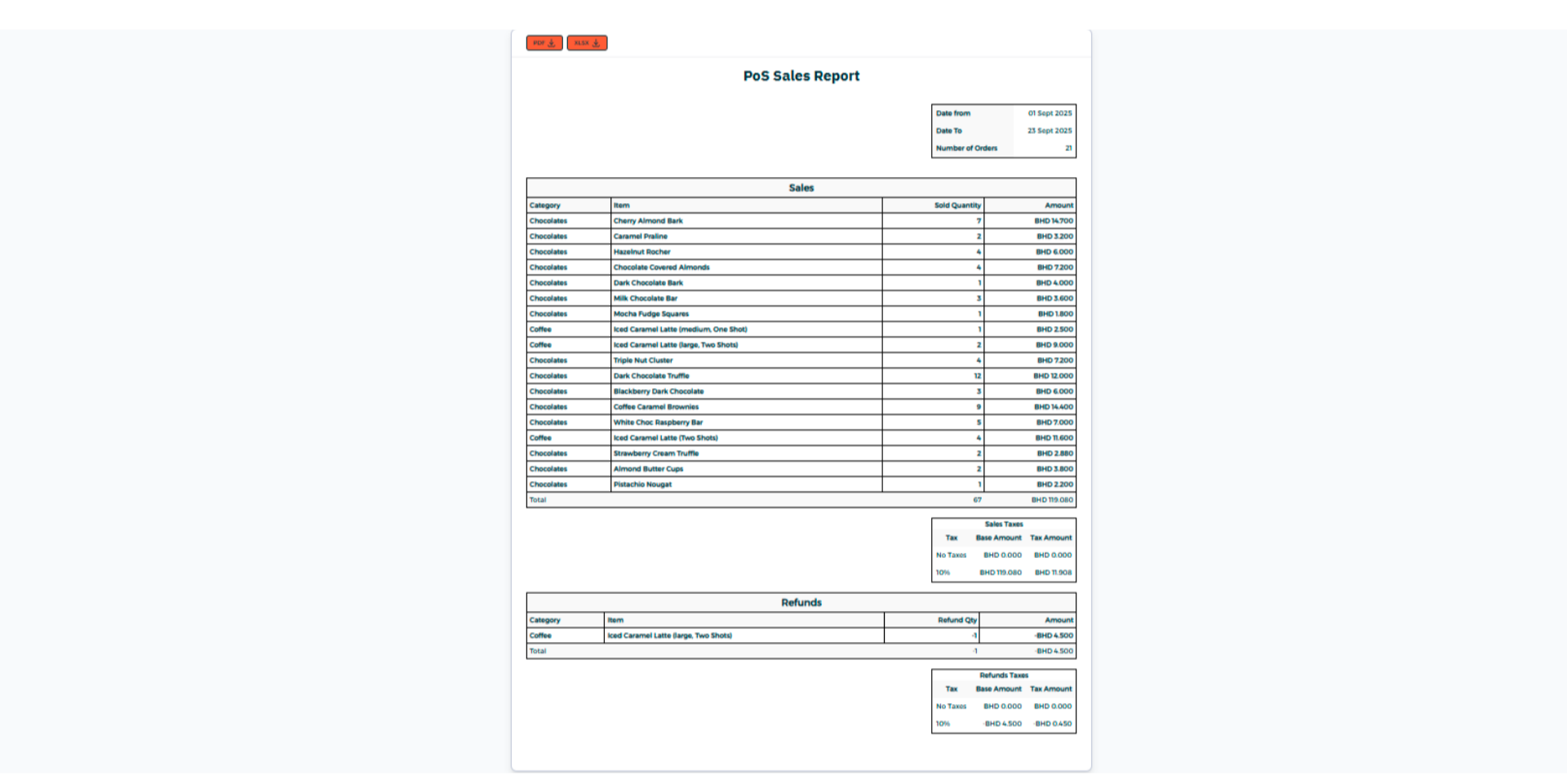
Step 5: Example of POS Sales Report
Step 6: Navigate to Point of Sale
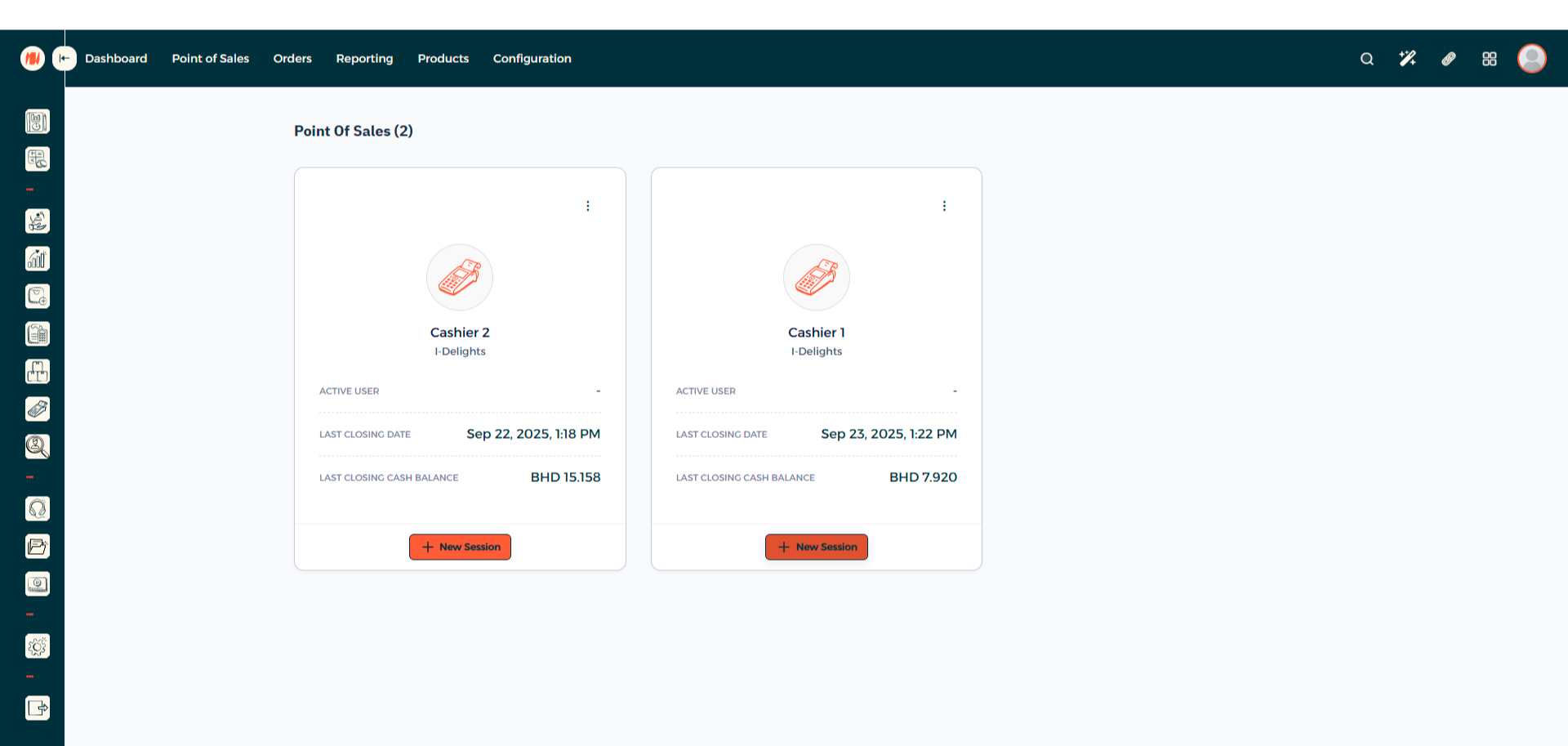
Step 7: Start a New POS Session
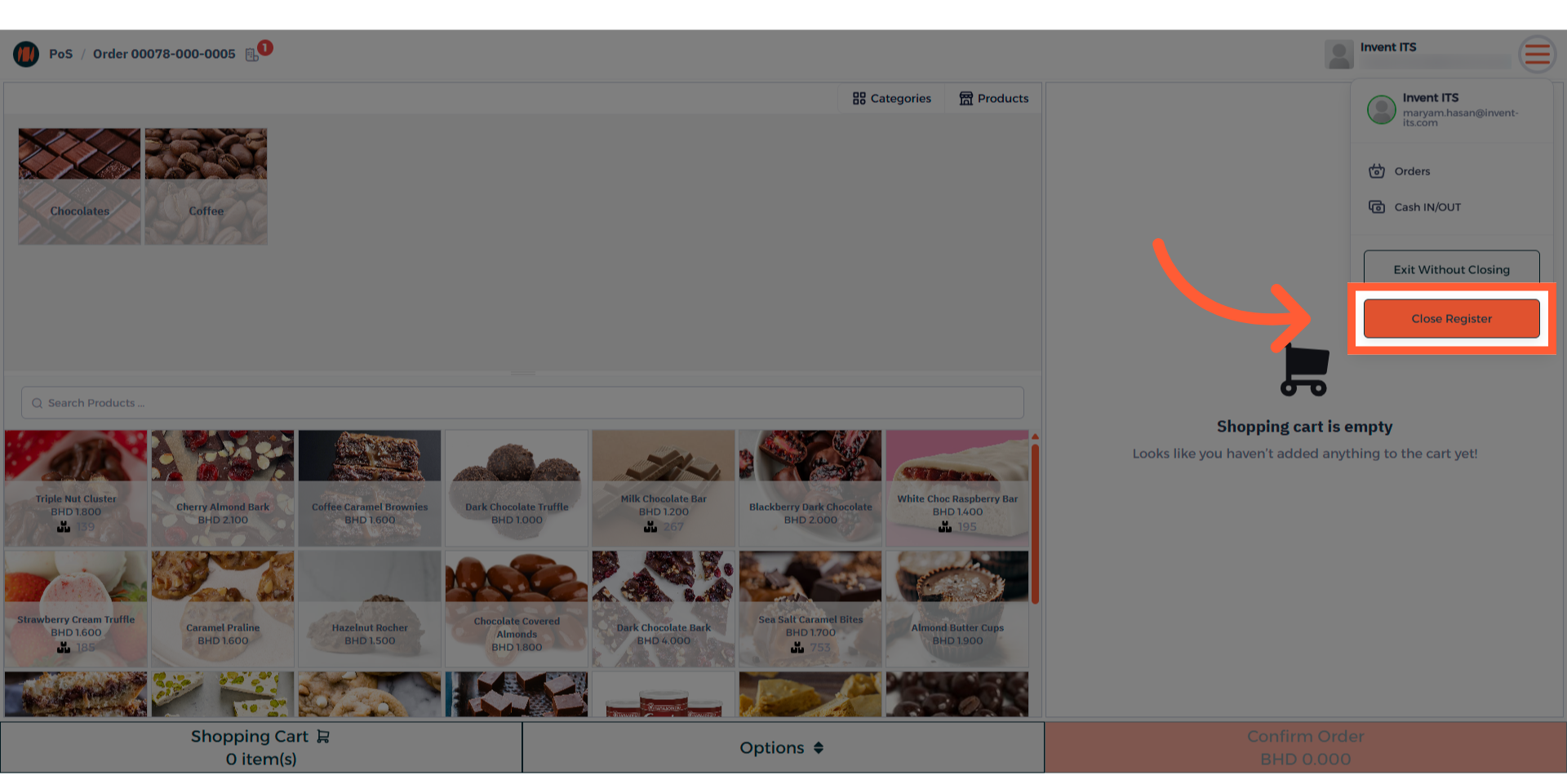
Step 8: Close POS Register
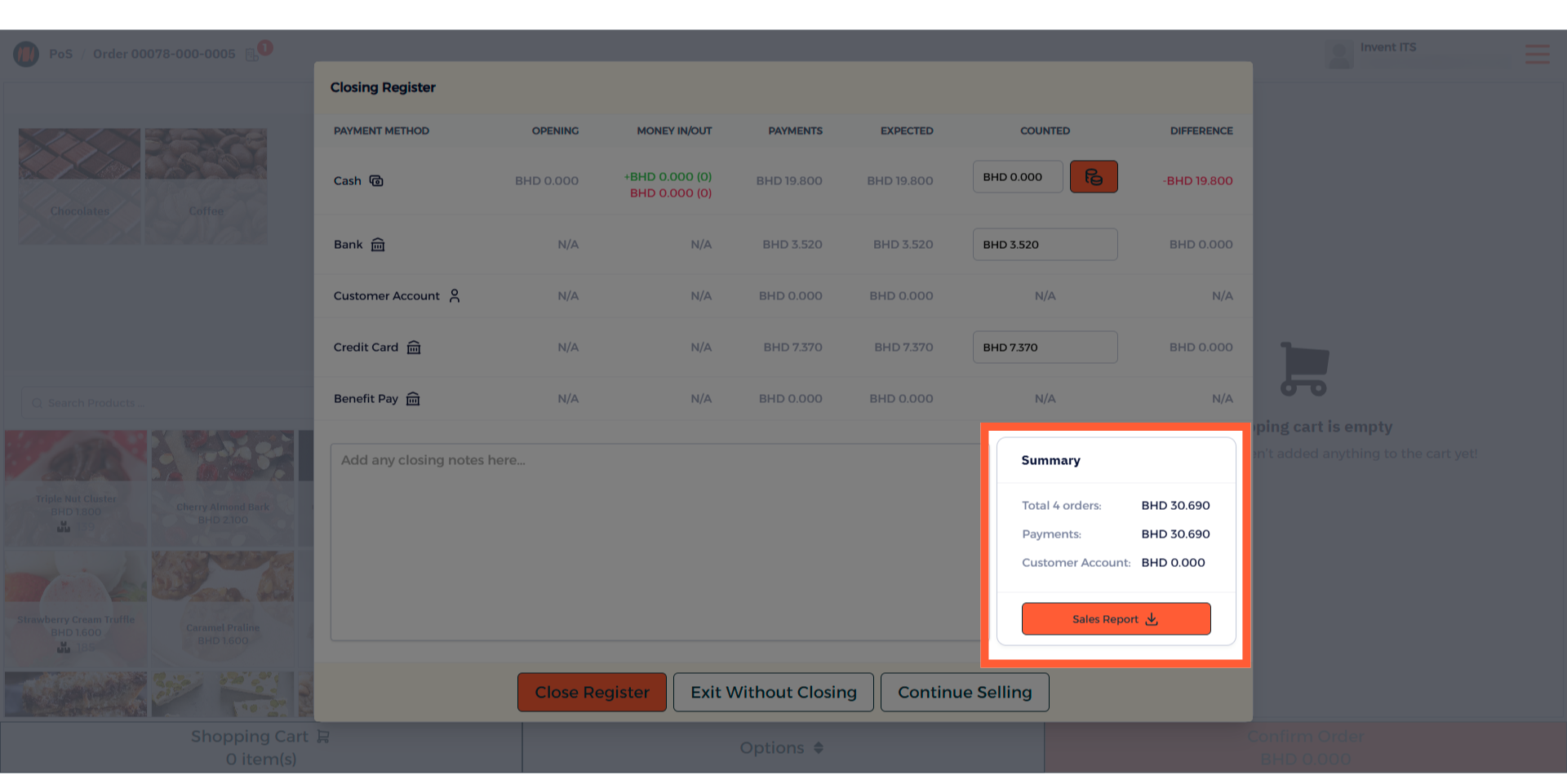
When you're finished with all the day's orders, close the register to proceed to the next step of generating the report.
Step 9: Generate POS Sales Report
You can click Sales Report to generate the report.
Notes & Tips
- Specify an Accurate Date Range: Always make sure to define your specific date range in the filters before exporting or analyzing data. Forgetting to set the correct range is a common cause of missing data or misleading totals, so adjusting this first will prevent reporting issues.
- Keep Up to Date with Your Reports: Regularly generate and review your POS reports rather than waiting until the end of the month. Staying on top of your daily or weekly sales data allows you to spot discrepancies early, monitor cash flow trends, and make timely business decisions.
FAQ
Q: Why do I need to generate reports? To track sales trends, monitor product performance, and ensure your physical cash matches system records. It creates a clear audit trail and helps you catch errors early.
Q: How often should I generate reports? It depends on your business needs. Specify how often you'd like the report and stick to that schedule.